

How to Import Activity Bookings Into One Trip Itinerary
Import tours, excursions and tickets into a single itinerary: what importing means, the steps, the details to verify, and how to share activities with your group.

On this page

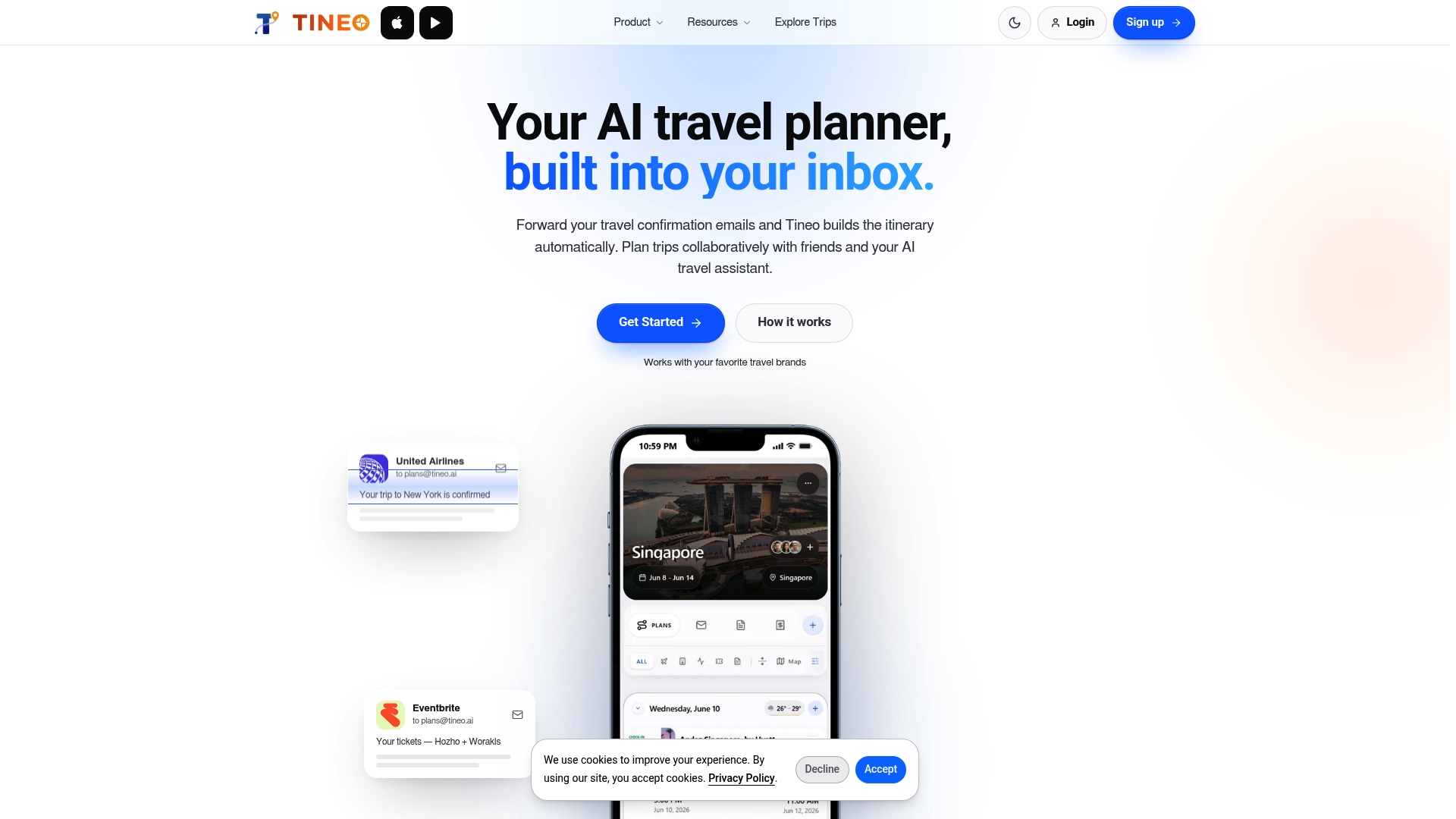
Importing an activity booking means taking the reservation you already made, a food tour, a museum ticket, a snorkeling trip, and placing it in your trip itinerary with its date, time and meeting point, so you never dig through email to find it. The most reliable route is to start from the confirmation email, because it holds every detail the provider promised you. At Tineo, we built our app to turn those booking confirmation emails into an organized trip, and activities sit on the same timeline as your flights, lodging and car rentals.
TL;DR
- Importing an activity booking means adding the reservation to your itinerary on the correct day, with time, location and booking reference attached.
- Start from the confirmation email: it is the source of truth for the start time, meeting point, inclusions and cancellation terms.
- Tineo turns booking confirmation emails into a shared itinerary, so activities appear alongside flights, hotels and rentals.
- After any import, check names, local start time, meeting point, group size and cancellation rules against the original confirmation.
- Share the finished itinerary with your group so everyone sees the same plan.
Table of Contents
- What importing an activity booking actually means
- Why activities are the bookings that get lost
- Step-by-step: bring an activity booking into your itinerary
- The two-minute check after every import
- Fixing a missing or wrong activity
- Organizing activities for a group trip
- What to do when you have no confirmation email
- Where Tineo fits
- A short routine to keep activities organized all trip
- FAQ
- Sources
What importing an activity booking actually means
The phrase is used in two ways, and it helps to separate them.
The first is what travelers do: you booked a tour through a marketplace or an operator’s website, and you want that reservation to live in your itinerary instead of in one of fifty emails. That is the meaning this guide covers.
The second is what travel businesses do: tour operators and software vendors connect booking systems to each other through integrations. One example is a tour-planning tool that lets an agent import a G Adventures booking by its booking ID and add it to the right day or days of an itinerary. That is a professional workflow, built for companies that sell trips. If you are a traveler organizing your own trip, you do not need an integration. You need a way to get a confirmation into your plan accurately.
Whichever way it happens, a good import carries the same pieces of information:
- The name of the activity and the provider
- The date and the local start time
- The meeting point or pickup instructions
- The booking reference or confirmation number
- The number of participants
- The cancellation and change terms
If any of these is missing from your itinerary, you will end up searching your inbox at the moment you least want to, usually standing at a curb with a dying phone.
Why activities are the bookings that get lost
Flights and hotels tend to be well tracked. You booked them weeks ago, you know the airline, and you probably searched for them more than once. Activities are different, for a few reasons.
- They are booked late and in small pieces. A cooking class on Tuesday, a ferry on Thursday, a sunset cruise you added from the hotel lobby.
- They come from many senders. Each marketplace, operator and ticketing site uses its own email format, subject line and sender name.
- The key detail is easy to misread. A start time is local to the destination, the meeting point may differ from the address shown on the website, and the pickup may or may not be included.
- Other people paid or booked. In a group, one person often reserves for everyone, so the confirmation sits in a single inbox.
This is why the confirmation email, not a screenshot or a memory of the website, is the best thing to import from.
Step-by-step: bring an activity booking into your itinerary
1. Gather the confirmation emails in one pass
Search your inbox for the activity name, the marketplace or the word “confirmation”, and collect each reservation. Look in spam and promotions tabs too, since confirmations from smaller operators sometimes land there. If a booking was made on someone else’s account, ask them to send you the confirmation or add you to the trip.
This is the step where manual work piles up. With Tineo, the confirmation emails are the input: our app turns them into trip entries, so you are not retyping times and reference numbers into a spreadsheet.
2. Create the trip and bring the emails in
In Tineo, you build the trip from your booking confirmation emails. Flights, lodging, car rentals, activities and other reservations all land in one itinerary, on a single trip timeline. You can use it on the web, iOS or Android, so the same plan follows you from your laptop to your phone.
If you want the longer walkthrough of how confirmation emails become an itinerary, our guide to organizing travel confirmation emails covers it, and our travel itinerary organizer guide shows how imported bookings and a shareable plan fit together. If your confirmations live in Gmail, the Gmail travel organizer page is the place to start.
3. Confirm each activity is on the right day
Open the day-by-day view and scan it the way you would scan a schedule. Ask three questions:
- Does every activity sit on the date in its confirmation?
- Does the time make sense next to what comes before and after it? A 9:00 a.m. tour the morning after a late flight is a conflict worth knowing about now.
- Is there enough travel time between the hotel, the meeting point and the next stop?
This is the real advantage of having activities and transport on one timeline: conflicts that are invisible across separate emails become obvious in a single list.
4. Check the details against the original confirmation
An imported entry is only as good as the email behind it, so spend two minutes on verification. The checklist below is the one to run for every activity.
5. Add what the email did not say
A confirmation rarely says that you plan to walk to the meeting point, that a friend is bringing the tickets, or that you need to arrive early for lockers. Add those notes to the entry so they travel with it.
6. Share the itinerary
Once the activities are in, share the trip so everyone sees the same schedule. More on that below.
The two-minute check after every import
Booking details are where small errors cause big problems. A guide on confirmation emails from Booked Life groups the checks into identity, core details, payment, rules and next steps. Applied to an activity, that becomes a short routine:
| What to check | Why it matters for an activity |
|---|---|
| Name, email and phone | Operators often match the lead booker’s name at check-in |
| Date and local start time | The time is local to the destination, not your home time zone |
| Meeting point or pickup | Some tours include hotel pickup, others expect you at a separate spot |
| Number and ages of participants | Child pricing and age limits can change what you are allowed to join |
| Inclusions and exclusions | Entry fees, meals, equipment and gratuities are often listed separately |
| Total price including taxes and fees | Lets you reconcile the cost with your budget |
| Cancellation and no-show terms | Tells you the last moment you can change plans |
| Fitness or equipment requirements | Some activities need closed-toe shoes, swimwear or a minimum fitness level |
The last two rows deserve attention. Cancellation rules differ between providers, and a free-cancellation window is often measured in hours before the start. Put that deadline in the activity’s notes so it is visible when the weather turns or the group changes its mind. For lodging, the same logic applies; our explainer on how lodging cancellation policies work shows how to read those terms.
Traveling with young children
Families have an extra layer to confirm: whether an activity suits the youngest traveler, whether child tickets are listed under the right age, and what you need to bring. If your trip overlaps with a big developmental change, such as toilet training, a potty training travel checklist can help you decide what to pack and plan around before you lock in long tours with no restroom stops.
Fixing a missing or wrong activity
Even a clean import occasionally needs a correction. Work through these cases in order.
An activity did not appear. Check that you are looking at the right trip and the right dates. Then open the original email: some providers send the real confirmation separately from a “we received your request” message, and only the confirmed booking has the details you need. If the reservation is still pending, the itinerary cannot be complete until the provider confirms.
A time or location looks wrong. Compare the entry with the confirmation. If the two disagree, trust the confirmation, then correct the entry and add a note. If the confirmation itself looks wrong, such as a start time that contradicts the website, contact the provider using the details in the email before you travel.
The booking was made by someone else. The lead booker holds the confirmation. Ask them to share it, then bring it into the trip so the details are not trapped in one inbox.
The activity changed after you booked. Operators sometimes move departure times or swap meeting points. When an update email arrives, treat it as the new source of truth and update your itinerary so the old time does not linger.
The habit that prevents most of these problems is simple: every time a new confirmation arrives, bring it into the trip that same day.
Organizing activities for a group trip
When four families or eight friends travel together, the hardest part is rarely the booking. It is that everyone holds a different version of the plan.
A shared itinerary solves this. With Tineo, you can collaborate with friends or family on a trip, so the group works from one timeline instead of a chain of messages. Some practical ways to use it:
- Note who is on which activity. Not everyone joins every excursion, and the reservation’s participant list should match who is actually going.
- Keep the lead booker’s reference visible. The person who reserved is the person the operator will ask for.
- Put payment notes on the entry. If one traveler covered the cost, say so, so you can settle up later.
- Mark the cancellation deadline. A group decision usually needs a day or two, so the deadline should be seen early.
Our guide to managing trip participants covers invites, bookings and updates for the people on a trip, and the group trip planner page shows how a shared itinerary, polls and costs fit together.
What to do when you have no confirmation email
Some bookings happen at a desk, a kiosk or by phone, and you receive only a printed voucher or a screenshot. In that case, enter the key details yourself: activity name, date, local start time, meeting point, reference number and the provider’s phone number. If you want a blank structure to work from, our free itinerary template can be printed or copied to Google Docs.
For anything you can get by email, though, importing from the confirmation is faster and less error-prone than typing.
Where Tineo fits
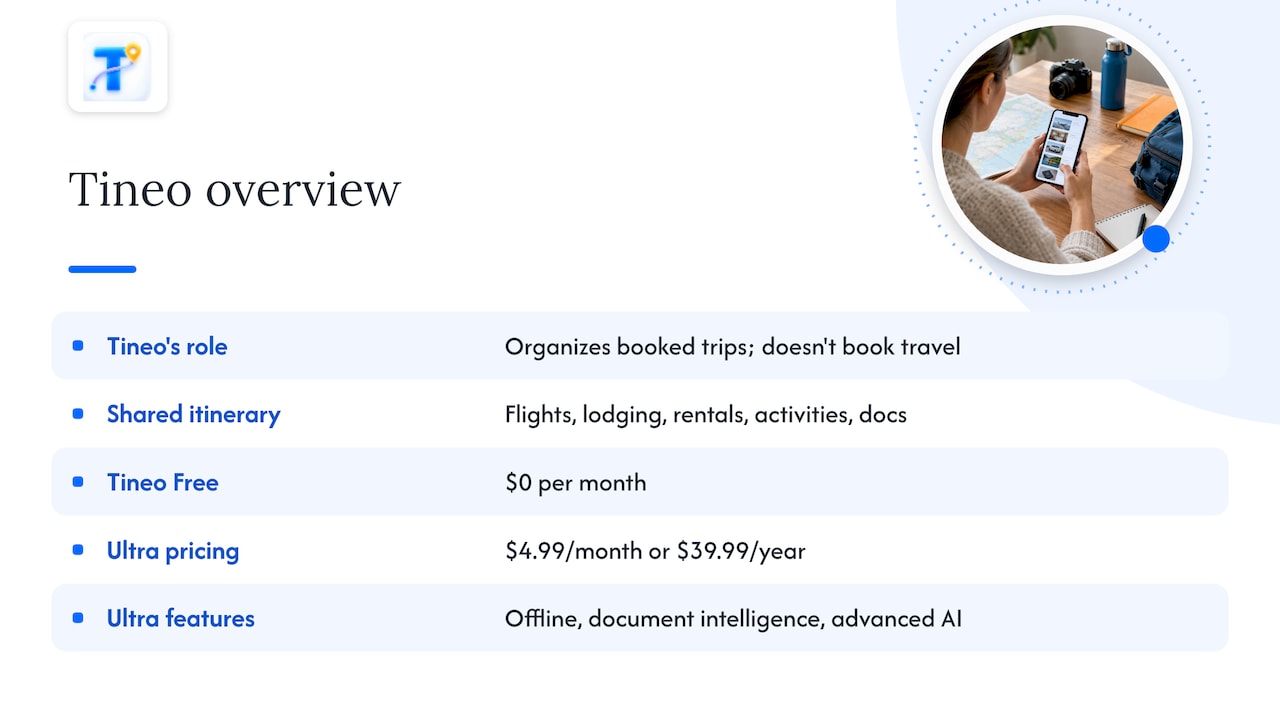
Tineo is built for the moment after you book: you have the reservations, and now you want them in one place. Confirmation emails become a shared itinerary, and flights, lodging, car rentals and activities sit together with documents and trip details. It works across web, iOS and Android, and the Ultra plan adds offline access, document intelligence and advanced AI features, along with an AI travel assistant that answers questions in the context of your trip.
Tineo Free costs $0 per month. Tineo Ultra is $4.99 per month or $39.99 per year, as listed on our pricing page. You can see how the pieces come together on the itinerary app page.
Tineo organizes trips you have already booked. It does not book travel for you, so you keep booking activities with the provider you choose and bring the confirmation into your itinerary.
A short routine to keep activities organized all trip
Once the import habit is in place, a few small practices keep the itinerary trustworthy:
- Import the day you book. The confirmation is freshest, and you will remember context that is not in the email.
- Review the next 48 hours every evening. Check times, meeting points and weather-sensitive plans.
- Keep the confirmation reference in the entry. It is the first thing an operator asks for.
- Update on change. When a provider emails a new time, edit the entry the same day.
- Make room for slack. Leave a gap between activities so one late start does not cascade.
FAQ
What does import booking mean?
It means bringing a reservation you already made into a different system, here your trip itinerary, so the details are stored in one place. For travelers, that usually starts from the confirmation email. Travel businesses also use the term for connecting booking systems, for example importing a supplier booking by its ID into a planning tool.
Can I import activity bookings from different providers into one itinerary?
Yes. Activities booked through different marketplaces and operators can sit on the same timeline, and in Tineo they appear alongside flights, lodging and car rentals. The confirmation email from each provider is the input.
What should I check after importing an activity?
Check the name on the booking, the date and local start time, the meeting point or pickup, the number and ages of participants, inclusions, the total price and the cancellation terms. Compare each against the original confirmation.
How do I share activity bookings with my travel group?
Share the trip itinerary so everyone sees the same schedule, and note who is joining each activity and who holds the booking reference. Tineo lets you collaborate with friends or family on a trip.
Sources
- GAdventures Booking Import, Nezasa Help Center
- Booking Confirmation Emails: What to Check Fast, Booked Life
- Potty training travel checklist, Baby Bare Essentials