

Travel Itinerary Organizer: Import Bookings, Share a Copyable Plan
Organize travel bookings with an itinerary workflow, email import, cross device sharing, and copyable day by day plans you can use right away.

On this page

A practical way to organize a trip is to use an itinerary organizer that can import booking confirmations, sync with your calendar, and share plans with travel companions. Tools built around email import and calendar sync, with Tineo as one example, can reduce manual data entry. Below we cover the main approaches, a feature checklist, a workflow, and copyable templates you can use.
TL;DR:
- Shared calendars fit tightly timed group trips, while spreadsheets suit custom budget tracking and printable cards preserve essential details when service disappears.
- Before committing to an organizer, test one real booking email and check whether it extracts the date, time, and confirmation code accurately.
- Build schedules around fixed flights, arrival times, and reservations first, then add flexible activities and buffer time to reduce conflicts.
- Assign one group coordinator to manage schedule updates, and give companions read access unless they need to edit the shared itinerary.
- AI can consolidate bookings and answer itinerary questions, but it cannot book travel or guarantee outcomes, so verify details with providers.
Table of Contents
- Practical approaches to organizing your trip
- Checklist: features to prioritize when picking an itinerary organizer
- Step-by-step workflow for building your itinerary
- Copyable templates: day-by-day plan, master list, and travel card
- Try an app that auto-imports confirmations and syncs everywhere
- FAQ
- Sources
Practical approaches to organizing your trip
Different trips call for different tools, and the right choice depends on how much detail you need to track and who else is coming along.
- Dedicated itinerary apps set up quickly, bundle sharing features, and work well on mobile for travelers who want everything in one screen.
- Shared calendars suit tightly timed trips where flight windows, check-in times, and reservations need to line up precisely for everyone involved.
- Spreadsheets or Airtable templates, including the community Trip Planner/Itinerary template, work best when you need custom fields for budgets or expense tracking.
- Email import and confirmation parsing pull flight, hotel, and car rental details straight from your inbox, which reduces the retyping that causes most itinerary errors.
- Printable or compact reference cards give you an offline backup with flight times, hotel addresses, and emergency numbers for travel days when you cannot rely on signal.
If you are migrating from a retired app such as TripCase, gather your confirmation emails from your inbox and, if the old app allows it, download your trip data. Importing those emails into a new organizer can help rebuild your itinerary without starting from scratch.
Checklist: features to prioritize when picking an itinerary organizer
Not every app handles the same jobs well, so it helps to judge any tool, template, or workflow against a short list of features that actually save time.
- Email confirmation import that automatically parses provider names, travel times, and confirmation codes from booking emails.
- Calendar sync, ideally with ICS export and two-way integration, plus map or directions links for each stop.
- Offline access to critical documents like boarding passes and hotel vouchers when you lose a signal.
- Collaborative sharing with edit permissions so travel companions can add notes or claim tasks without creating duplicate itineraries.
- Document storage for passports, visas, and emergency contacts attached directly to the relevant trip.
- Export and data portability, so you can download your trip as a CSV, ICS, or ZIP file if you switch tools later.
- AI assistance, where available, for consolidating scattered bookings into one itinerary automatically.
Pro Tip: Before committing to any app, test the email import with one real confirmation first. How cleanly it pulls out the date, time, and confirmation code tells you a lot about how much manual cleanup you will do on every future booking.
Step-by-step workflow for building your itinerary
Building a usable itinerary is less about the tool and more about the order you do things in. Follow these steps from the moment you start booking to the day you land.
- Search your inbox for confirmation emails using terms like “booking confirmation,” “reservation,” or “e-ticket,” then forward or import each one into your organizer.
- Enter confirmation codes, flight numbers, and provider contact numbers first, since these are the details you will need fastest if a plan changes.
- Build a day-by-day schedule starting with fixed times (flights, check-ins, reservations) before layering in flexible activities and buffer time between them.
- Sync your must-have events to your personal calendar and attach map links so directions are one tap away.
- Share the itinerary with your travel companions, assign one person as the owner for updates, and turn on notifications for schedule changes.
- Prepare for offline moments by downloading key documents, saving screenshots of boarding passes, and caching maps for your destination.
- While traveling, add quick notes, save receipts, and make small edits as plans shift, so the itinerary stays the single place everyone checks.
Groups traveling together, such as school or performance groups, often benefit from assigning a coordinator early. Group Travel Network’s guide to group itineraries offers suggestions for building schedules that keep everyone on the same page.
Copyable templates: day-by-day plan, master list, and travel card
You can paste these directly into a spreadsheet, note, or itinerary app and start filling them in today.
- Day-by-day plan columns: Date, Time, Item, Location, Confirmation Code, Directions Link, Notes. Example row: “March 14, 2026, 9:00 AM, Flight to Lisbon, JFK Terminal 4, ABC123, [map link], arrive 2 hours early.”
- Master reservations list columns: Type, Provider, Confirmation Code, Check-in/Check-out, Contact Number, Booking URL. This becomes your single reference for every flight, hotel, and rental car on the trip.
- Compact travel card fields: flight numbers and times, hotel name and address, local emergency contact, and one backup contact at home. Keep this on one screen or printed page for travel days.
If you use a spreadsheet, share it as a view-only link for companions who just need to check details, and a full-edit link for whoever is updating it. In an app, look for a native share feature that keeps everyone synced without exporting a new copy each time something changes.
Try an app that auto-imports confirmations and syncs everywhere
We built Tineo around the workflow above: import your booking confirmations and we organize them into one itinerary, reducing the need to retype your travel details. From there, the trip stays synced across web, iOS, and Android, works offline for the documents you need most, and updates for everyone you share it with.
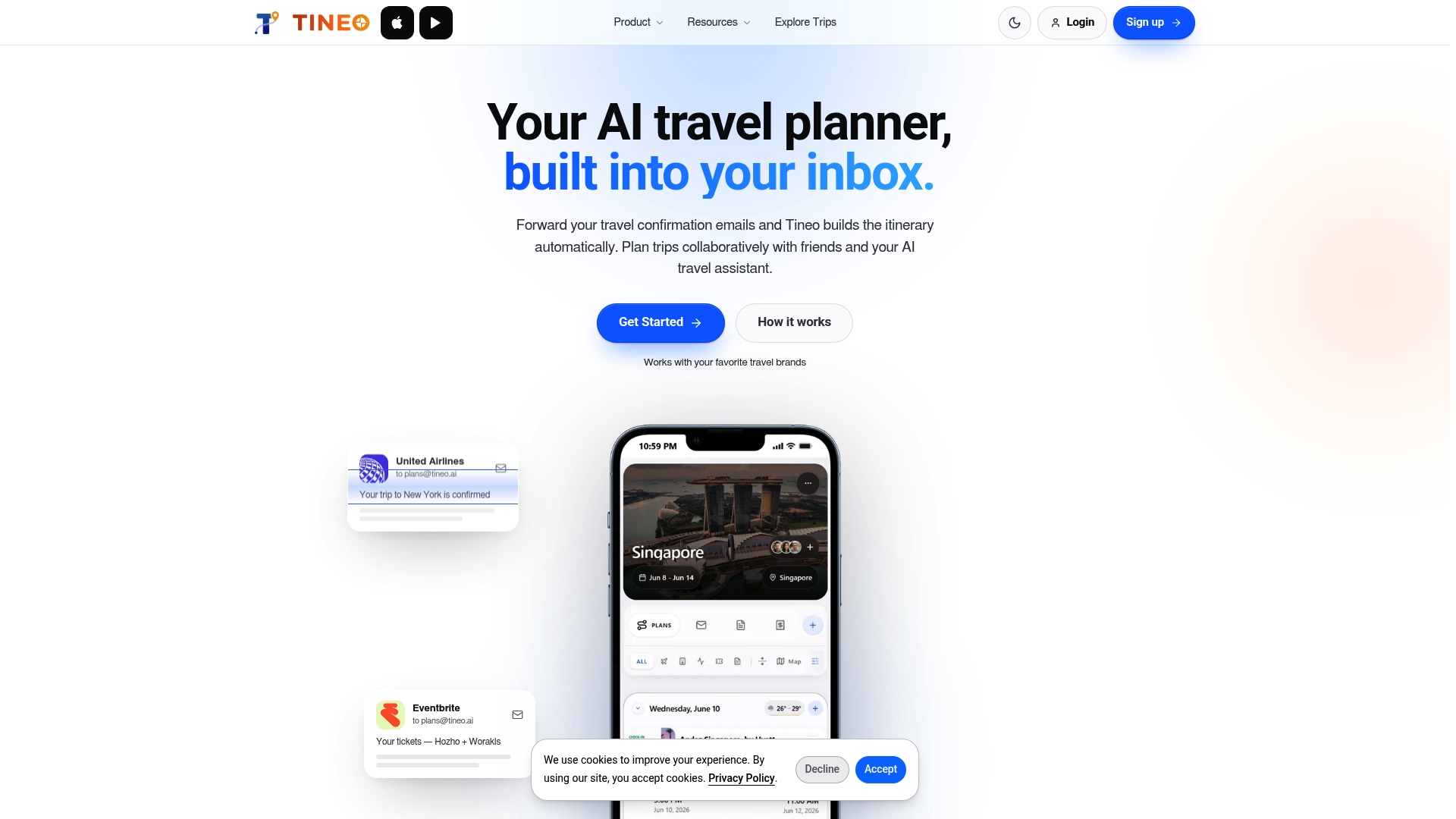
If you want to see how this feels on a real trip, Tineo Free is listed at $0 per month, and Tineo Ultra is listed at $4.99 per month or $39.99 per year. Learn more about how the app organizes bookings on our trip organizer app page, or head straight to Tineo to start your first trip.
FAQ
What is the best way to make an itinerary for a trip?
Start by gathering every booking confirmation in one place, then organize fixed events like flights and check-ins before layering in activities and buffer time. Using an itinerary organizer that imports confirmation emails and syncs to your calendar cuts the manual entry that usually causes the most mistakes.
What are the top 5 travel sites?
There is no single official ranking of the “top” travel sites, since the right one depends on what you need. For flight searching, Google Flights offers calendar and price-graph views and updates prices approximately every 24 hours. You can also book flights through Google, though the airline or agency completes the booking and handles customer support.
What is the best travel organization app?
The best fit depends on whether you want email-import automation, calendar-first planning, or spreadsheet flexibility. Tineo focuses on auto-importing booking confirmations into one shared itinerary with offline access and cross-device sync, which suits travelers who want less manual entry and easier group coordination.
Can AI plan my trip?
AI tools can help consolidate bookings, suggest schedules, and answer questions about your itinerary, but they do not book travel or guarantee outcomes on your behalf. Tineo’s AI assistance works within your existing bookings to help organize and answer questions about the trip you already have.
Sources
For more on consolidating bookings, see our guides on organizing travel documents and comparing itinerary apps.
- Find plane tickets on Google Flights - Computer - Travel Help
- Trip Planner/Itinerary - Airtable Universe