

Email-to-itinerary apps: compare forwarding, PDFs, and booking changes
Compare Tineo, TripIt, and Wanderlog for booking-email import, PDFs, and inbox connections, then use a practical check for changes and cancellations.


On this page
Tineo, TripIt, and Wanderlog can turn reservation emails into organized trip details. Choose between them by checking three things: how your emails get in, what happens to attached documents, and how easily you can review a changed booking. Successful import of the first confirmation does not establish that later amendments or cancellations will always be reconciled correctly.
An email-to-itinerary workflow sends booking information to an app, which extracts details into a trip plan. Forwarding selects a message yourself; an inbox connection lets the service look for relevant messages. Either way, the useful result is a booking you can inspect and correct.
Product information checked September 14, 2026, using official sources. This guide is published by Tineo and compares documented capabilities; it does not claim independent product testing.
Tineo, TripIt, and Wanderlog: what the sources establish
Scroll sideways to read every column.
| App | Email entry methods | PDFs and documents | A practical reason to shortlist it |
|---|---|---|---|
| Tineo | Forwarding and connected Gmail import | Trip files can be kept with the itinerary; do not equate a saved file with fully extracted booking fields | You want confirmation import alongside a shared itinerary and an AI assistant |
| TripIt | Forwarding to [email protected]; Inbox Sync for Gmail, Yahoo, and Microsoft accounts | PDF and image documents can be added to plans, including on the free plan | Your starting point is existing reservations and a straightforward itinerary organizer |
| Wanderlog | Reservation-email forwarding and connected Gmail scanning | Reservations, confirmation emails, and attachments are kept with the plan; its Pro offering includes unlimited attachments | You want booking details alongside a map and places you are considering |
Sources: Tineo product overview, Tineo import overview, TripIt import methods, TripIt documents, and Wanderlog’s product and Pro features.
The plan differences matter. TripIt lists confirmation forwarding, Inbox Sync, and documents on its free product page; its document help specifies three files per trip for all users and 25 for Pro. Wanderlog currently lists automatic Gmail scanning and offline access under Pro. Do not mistake Wanderlog’s paid Gmail scanning for an absence of email forwarding. TripIt document limits, Wanderlog Pro features.
There is no parser-accuracy score in this comparison. The public sources establish features, not which app will handle your particular independent hotel, rewritten email, or multi-ticket attachment most reliably. Use a real upcoming booking to evaluate the workflow before moving everything.
Choose the input method that matches your inbox
Manual forwarding gives you a deliberate selection step. It suits occasional trips, bookings received across several inboxes, or anyone who prefers choosing each message. Follow the app’s account and sender setup instructions, then forward the complete original confirmation with relevant attachments.
An inbox connection reduces repeated forwarding. Check the supported provider, requested access, account settings, and how to disconnect. For example, Tineo’s privacy policy describes its Gmail access and disconnection controls. A connection still leaves you responsible for checking that the expected bookings appeared.
A file upload can be useful when the reservation arrives as a PDF or image. Ask two separate questions: “Can this app store the file?” and “Can it extract an itinerary from this file?” A yes to the first does not answer the second.
If the source is only a sign-in link, open the booking yourself and look for a downloadable confirmation or full itinerary. Forwarding a link does not give an itinerary service your authenticated view of the provider’s website.
Review the first import before forwarding the rest
Compare the created item with the original confirmation. Check the traveler, booking reference, date, local times, and exact departure or arrival location. For accommodation, check both arrival and departure dates and the property address. Open the attachment as well as the itinerary item.
Then look at the surrounding trip. Did the booking land in the correct trip? Did a two-leg journey produce the expected legs? Are two separate rooms or travelers still distinguishable? A tidy card can contain incomplete information.
Keep a short list of unresolved issues. “Time missing” is useful. “Import looks strange” is harder to act on. If the app offers manual editing or support, use that route with the original confirmation available.
Follow a booking through four stages
Illustrative workflow, using fictional rail reference EXAMPLE-R1. These are checks a traveler can perform, not observed results from Tineo, TripIt, or Wanderlog.
Scroll sideways to read every column.
| Stage | Message received | What you check in the itinerary |
|---|---|---|
| Confirmation | Train at 09:10 on October 10 | Correct date, stations, traveler, reference, and ticket |
| Amendment | Departure changes to 10:25 | The active item shows the revised time; an old 09:10 item is not still presented as another journey |
| Cancellation | Original reservation is canceled | The old journey is clearly canceled or removed from the active plan; no longer treated as travel you will take |
| Replacement | A new booking has reference EXAMPLE-R2 | The replacement has its own correct details and current ticket; EXAMPLE-R1 is not mistaken for the new booking |
At each stage, first establish what the provider or booking agent says. Then check what the app did. Forwarding a cancellation notice is not itself a cancellation request to the provider, and removing a card from an itinerary does not cancel a reservation.
After an amendment, review anything affected by the new timing: a pickup, a later booking, or a companion’s plan. Decide using your actual booking conditions and local circumstances; a generic transfer buffer cannot resolve every itinerary.
For a separate record of decisions and unresolved changes, use the travel booking change tracker. Keep original messages even when the current itinerary looks correct.
When a PDF saves correctly but the booking does not
Start by identifying the outcome: no itinerary item, incorrect fields, missing attachment, or duplicate item. Those are different problems and may need different fixes.
Check whether the PDF contains the full booking, a receipt, or instructions for obtaining a ticket elsewhere. If the message has several attachments, inspect each one. TripIt’s submission help says it reads only the first attachment in a submitted email and recommends sending attachments individually when needed. It also identifies altered email formats and sign-in-only booking links as potential import problems. TripIt submission troubleshooting.
Avoid sending the same message repeatedly before checking the import status and existing trip. If details remain incomplete, keep the source document accessible and enter the missing plan manually where the app allows it. A complete manual entry is more useful than an unresolved automatic one.
A small comparison you can run yourself
Choose one original confirmation, one relevant attachment, and one genuine amendment if you have one. Do not send unnecessary personal correspondence simply to test a feature. Use each shortlisted app’s supported workflow, then record:
- Did the expected booking appear in the correct trip?
- Which fields needed correction?
- Could you open the actual attachment?
- Was the current booking easy to distinguish from the earlier version?
- Did the required workflow fit the plan and inbox access you wanted?
Judge the work left for you, not just the speed of the initial import. This exercise can also show that your existing app is sufficient and only your review habit needs changing.
Questions about email-to-itinerary apps
Can I do this without connecting my whole inbox?
Yes. Tineo, TripIt, and Wanderlog document email-forwarding options. Follow the selected app’s sender and account instructions and forward only the messages you want processed. Tineo, TripIt, Wanderlog.
Does a PDF attachment automatically become an itinerary?
Not necessarily. Document storage and booking extraction are separate capabilities. Check whether a usable itinerary item was created and whether its details match the document.
Will forwarding a cancellation remove the booking correctly?
Do not assume so. Verify the reservation’s status with the provider or booking agent, then inspect the active itinerary. This guide has not tested automatic cancellation reconciliation across the three apps.
If you want to try Tineo, start with one original confirmation and review the resulting trip before importing more. Explore Tineo. If finding the right message is the bigger problem, first use our guide to organizing travel confirmations.
Keep reading
Travel Tips
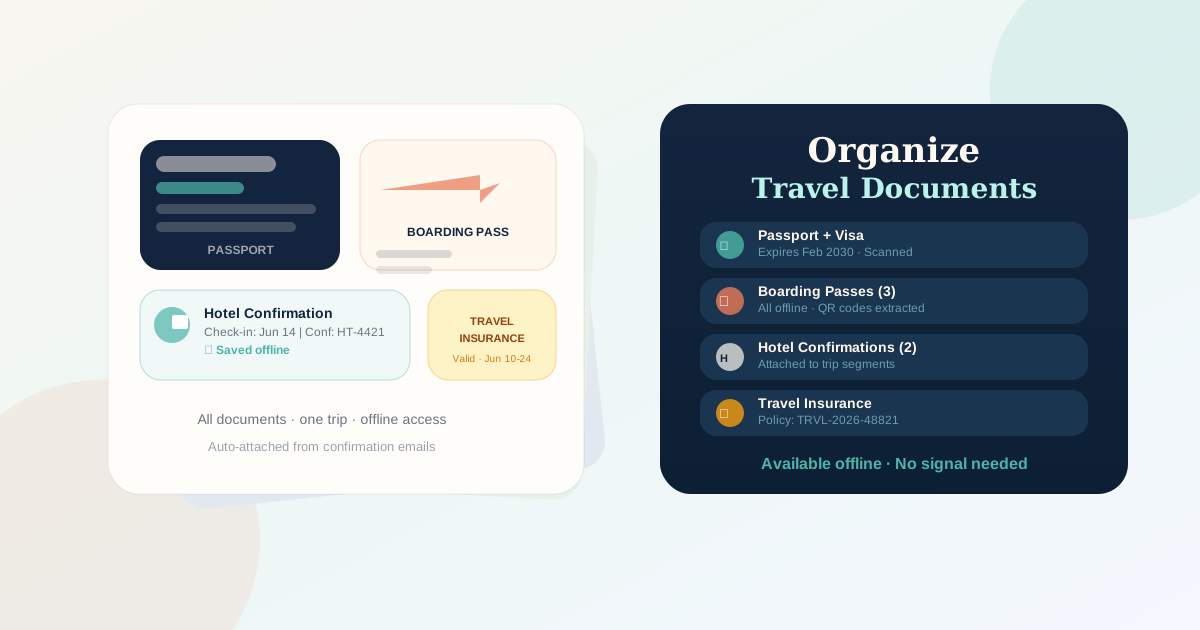
Travel Document Organizer App: How to Store Trip Files
How to organize passports, visas, ETAs, insurance, booking PDFs, boarding passes, and trip files with security caveats and a Tineo workflow.

Travel Tips
How to organize travel confirmation emails and find the right version
Organize booking emails, tickets, and itinerary details with a simple trip index. Keep original records and find the current confirmation when plans change.

Destination Guide
Bali Itinerary: 7 Days Between Beaches and Temples
A 7-day Bali itinerary covering Ubud's rice terraces, the southern beach towns, and a flexible final stretch, with driver and booking tips.