

Copy Ready Six Column Travel Itinerary Template for Visa Ready Trips
Copy the six column table into Sheets or Excel to build a visa ready travel itinerary. Edit quickly, add buffer time, share live, or auto import booking...

On this page

The fastest fix is to copy the day-by-day table further down this page straight into Google Sheets or Google Docs, then swap in your own dates and bookings. For collaboration, use Sheets or Docs. For offline or printed copies, use Excel or Word. For a designed, print-ready itinerary, use Canva or Adobe Express. Whichever you pick, editing a ready-made travel itinerary template beats building a schedule from a blank page every time.
TL;DR:
- Copying a pre-made itinerary table into Sheets or Excel allows quick customization with your dates and bookings, saving time over building from scratch.
- For group trips, Google Sheets or Docs enable real-time collaboration and sharing with a single link, ideal for multiple editors.
- Every itinerary should include daily schedules, accommodation details, transport info, brief activity descriptions, and emergency contacts to ensure smooth travel.
- Using PDFs for final versions and adding maps or PDFs of travel documents directly into the itinerary prevents connectivity issues and streamlines access.
- Automating itinerary creation via tools like Tineo, which imports confirmation emails, reduces manual entry and keeps trip details synchronized across devices.
Table of Contents
- Where Can I Find Editable Travel Itinerary Templates?
- What Should Every Travel Itinerary Include?
- Which File Format Should You Use for Your Itinerary?
- A Copy-Ready Itinerary Table You Can Use Today
- How Do You Customize and Share a Template Quickly?
- How Should You Organize Templates for Different Trip Types?
- Should You Sync Your Itinerary With a Calendar or Travel App?
- Where Should Budget Tracking Go in Your Itinerary?
- How Do You Build Flexibility Into a Travel Itinerary?
- How Do You Add Maps and Travel Documents to a Digital Itinerary?
- Try Tineo for Automatic Itinerary Building From Your Booking Emails
- Sources
- FAQ
Where Can I Find Editable Travel Itinerary Templates?
Four sources cover almost every situation, and each one solves a different problem.
- Canva and Adobe Express specialize in visual polish. They’re built for printable itinerary designs with color coding, icons, and layout you’d actually want to print and hand to a travel companion. Some of the nicer layouts sit behind Canva Pro, so check before you commit to a design you can’t export for free.
- Google Docs and Google Sheets are the default for anyone traveling with other people. Both are free, both update in real time, and both let you share a single link instead of emailing a document back and forth every time someone changes a flight.
- Template libraries and browser-based builders, such as Gather & Go Travel and dedicated builder tools, hand you ready-made files in Word, Excel, or Sheets format. Some builders let you assemble a day-by-day plan directly in the browser and export it to Sheets, Excel, PDF, or CSV, often without creating an account.
- Notion, if you already live inside it for other planning, works as a flexible database that can hold your itinerary alongside packing lists and budget trackers.
Pick one source based on how you’ll use the file. If three friends need to edit the same trip on their phones tonight, that’s Sheets. If you need something to hand a visa officer or print for a road trip, that’s Word, Excel, or a Canva PDF.
What Should Every Travel Itinerary Include?
A travel itinerary only works if it answers the same five questions for every single day of the trip. Skip one of these and you’ll be scrambling at check-in or, worse, at a border crossing.
- Daily schedule with date and time blocks. Break each day into morning, afternoon, and evening rather than an hour-by-hour grid. Hour-by-hour plans look thorough but fall apart the moment a flight is delayed.
- Accommodation with full address and contact info. Every night needs a name, street address, and phone number, even if you’re staying somewhere for one night.
- Transport entries. List the carrier, flight or train number, and departure and arrival times for every leg, whether it’s a long-haul flight or a two-hour bus ride.
- Activities, briefly described. One main activity per time block is plenty. A one-line description (“Louvre visit, pre-booked timed entry”) is more useful than a paragraph.
- Contacts, emergency info, and a trip summary. Total number of days, main destinations, and a rough cost estimate at the top of the document save you from digging through pages later.
A structured, day-by-day plan is exactly what many embassies expect from applicants proving their travel itinerary for visa purposes, and the same five fields above cover that requirement without extra work.
Pro Tip: Resist the urge to schedule every hour. Consulate reviewers and travel companions alike respond better to a realistic plan than an hour-by-hour itinerary that looks impossible to actually follow.
Which File Format Should You Use for Your Itinerary?
The right format depends on whether you’re planning solo, with a group, or for a formal submission.
- Google Sheets or Docs wins for group trips. Everyone edits the same file, sees updates instantly, and you share it with one link instead of five email attachments.
- Excel is the better pick for offline work or anything that needs conditional formatting, like color-coding confirmed versus pending bookings. Excel also lets you insert a line break inside a single cell using Alt+Enter (Windows) or Option+Return (Mac), which keeps a list of activities readable inside one table row instead of spilling into the next column.
- Word suits a clean, printable copy you’ll hand someone or tuck into a folder.
- PDF is the fixed, offline version you export from any of the above. It’s the safest format for your phone and for visa submissions, since nothing shifts or reflows when someone else opens it.
- Canva or Adobe Express produce a themed, designed document, best when the itinerary itself is part of the trip’s presentation, like a group vacation keepsake.
- Notion works if your itinerary needs to link directly into other trip pages, like packing lists or a shared budget.
A Copy-Ready Itinerary Table You Can Use Today
This is the fastest way to skip the planning problem entirely: copy the six columns below into Sheets or Excel and start filling in rows.
| Day & Date | City/Country | Accommodation | Main Plan | Transport | Notes/Booking Refs |
|---|---|---|---|---|---|
| Day 1 | Lisbon, Portugal | Hotel Lumiares, RUA do Dario de Notícias | Arrival, check in, evening walk in Bairro Alto | Flight TAP, lands afternoon | Confirmation, airport transfer prebooked |
That single filled row shows the level of detail you’re aiming for: real address, real flight number, one main activity, and a booking reference you can verify later. A simple six-column table like this is also the layout consulates commonly recognize, which matters if you’re building this itinerary for a Schengen visa application or another formal travel-document review.
If your itinerary needs to support a visa application, be detailed but realistic. List the city, the accommodation address, and the day’s main plan for every date of the trip. Skip the hour-by-hour breakdown; a reviewer wants to see a credible plan, not a script.
Pro Tip: Export a PDF copy for offline use the moment your itinerary is finalized, and send collaborators the live Sheets link instead of the PDF, so they’re always looking at the current version, not a snapshot from three edits ago.
How Do You Customize and Share a Template Quickly?
Six steps take you from blank template to finished itinerary:
- Set the trip’s start and end dates first, so every row has a date anchor.
- Enter accommodations for every night, address included, before anything else.
- Import booking references from your confirmation emails into the Notes column.
- Add one main activity per morning, afternoon, and evening block. Resist adding a second.
- Fill in transport lines with carrier, number, and time for every leg.
- Run one final pass checking that dates match your actual bookings.
Inside Sheets, hyperlink hotel names directly to their confirmation email or a map link, use conditional formatting to flag any row where a booking is still pending, and leave comments for anyone else editing the file so questions don’t get lost in a separate group chat.
Pro Tip: Seasoned travelers plan one major activity per time block and build in a 30 to 90 minute buffer around transit, a rule confirmed by visa-itinerary guidance that applies just as well to a casual weekend trip as it does to a formal travel plan.
Before you export, double check time zones across every leg and confirm your PDF actually opens cleanly on a phone. A file that looks fine on a laptop can turn into an unreadable wall of text on a five-inch screen.
How Should You Organize Templates for Different Trip Types?
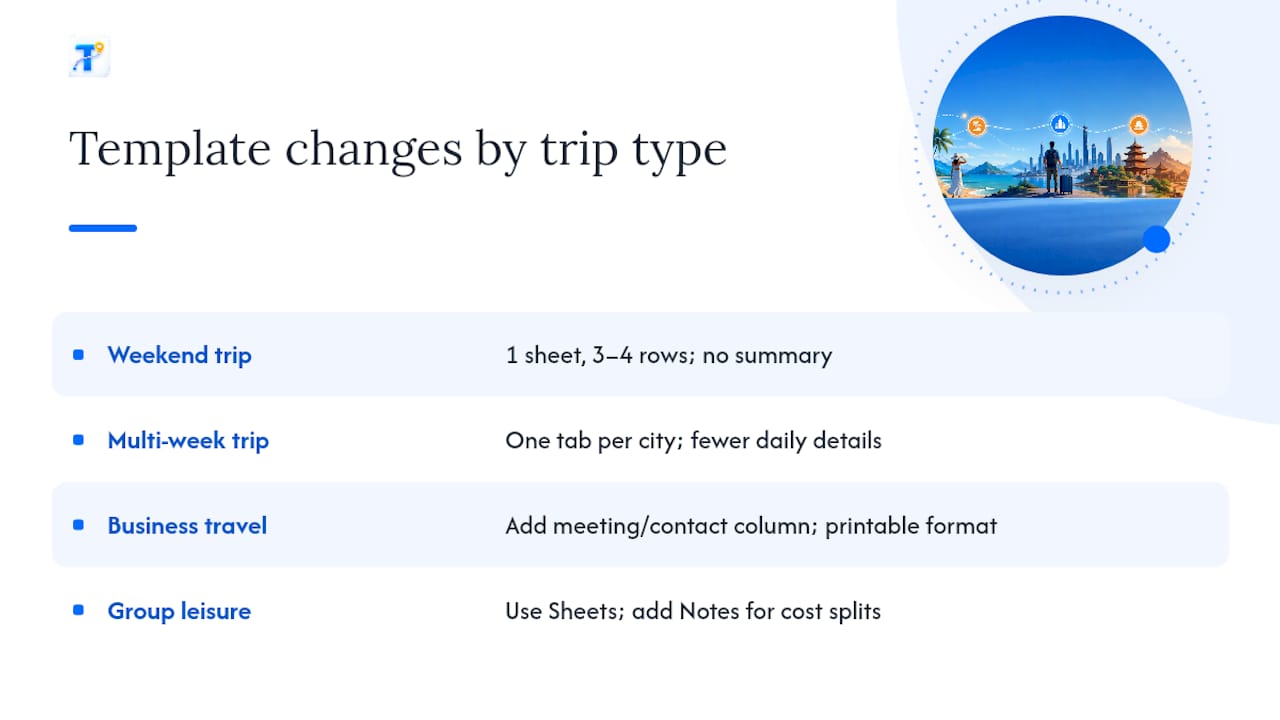
A weekend trip and a six-week backpacking route don’t need the same document, and forcing one template to do both jobs usually backfires.
For a weekend trip, one sheet with three or four rows is enough. Skip the trip summary section entirely and drop straight into daily plans, since there isn’t much to summarize.
For a multi-week trip, split the itinerary into one tab or section per city or region. A single continuous table becomes hard to scroll through once you pass ten or twelve days, and separating by location makes it easy to jump straight to the section you need.
For business travel, add a column for meeting contacts and confirmation numbers separate from personal activities, and keep the format in Word or PDF for easy printing before a flight.
For leisure trips with a group, lean on Sheets so everyone can suggest edits without a chain of forwarded emails, and add a Notes column specifically for “who’s paying for what” if you’re splitting costs.
The trip length also decides how granular your time blocks should be. A weekend trip can handle slightly more detail per block since there’s less ground to cover. A multi-week trip needs the opposite: fewer specifics per day, because trying to plan activity-by-activity three weeks out almost always changes anyway.
Should You Sync Your Itinerary With a Calendar or Travel App?
A spreadsheet or document is great for planning, but it won’t remind you when your flight boards. Once your itinerary is filled in, transferring key dates into a calendar app closes that gap.
The simplest method is manual: block out flight times, check in windows, and activity reservations directly in Google Calendar or Apple Calendar, using the same details from your itinerary table. It takes a few minutes and means you get a notification whether or not you remember to check the spreadsheet that day.
For travelers who’d rather skip that manual step, an app that imports booking confirmations directly, rather than requiring you to retype them into a calendar, removes a layer of duplicate work. That’s a different workflow from a static template, and it’s worth knowing both options exist before you commit hours to building out a spreadsheet by hand for a trip with a dozen separate confirmation emails.
Whichever method you choose, keep one rule: the itinerary you’re actively updating should be the same one syncing to your phone. A calendar entry made once and never revisited is worse than no reminder at all if your flight time changes and the calendar doesn’t.
Where Should Budget Tracking Go in Your Itinerary?
A budget section belongs in the same file as your schedule, not in a separate app you’ll forget to open. Add a second tab in Sheets or Excel with columns for category, estimated cost, actual cost, and running total.
Keep the categories simple: accommodation, transport, food, activities, and miscellaneous. Five rows per city or per day is plenty. If you’re traveling with others, add a “paid by” column so splitting costs at the end of the trip doesn’t turn into a group reconstruction project.
Link the budget tab back to your main itinerary tab where it’s useful, for example, referencing the accommodation cost next to the hotel’s row on the schedule tab. That keeps the numbers close to the context that explains them, instead of buried in a separate spreadsheet you have to cross-reference manually.
For a trip summary at the top of your document, a rough total cost estimate gives you and any travel companions a shared number to check progress against, especially useful midway through a longer trip when it’s easy to lose track of what’s already been spent.
How Do You Build Flexibility Into a Travel Itinerary?
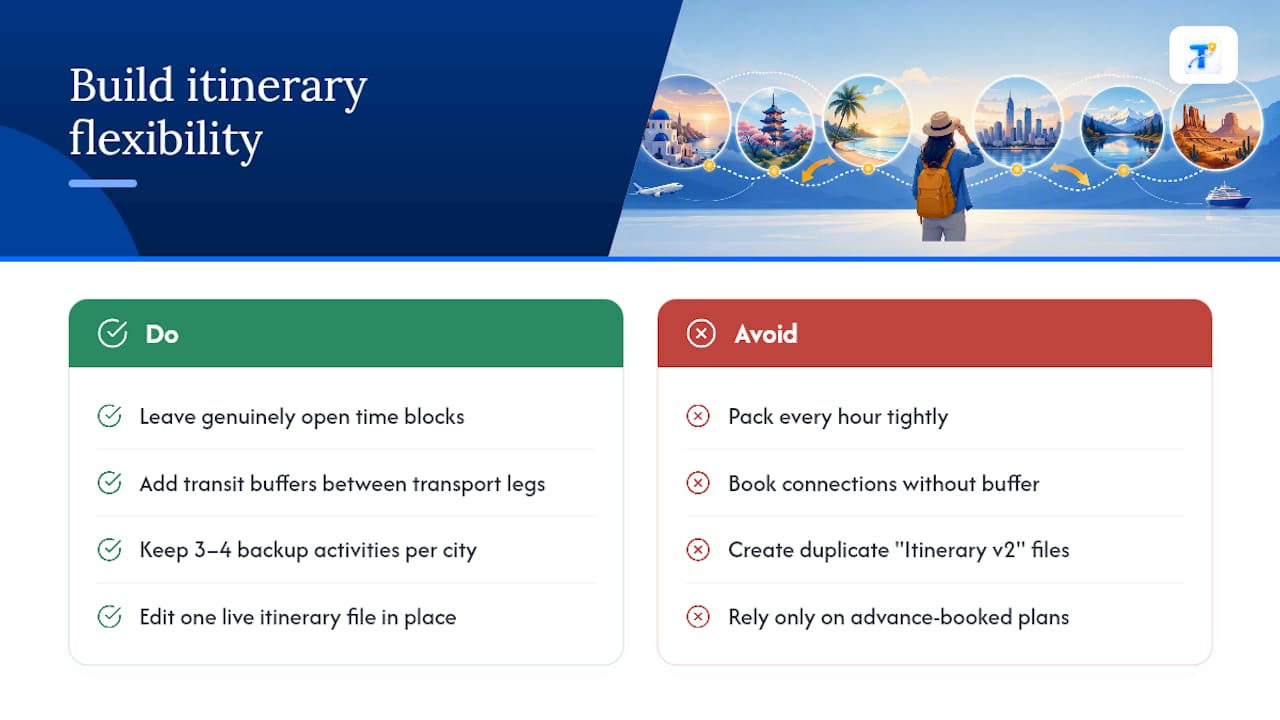
The itineraries that survive contact with reality are the ones built with slack in them, not the ones packed tight. Flight delays, closed attractions, and sudden weather changes are normal, not exceptions, and a template that can’t absorb them will feel broken by day two.
Leave a genuinely open block, not just a lightly scheduled one, at least once every few days. An empty afternoon isn’t wasted planning, it’s the buffer that saves the rest of the trip when something shifts. Build in transit buffers between every major transport leg, especially connections you didn’t book together, since a delayed first flight has no mercy for a tightly booked second one.
Keep a short backup list, three or four alternate activities per city that don’t require advance booking, so a canceled plan doesn’t turn into a lost afternoon. And treat your itinerary as a living document. If you’re using Sheets, edit the same file in place rather than creating “Itinerary v2,” so anyone else looking at it always sees the current plan instead of an outdated copy.
The buffer-time habit mentioned earlier for scheduling also does double duty here: a plan built around one main activity per block, with room around it, absorbs changes far better than a plan where every hour is already claimed.
How Do You Add Maps and Travel Documents to a Digital Itinerary?
A schedule alone won’t help you find the hotel from the airport. Add the essentials directly into your itinerary file so everything lives in one place instead of scattered across email, photos, and separate apps.
In Google Docs or Sheets, paste a Google Maps link directly into the accommodation or activity cell. Clicking it opens the location immediately, no separate search needed. For documents like passport scans, boarding passes, or hotel confirmations, attach PDFs directly in Google Drive and link to them from the relevant row, or embed them as an appendix at the end of a Word document.
For offline access when there’s no signal, in an unfamiliar train station or a country with limited data coverage, keep a downloaded PDF version of both your itinerary and your critical documents saved locally on your phone using Kin One travel device safety tools, not just in a cloud folder that needs an internet connection to open. That single habit avoids the most common travel-day panic: needing a boarding pass or hotel address with zero connectivity to retrieve it.
Try Tineo for Automatic Itinerary Building From Your Booking Emails
Building the table above by hand works well for a short trip with a handful of bookings. For a longer trip with a dozen confirmation emails scattered across airlines, hotels, and rental cars, retyping every detail into a spreadsheet gets old fast.

Tineo takes a different approach: instead of you copying flight numbers and hotel addresses into a template, Tineo auto-imports your booking confirmation emails and organizes them into a single trip timeline automatically. You still get the same day-by-day structure covered in this guide, flights, hotels, activities, contacts, but without the manual entry. The trip is viewable and editable across web, iOS, and Android, and you can share it with travel companions the same way you’d share a Sheets link, with everyone seeing live updates instead of a static export. Tineo also stores your documents and supports offline access for trips where signal isn’t guaranteed, and if you’re planning with a group, the shared itinerary tools work well for splitting up who’s tracking what.
This fits best if you’re traveling frequently, planning for a family, or coordinating a group where manual data entry can slow down the trip planning process. Tineo Free covers the core itinerary import and organizing features, and Tineo Ultra, at $4.99 per month or $39.99 per year, adds deeper AI assistance and document handling for travelers who want more automation. Start by forwarding a confirmation email to Tineo and see your next trip organized automatically instead of built row by row.
Sources
- Visa-requirements
- Schengen visa itinerary samples and table templates — Schengen Visa Support
- Travel Itinerary Template — Free Builder, Sheets & PDF
- Start a new line of text inside a cell in Excel — Microsoft Support
FAQ
Does Excel Have a Travel Itinerary Template?
Excel doesn’t ship with a dedicated travel itinerary template built in, but Microsoft’s template gallery includes downloadable options, and the six-column format in this article pastes directly into a blank Excel sheet in under a minute.
Does Google Docs Have an Itinerary Template?
Google Docs offers general planning templates in its template gallery, though not always labeled specifically as a travel itinerary; Google Sheets is usually the better starting point since the day-by-day table format in this guide fits a spreadsheet structure more naturally than a document.
What Should a Visa-Ready Itinerary Include?
A visa-ready itinerary needs a day-by-day breakdown with accommodation addresses, transport details, and at least one verifiable booking reference per travel day, following the structured table format consulates commonly recognize.
How Many Activities Should I Plan Per Day?
Plan one main activity per morning, afternoon, and evening block, roughly three total per day, and leave transit buffers between them so delays don’t collapse the rest of the schedule.
Is There an Automated Alternative to Filling Out a Template Manually?
Yes. Tineo imports booking confirmation emails automatically and builds a shared trip timeline without manual data entry, which suits travelers managing multiple bookings across flights, hotels, and activities.