

Three Fast Ways to Print Your Travel Itinerary for Offline Use
Get an offline-ready itinerary with three quick printing routes: templates, builders, or auto-import apps. Export a PDF, set print and paper choices, and...

On this page

The fastest way to get a printable itinerary is to export a print ready PDF from a template or your itinerary app, since PDF locks the layout so it prints correctly every time. Fill in a template in Google Docs or Word, or pull your bookings into an app that consolidates everything, then hit export. Skip the guesswork of printing straight from a webpage or email.
TL;DR:
- Using a PDF export from a template or itinerary app ensures layout consistency and print accuracy, especially for longer trips with multiple confirmations.
- For quick, single-flight trips, fill-in-the-blank templates provide the fastest way to prepare a printable itinerary; longer or group trips benefit from auto-importing apps.
- Always review print settings, page size, and orientation before printing, and prefer PDF files for reliable, high-quality output at hotels or print shops.
- Print double-sided with 24 to 28 lb paper, ensuring clear headings and proper binding, as this increases durability for week-long travels.
- Keep backup copies of the PDF on your phone or USB, and prepare a dedicated overview and emergency contacts page to avoid hassle if printing issues arise.
Table of Contents
- How Do I Print a Travel Itinerary Quickly?
- How Do I Prepare and Export My Itinerary for Printing?
- Which File Format Is Best for Printing: PDF, Word, or Sheets?
- What Print Settings and Paper Should I Use?
- Where Can I Get My Itinerary Printed?
- What Should Go on Each Printed Itinerary Page?
- How Tineo Helps You Build a Print-Ready Itinerary
- Skip the Copy-Paste: Let Tineo Build Your Printable Itinerary
- Sources
- FAQ
How Do I Print a Travel Itinerary Quickly?
Three routes get you a paper copy fast, and which one fits depends on how much you’re traveling with and how much time you have.
- Online itinerary builders. Good when you want an instant print preview or a folded booklet format for a longer trip. Some tools, like the travel itinerary maker at digtools, build bifold and saddle-stitch layouts and keep your data on your device instead of the cloud, which suits privacy-conscious travelers.
- Itinerary apps that auto-import bookings. Best when you have several confirmations (flights, hotels, rental cars) and want one consolidated export instead of copying details by hand.
If you’re planning solo with one or two reservations, a template wins on speed. If you’re coordinating a group trip with a dozen confirmations scattered across your inbox, an app-based export saves the most time.
How Do I Prepare and Export My Itinerary for Printing?
Getting from “scattered confirmations” to “clean printed packet” takes a handful of deliberate steps, not a race to the printer.
- Gather every confirmation first. Pull flight, hotel, car rental, and activity emails into one folder or one app before you touch a template.
- Decide your layout. Choose one page per day for a relaxed trip, or a condensed multi-day schedule if you’re moving fast. Build your overview and emergency contact page first since those matter most if something goes wrong.
- Fill in the details. Work section by section: overview, then flights and hotels, then day-by-day activities, following the same order most print-first templates recommend.
- Export to PDF. Use File → Download → PDF in Google Docs or Sheets, or Print → Save as PDF in Word or Excel.
- Check Print Preview before printing. Look at page breaks, margins, and orientation. If a day’s schedule splits awkwardly across two pages, insert a manual page break so it starts fresh.
- Save the PDF for backup. Keep a copy on your phone for offline access, and keep the file handy so you can reprint at a hotel front desk or print shop if you lose the paper copy.
Pro Tip: Print your overview and emergency contacts page before anything else. If your printer jams or you run low on paper mid-trip, that single page is the one you actually need.
Which File Format Is Best for Printing: PDF, Word, or Sheets?
PDF wins on print reliability, full stop. It preserves your layout no matter what device or printer opens it, which makes it the safest file to hand to a hotel front desk or a print shop. Tripstone’s guidance on printable itineraries confirms this is the standard advice across most template builders: design and edit anywhere, but always export a PDF for the actual printing step.
- Google Docs or Sheets, Word or Excel are best while you’re still editing, especially with a travel companion. Many template sites offer the same itinerary in multiple formats, so you can collaborate in Sheets or Docs, then export.
- In spreadsheet templates, use built-in line-break shortcuts in a cell (Alt+Enter in Excel, Ctrl+Enter in Google Sheets) to keep notes readable before you convert to PDF.
- Check page size before exporting. Letter is standard in the US; A4 is standard almost everywhere else. Mismatched page size is the top reason itineraries print with cut-off text.
- Black and white printing saves ink and is usually just as readable, so save color for a map or a photo page if you include one.
What Print Settings and Paper Should I Use?
A good printed itinerary survives a week of being folded, stuffed into a bag, and handed across hotel counters, which comes down to paper choice as much as layout.
Professional printers recommend paper in the 24 to 28 lb range for anything you’ll handle repeatedly, since standard 20 lb copy paper tears and creases faster over multiple days of travel.
- Print double-sided and choose long-edge binding so your day-by-day pages flow correctly when flipped.
- Use 12pt minimum for body text, with clear, bolded headings so information is still legible in black and white.
- Before you print, check three settings in the print dialog: scale to fit (avoid “shrink to fit” cutting off your margins), orientation, and page-break preview.
- If you’re printing a folded booklet, select the two-sided, long-edge-bind option and confirm page order in preview, since incorrect binding orientation is the single most common mistake in DIY booklet printing.
Where Can I Get My Itinerary Printed?
Your home or office printer works fine for one or two quick copies before a short trip. For something more durable, a local print shop or an online print service can bind a multi-day itinerary into a sturdier booklet.
- Make two copies of your trip overview and emergency contacts page, and one full itinerary per traveler.
- No printer available? Save the PDF, then use a hotel front desk or a nearby print shop. Bring the file on a USB drive or upload it directly through the shop’s website.
- Confirm the shop accepts PDF, since it’s the most universally compatible format, and always keep a backup copy on your phone in case the printer is down.
What Should Go on Each Printed Itinerary Page?
A dependable travel packet follows a predictable structure, so anyone flipping through it (a spouse, a parent, a hotel concierge in an emergency) can find what they need in seconds.
- Trip overview (front page). Destination, travel dates, traveler names, emergency contact, and insurance policy number.
- Daily pages. Time slots, activity name, address, confirmation or ticket code, and a notes/cost line for each entry. A reliable travel packet typically dedicates one page per day so nothing gets cramped.
- Reference pages. A flights and transport table, an accommodation table, and a running list of reservations for quick cross-checking.
- Documents page. A copy of your passport photo page (never include your card’s CVV), your travel insurance claim number, and nearby embassy contacts.
Design each day’s page so a new day starts fresh whenever the schedule runs long, rather than letting one day’s activities spill awkwardly into the next day’s space. If a single day truly can’t fit on one page, split it deliberately with a clear “continued” marker instead of letting the page break happen by accident.
How Tineo Helps You Build a Print-Ready Itinerary
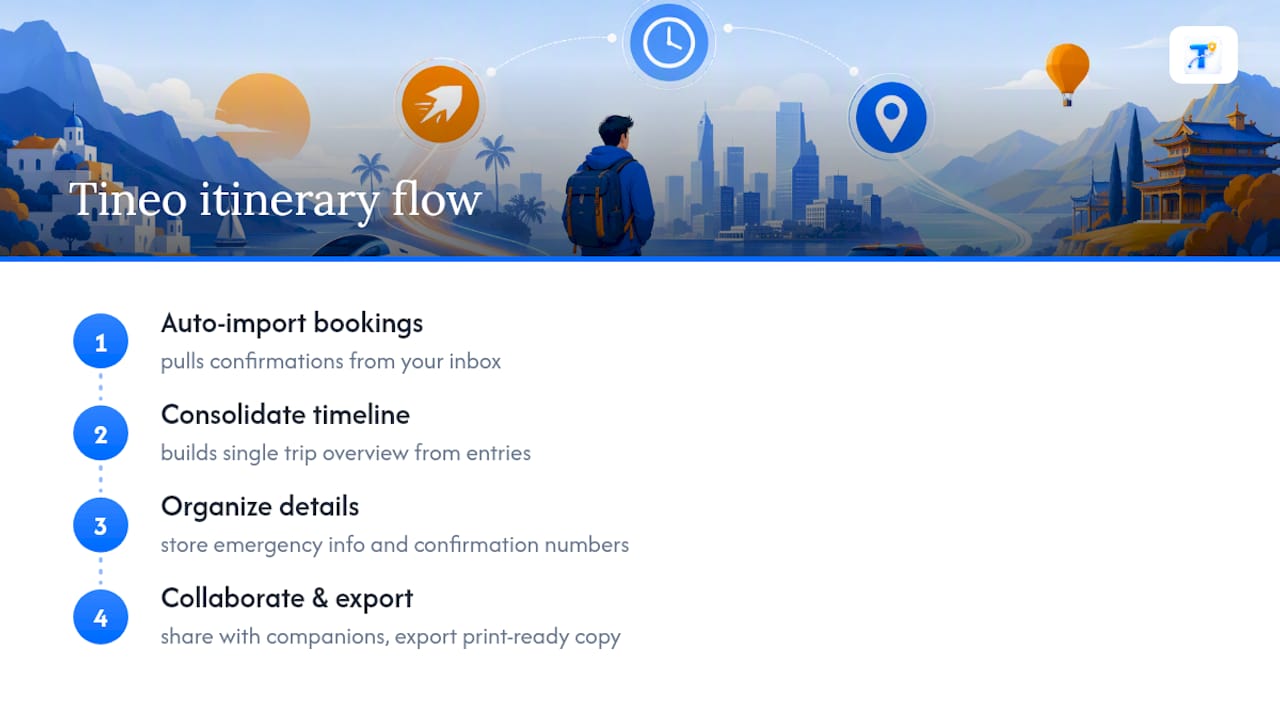
Manually copying flight numbers and hotel addresses into a template is where most printed itineraries go wrong. Some itinerary apps auto-import your booking confirmations and consolidate them into a single trip timeline instead of leaving you to hunt through your inbox.
From there, some apps build your trip overview and help you keep emergency details and confirmation numbers in one place, so you’re not assembling that page from scratch the night before you fly. Many also enable collaboration with travel companions on the same trip, then export a print-ready copy when you’re ready to pack it in your bag.
This matters most for group trips where several people need the same information, for destinations with unreliable Wi-Fi, and for multi-leg trips where one missed connection detail can throw off an entire day.
Skip the Copy-Paste: Let Tineo Build Your Printable Itinerary
Some itinerary apps turn scattered confirmation emails into one organized trip you can export in a few taps, instead of manually retyping flight numbers and hotel addresses into a template before a trip. They auto-import bookings, keep flights, lodging, and activities on one timeline, and let everyone traveling with you see the same up-to-date plan across multiple platforms.

If you’re planning a trip with more than a couple of moving pieces, this is the shortcut worth trying. Explore how it compares to other itinerary apps or see how a trip planner app handles multi-leg trips, then check out Tineo to start building your own printable itinerary from your confirmation emails.
Sources
For ready-made templates and printing specifics, these sources back up the guidance in this guide:
- Travel itinerary templates and travel packet advice | TemplateLab
- Choosing the right paper for planner inserts — comprehensive guide | Boston University blog
FAQ
How do I print out my flight itinerary?
Open your airline confirmation email or your itinerary app, export it as a PDF, and print directly from the PDF rather than the email itself, since email formatting often breaks when printed.
Do I need to print my travel itinerary?
You don’t strictly need to, but a printed copy works when your phone battery dies, Wi-Fi is unreliable, or a hotel or border agent asks for a paper confirmation, so most travelers keep at least an overview page on paper as backup.
Where can I get an itinerary printed?
Use your home or office printer for a quick copy, or bring your PDF on a USB drive or via upload to a local print shop, hotel business center, or online print service for a more durable, bound copy.
How do I make a travel itinerary PDF?
Fill in a template in Google Docs, Sheets, Word, or Excel, then use File → Download → PDF (Docs/Sheets) or Print → Save as PDF (Word/Excel); if you’re using an itinerary app, look for an export or share-as-PDF option in your trip’s menu.