

Manage Travel Bookings: Turn Confirmations Into a Live Itinerary
Stop juggling confirmation emails. Import bookings into one live shared itinerary that syncs across web, iOS, and Android. Try Tineo Free.

On this page

To manage travel bookings well, stop treating email as your filing system. The job is to consolidate every confirmation into one shared, synced itinerary rather than editing individual reservations. The fastest way to get there is an itinerary manager that auto-imports your confirmation emails and updates in real time across web, iOS, and Android. Some apps are built to turn scattered flight, hotel, and car emails into one live trip everyone can see.
TL;DR:
- Automatic email forwarding and syncing ensure all travel confirmations are collected into a single, real-time itinerary accessible across devices.
- Proper organization involves creating a day-by-day timeline with local times, and attaching key documents directly to relevant bookings for easy reference.
- Permission levels should be tailored to participants’ needs, with live updates eliminating the confusion caused by multiple outdated versions of the trip plan.
- Offline access, cross-platform sync, and calendar subscriptions are essential for reliable, on-the-go travel management, especially during international trips.
- Tineo simplifies this workflow by auto-importing confirmations and providing shared, live itineraries, with a free tier for basic use and paid options for advanced features.
Table of Contents
- How to Consolidate Booking Confirmation Emails Into One Itinerary
- How to Organize Your Itinerary Once Everything Is Imported
- How Do You Share and Collaborate on a Trip Without Losing Track of Updates?
- Access and Sync Across Web, iOS, Android, and Offline
- Best Practices to Keep One Version of the Truth and Fix Common Problems
- Tineo: Turn Confirmation Emails Into a Trip Everyone Can See
- Sources
- FAQ
How to Consolidate Booking Confirmation Emails Into One Itinerary
Every trip starts as a pile of separate emails, and the fastest way to lose track of a reservation is to leave it sitting in your inbox. Here’s the process we recommend for pulling everything into one place.
- Collect every confirmation. Search your inbox for “confirmation,” “itinerary,” or “booking reference” to round up flights, hotels, car rentals, activities, travel insurance, and event tickets. Flights and lodging matter most since they anchor your schedule, but don’t skip insurance and timed tickets. Missing this is what causes last-minute scrambles at a museum entrance or rental counter.
- Forward the emails or connect your inbox. Most itinerary apps offer two options: forward confirmations individually to a dedicated parsing address, or connect your inbox so new bookings import automatically. Forwarding one confirmation email to an app inbox lets it parse flights, hotels, cars, and activities into a day-by-day itinerary without manual entry. If you’re uneasy about inbox access, forwarding gives you more control over what gets shared, since you choose exactly which emails go through.
- Check the parsed details. Automated parsing is fast but not flawless. Confirm departure times reflect the right time zone, dates match the actual booking, and traveler names are spelled correctly, especially for multi-traveler trips where names get swapped.
- Add what didn’t import. Some bookings, like a friend’s vacation rental or a paper ticket, won’t parse automatically. Attach those manually and flag anything still pending confirmation so it doesn’t slip through.
Pro Tip: Set up email forwarding before you book anything else for your next trip. Confirmations import as they arrive instead of piling up for a weekend cleanup session.
How to Organize Your Itinerary Once Everything Is Imported
A pile of imported bookings isn’t an itinerary yet. It becomes useful once it’s structured so anyone can glance at it and know exactly where they need to be.
Build it as a day-by-day timeline, with each entry showing local time at that destination rather than your home time zone. That single habit prevents the classic mistake of showing up an hour early, or late, because someone read the wrong clock.
From there, a few organizing habits make a real difference:
- Group entries by traveler or room assignment when several people share a trip, so each person can filter to just their bookings.
- Use tags or status labels (“confirmed,” “pending,” “needs payment”) to track what still needs action.
- Attach boarding passes, event tickets, and visa documents directly to the related booking instead of storing them separately.
- Export key dates to your calendar and pin notes with meeting points, hotel addresses, or local transit directions.
None of this requires spreadsheet skills. It just means treating the itinerary as the single place documents and details live, not a summary of information stored elsewhere.
How Do You Share and Collaborate on a Trip Without Losing Track of Updates?
Group trips fall apart less because of bad planning and more because everyone is looking at a different version of the plan. The fix is permission levels that match what each person actually needs.
Most itinerary apps offer three tiers: full collaborator (can edit everything), editor (can add or update specific items), and view-only (can see but not change anything). A family trip organizer might make a spouse a full collaborator, give teenage kids editor access to activities, and send grandparents a view-only link.
Live updates matter more than the permission structure itself. When the organizer changes a flight time, everyone with access sees it instantly instead of receiving another emailed PDF that immediately becomes outdated. That single detail is what eliminates the “wait, which version is this?” problem that plagues group trips coordinated through email threads.
A few habits keep collaboration smooth:
- Assign small, specific tasks inside the itinerary, like “confirm passport” or “pay deposit,” so responsibility is visible rather than assumed.
- Use view-only sharing links or calendar subscriptions for participants who don’t want to create an account, such as an elderly relative joining for one dinner.
- Revisit permissions mid-trip. A rental car “editor” role might need to become view-only once the booking is locked in.
Pro Tip: Before a group trip, ask each participant which access level they actually want. Some people prefer to see everything without being able to accidentally edit it.
Access and Sync Across Web, iOS, Android, and Offline
Live visibility only works if everyone can actually reach the itinerary from whatever device is in their hand, which is especially true in group travel where participants often act independently and need accurate logistics on the spot.
- Confirm cross-platform sync before you travel. Log in on web, iOS, and Android and check that a change made on one shows up on the others within seconds, not hours.
- Turn on offline access and pre-download documents. Boarding passes and hotel confirmations need to open without a signal, particularly at airports with weak Wi-Fi or during international roaming gaps.
- Export or subscribe to a calendar feed. Apple Calendar, Google Calendar, and Outlook all support calendar subscriptions, which suit travelers who want reminders without opening a separate app.
- Double-check time zones on every leg. A connecting flight that crosses zones is the single most common source of missed departures, so verify local time at each airport, not just your origin.
Best Practices to Keep One Version of the Truth and Fix Common Problems
The biggest risk in managing travel bookings isn’t losing a confirmation. It’s ending up with three different versions of the same trip floating around a group text, a shared drive, and someone’s inbox. Manual coordination through spreadsheets and email routinely creates what group travel planners call shadow layers, scattered files and missed updates that undercut the actual plan.
A few rules keep that from happening:
- Never distribute an edited PDF or spreadsheet copy of the itinerary. Share a live link instead, so updates propagate automatically instead of creating a stale duplicate.
- Store passports, ID scans, and payment details behind app-level permissions, and limit who can view sensitive documents to people who genuinely need them.
- If a booking is missing or shows the wrong details, re-forward the original confirmation email first. If parsing still fails, add the booking manually and verify traveler names and time zones against the original document.
- Know who to contact for what: reach out to the app’s support team for parsing or display issues, and contact the airline, hotel, or booking provider directly for any actual change to the reservation itself, like a cancellation or date change.
Purpose-built platforms that centralize documents and bookings also tend to support automated reminders and audit trails, which cuts down on one person having to manually chase every update.
Tineo: Turn Confirmation Emails Into a Trip Everyone Can See
Everything above describes a workflow. Tineo is built to run that workflow without the manual assembly. Forward a flight, hotel, or car rental confirmation to Tineo and it pulls the details into your itinerary automatically, organized by date and synced across web, iOS, and Android as soon as it’s imported.
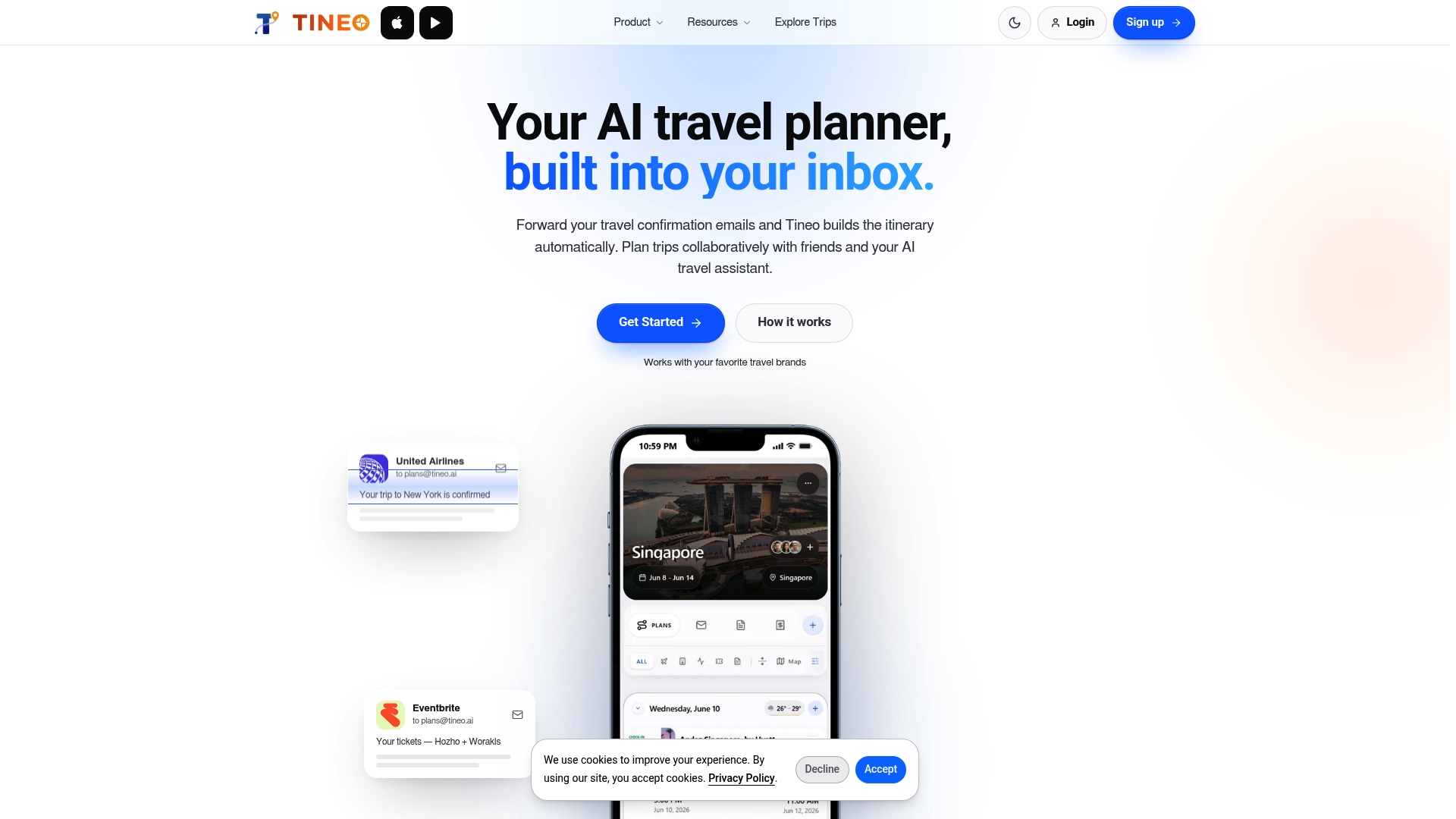
The features map directly to the steps in this guide: email forwarding for import, document attachments for boarding passes and visas, and shared access so collaborators and view-only guests see the same live trip instead of an outdated copy. If you want to see which confirmation types come through cleanly, the list of supported providers and formats is a good starting point before your next trip.
The easiest way to test it is to forward one upcoming confirmation and watch it land in an organized itinerary. Tineo Free covers that core workflow at no cost, and Tineo Ultra adds deeper AI trip assistance and document handling for 4.99 USD per month or 39.99 USD per year if you’re managing trips often enough to want the extra layer.

Sources
For a deeper look at which confirmation formats work best, read Tineo’s guide on organizing travel confirmation emails and its breakdown of collaborative trip planning. For general planning logistics around arrival and stay details, Phoenix Furnished Rentals’ trip planning page is a useful outside reference.
- Plot — Forward confirmations and have your itinerary build itself
- AI in Group Travel: What Tour Operators Need to Know | 2026
- A Practical Guide to Understanding Group Travel Management Challenges
FAQ
What Does “Manage Travel Bookings” Actually Mean?
It means consolidating your confirmation emails, flights, hotels, cars, and activities, into one organized, shareable itinerary rather than editing individual reservations. Tools like Tineo handle this by auto-importing confirmations and keeping them synced across devices.
How Do I Import Bookings Without Typing Everything In Manually?
Forward your confirmation emails to your itinerary app’s dedicated inbox address, or connect your email account so new bookings import automatically. Forwarding a single confirmation email lets an app parse the flight, hotel, or car details directly into your day-by-day schedule.
What if a Booking Doesn’t Import Correctly?
Re-forward the original confirmation email first, since a formatting issue on the first attempt is the most common cause. If it still fails to parse, add the booking manually and double-check the traveler name, date, and time zone against the source document.
How Do I Keep a Group From Using Outdated Versions of the Itinerary?
Share a live link instead of a PDF or spreadsheet copy, so every update the organizer makes appears instantly for everyone with access. This single change removes the version confusion that email-based coordination tends to create.
Does Tineo Cost Anything to Use?
Tineo Free covers the core itinerary import and sharing workflow at no cost. Tineo Ultra, which adds deeper AI assistance and document handling, is 4.99 USD per month or 39.99 USD per year.