

Gmail Travel Organizer: Your Options Compared
Compare ways to organize travel emails from Gmail: labels, Gmail's summary cards, forwarding-based apps and Tineo. See the tradeoffs and a step-by-step setup.

On this page

Gmail has no dedicated travel organizer. It does have tools that help: summary cards on some travel emails, search, labels and filters. Beyond that, most travelers choose between organizing the inbox themselves or using a separate itinerary app that reads or receives their confirmation emails. This guide compares those routes, shows where each one works well and where it falls short, and walks through a setup you can finish in about 15 minutes.
TL;DR
- Gmail alone is fine for one solo trip: a label, a filter and the search bar will find most confirmations.
- Gmail’s summary cards surface key details such as hotel check-out times, but they live inside individual emails, not in a trip timeline.
- Once you have several bookings, travel companions or two time zones, a dedicated itinerary app saves more time than another label.
- Tineo turns confirmation emails into a shared itinerary on web, iOS and Android. The free plan costs $0, and Ultra costs $4.99 per month or $39.99 per year (prices read from our pricing page on September 13, 2026).
- Whatever you choose, check each imported booking once against the original email. Parsing is never perfect.
Table of Contents
- What Gmail does on its own for travel
- Four ways to organize travel emails
- How the app approach works with Gmail
- Where Tineo fits
- How to choose
- Set up a Gmail travel system in 15 minutes
- What to do when something goes wrong
- Related tools for finding booking emails
- Try Tineo with your next trip
- FAQ
- Sources
What Gmail does on its own for travel
Gmail is where nearly every booking ends up, which is why it feels like the natural home for trip planning. Here is what it gives you without any add-ons.
Summary cards. Google announced updated summary cards that appear at the top of travel emails and show details such as hotel check-out times in October 2024. They save you from scrolling through a long confirmation to find one detail. They are still tied to a single message, so you won’t see your flight, hotel and rental car side by side.
Search. Typing a booking reference, an airline name or a hotel name usually finds the right email. This works well if you remember what you are looking for. It works poorly at 11 p.m. in a taxi line when you only know “the one with the address.”
Labels and filters. You can create a label such as “Trip: Lisbon 2027,” then add a filter that applies it to messages from your airline or hotel. This is free and reliable, but it is manual work for every trip, and forwarded or third-party booking emails often come from different senders than you expect.
Calendar. Some confirmations can appear on Google Calendar. That gives you dates and times, but typically not the full trip picture: confirmation numbers, addresses, documents and notes for a travel companion.
The limits are consistent across all of these. Gmail stores your bookings but does not assemble them into a day-by-day plan, does not give a companion a shared view unless you forward emails or grant inbox access, and does not work as a document vault for passports, tickets and insurance.
Four ways to organize travel emails
Most people end up in one of these four setups.
| Approach | Setup effort | Builds a trip timeline | Sharing with others | Best for |
|---|---|---|---|---|
| Gmail labels and filters | Low, repeated per trip | No | Forwarding only | One or two bookings, solo travel |
| Gmail plus a shared doc or spreadsheet | Medium, manual entry | Yes, built by hand | Share a link | Small groups who like control |
| Email-forwarding itinerary apps | Low to medium | Yes, automatic | Varies by app and plan | Frequent travelers |
| Tineo | Low | Yes, automatic | Built in, across web, iOS and Android | Families, groups, and frequent travelers |
The second row is the most common workaround. A shared document works, and it is free, but every booking means copying times, addresses and confirmation numbers by hand, and it will not update itself if an airline changes a flight.
The third and fourth rows are the apps built for this problem. They give you an address or a connection that reads your confirmations and builds the itinerary. Forwarding-based apps such as TripIt are the long-standing example; our TripIt vs. Trippsy comparison covers that style in more depth, and our guide to email forwarding for travel planning explains how the method works. Because plans, limits and prices change, check each provider’s own pricing page before you commit.
How the app approach works with Gmail
Apps differ in how they get your emails, and the difference matters for privacy and effort.
- Forwarding. You send a confirmation to a dedicated address. You decide which emails an app sees, and nothing else leaves your inbox. The cost is one extra step per booking, unless you set up an automatic forwarding rule.
- Inbox connection. You grant the app access to scan your mailbox for bookings. It is faster, but it means trusting a third party with read access, so read what permissions it requests.
- Manual entry. Every app falls back on this when an email is unusual, such as a small local tour operator or a bookings page with a screenshot instead of text.
A forwarding rule is the middle path. In Gmail, you can create a filter for messages from airlines, hotels and booking sites, then forward matches to your itinerary address. We walk through that in our guide on how to organize travel confirmation emails.
Where Tineo fits
Tineo is built for the situation Gmail leaves open: you have already booked, and you want the bookings together. We turn travel confirmation emails into an organized trip, with flights, lodging, car rentals, activities and other reservations on one timeline.
What that looks like in practice:
- Import from confirmation emails so you do not retype dates, times and confirmation numbers.
- One itinerary on web, iOS and Android, so the plan you build on a laptop is the one on your phone at the gate.
- Collaboration and sharing for friends or family, so a companion can see the trip without digging through your inbox.
- Offline access and document storage (offline access and document intelligence are part of the paid Ultra plan), so a boarding pass or hotel address does not depend on airport Wi-Fi.
- An AI travel assistant that answers questions in the context of your trip.
What we do not do: Tineo does not book travel for you, and it does not guarantee that every email will import perfectly. It organizes the trip you have already booked. See the What’s New page for current features.
Pricing at a glance
| Plan | Price | Notes |
|---|---|---|
| Tineo Free | $0 per month | Core itinerary organization |
| Tineo Ultra, monthly | $4.99 per month | Advanced AI, offline access, document intelligence, premium trip tools |
| Tineo Ultra, annual | $39.99 per year | Same features, billed yearly |
These are the prices published on our pricing page as read on September 13, 2026. Check that page for the current plans.
How to choose
The right option depends on how you travel, not on which tool has the longest feature list.
Solo traveler, one or two trips a year. Use Gmail. Create one label per trip, add a filter and star the key emails. Add a calendar entry for each flight. An app is optional.
Frequent traveler or business professional. You see many bookings across many senders, and your time zone changes often. An app that builds a timeline automatically pays back the setup within a trip or two. Look for offline access and a way to store documents.
Family trips. The problem is usually that one adult books everything and the others ask where the confirmation is. Pick a tool where relatives can view the itinerary without needing your inbox, and where you can add bookings made by different people.
Group trips. Several people book separately: one a flight, another a rental house, a third a dinner. The best setup lets each person add their own confirmations to a shared trip. A single spreadsheet keeps working until someone forgets to update it.
Privacy-conscious travelers. Prefer forwarding to inbox access. Forward only travel emails, review what the app stores, and read its privacy policy before sharing anything with passport details or payment information.
If you are switching from an app that has shut down, such as TripCase, treat it as a migration: export or collect your existing confirmations, forward them to your new tool and then check each trip. Our CheckMyTrip alternatives guide covers a similar move for another retired-style tool.
Set up a Gmail travel system in 15 minutes
This works with Tineo or any forwarding-based itinerary app.
- Find your bookings. Search Gmail for the airline, hotel or booking site names, plus words such as “confirmation” or “reservation.” Do this for every trip in the next year.
- Create a label for each trip. Name it with the destination and year, for example “Trip: Denver 2027.” Apply it to the messages you found.
- Build a filter for future bookings. In Gmail’s search options, enter the sender domains of the airlines and hotels you use most, then choose to apply a label. You can add forwarding to your itinerary address after you verify it.
- Send confirmations to your itinerary app. Forward each one. Tineo builds the trip from them, so you can check the timeline rather than retype it.
- Review each imported item. Compare dates, time zones, names and confirmation numbers against the original email. Fix any mismatch right away.
- Invite your travel companions. Share the trip so they can see flights and lodging on their own phones.
- Save the documents you will need offline. Tickets, reservation PDFs and insurance details belong in one place that works without a signal.
The filter in step 3 is where most of the time savings come from, because you set it up once and every future booking is handled.
What to do when something goes wrong
Even good systems slip. These are the three common failures and the fixes.
A confirmation never arrives or is missed. Check Gmail’s Spam and Promotions tabs first, since booking emails sometimes land there. Then search by the sender’s domain, not only by the hotel name, because third-party booking sites send the email. If it is not in Gmail at all, log into the provider’s site and resend it.
An email is imported incorrectly. Parsing reads the layout of each sender’s email, and unusual formats can trip it up. Common errors are the wrong time zone on an overnight flight, a check-in date read as check-out, and a traveler name missing. Edit the entry manually and keep the original email as your source of truth.
You need to share one booking with a group. Do not forward your whole inbox. Share the trip itinerary instead, or forward only the relevant confirmation. Remove sensitive details, such as full payment information, before sending anything to a wider group.
For border and entry rules, visa requirements and health documentation, do not rely on an app or an email. Requirements change, so check the official government site of your destination and your airline before you travel.

Related tools for finding booking emails
If your main frustration is hunting through email rather than building an itinerary, a personal assistant can help with the search side. For example, an AI assistant for booking emails works through messaging apps such as WhatsApp, Telegram and iMessage and can help with email and calendar tasks. It sits alongside an itinerary tool rather than replacing one, since the itinerary still needs a single organized home.
Try Tineo with your next trip
If you have a trip coming up, forward a confirmation or two to Tineo and see how the timeline looks. The free plan is enough to organize a trip, and you can add Ultra later if you want offline access and the advanced AI features.
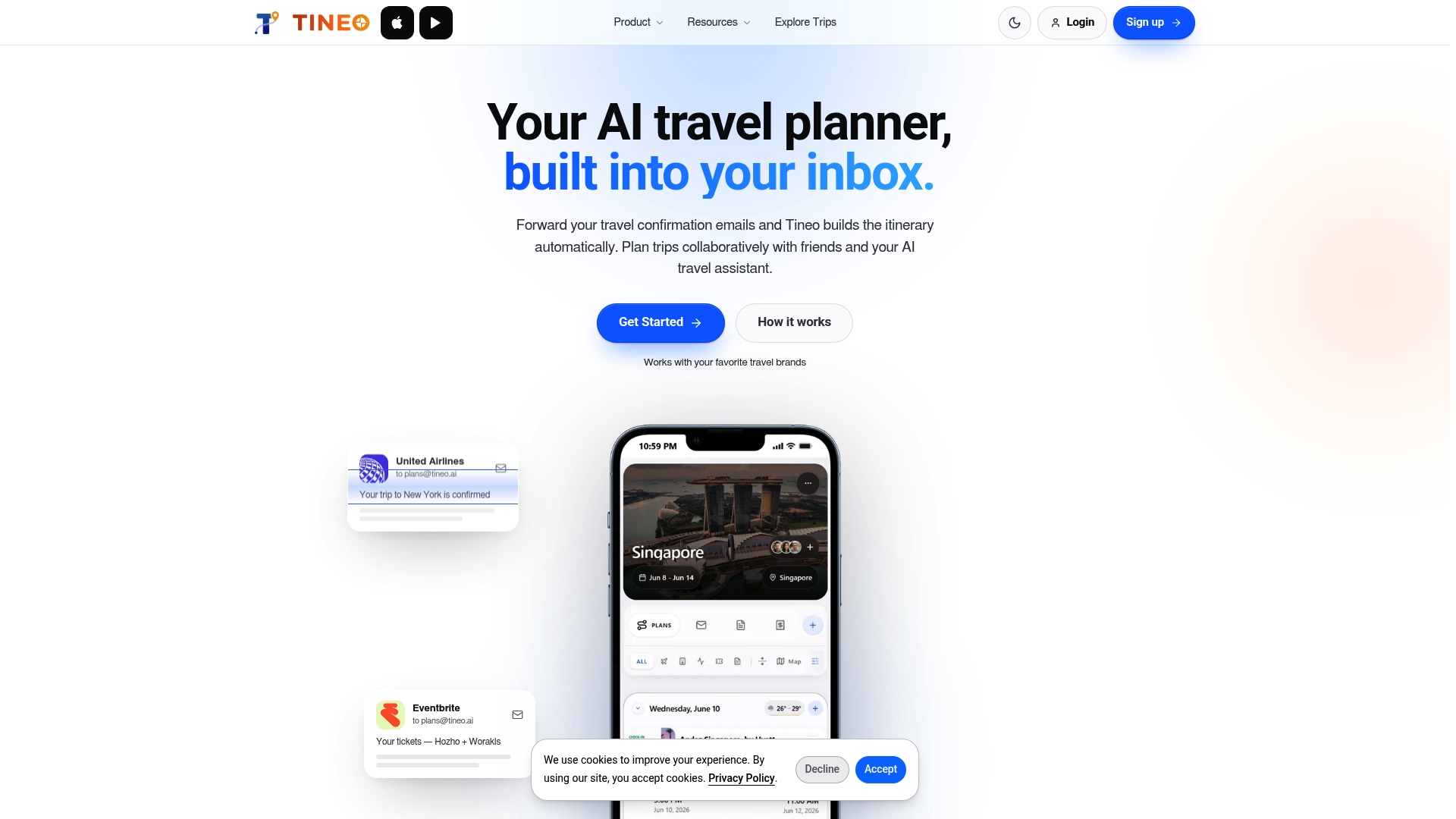
You can see plans on our pricing page or start from the Tineo home page.
FAQ
Does Gmail have a built-in travel itinerary feature?
Not as a full itinerary. Gmail shows summary cards at the top of some travel emails, with details such as hotel check-out times. These help you read a single booking quickly, but they do not combine flights, lodging and rentals into one timeline.
What is the best way to organize travel emails in Gmail?
Create one label per trip and a filter for your usual airlines and hotels. Star the emails you need while traveling. This is enough for a simple trip. For several bookings or several travelers, add an itinerary app that builds the timeline for you.
Is it safe to let an app read my Gmail?
That depends on the app and the permissions it asks for. Forwarding only the confirmations you choose gives you more control than granting mailbox access. Read the privacy policy and the permissions screen, and avoid forwarding emails that contain payment details you do not want stored.
Can I share a Gmail booking confirmation with my travel group?
Yes. You can forward a single email, but a shared itinerary is tidier because everyone sees the same dates and addresses. In Tineo, you can share a trip with friends or family so they do not need access to your inbox.