

How to Import Expedia Trips into Tineo
Import Expedia trips into Tineo with the Chrome extension. Review booking details, omit unsupported items, and approve missing details added to existing plans.

On this page
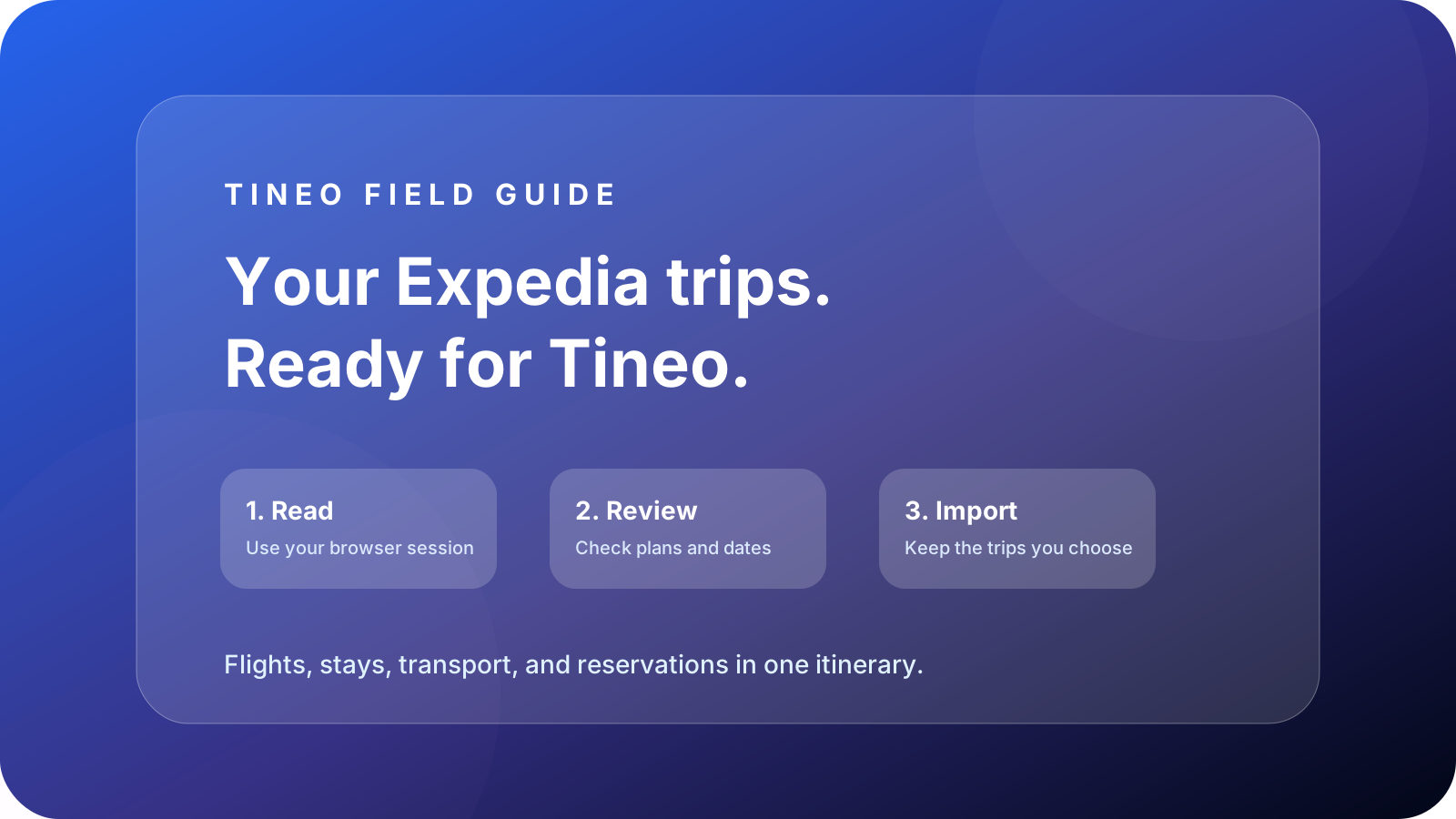
To import Expedia trips into Tineo, use the Tineo Chrome extension in your signed-in Expedia browser session. The extension opens a review in Tineo; you choose the trips, check proposed plans and changes, then confirm. You do not need to download an export file first.
This guide is published by Tineo. Tineo is not affiliated with, endorsed by, or sponsored by Expedia.
1. Prepare Chrome and your accounts
Install Tineo from the Chrome Web Store on a computer and sign in to the extension with your Tineo account. Sign in to Expedia in the same browser. Use an extension version that shows Import from Expedia.
This workflow reads your own signed-in Expedia session. Complete any login or verification prompt in the Expedia tab. You do not need to paste an Expedia password or browser cookies into Tineo.
2. Read your Expedia trips
Choose Import from Expedia in the extension, then Continue. Allow the requested Expedia site access and keep its tab open while the extension reads your trips.
After a complete read, Tineo opens Import from Expedia automatically. If you return later, use Finish import in the extension or load the trips from the extension on the import page. Previewing the capture does not create plans.
An incomplete read cannot be imported. Retry the reading step if the extension or review reports an incomplete capture.
3. Review new plans and existing details
Open Plan details and import checks. Check dates, booking references, amounts when supplied, and the status for each item. An Expedia itinerary reference may differ from the provider confirmation number, so compare the correct reference with your booking documents.
Scroll sideways to read every column.
| Review status or detail | What it means |
|---|---|
| Ready to import | A new plan is proposed, subject to confirmation |
| Ready to sync existing plans | Missing details on a matching existing plan can be filled after approval |
| Will fill missing details | Check the listed fields that would be added |
| Keep existing details | Existing populated fields and your edits are preserved |
| Already in Tineo or Already imported | Check the existing itinerary instead of expecting a duplicate |
| Needs review, Missing information, or Cannot import | Resolve the issue, omit the item, or deselect its trip |
Expedia imports can add missing details to matching existing plans after review. You still start the read and approve the proposed changes; this is not a background sync.
For an illustrative example, suppose a hotel stay is already in Tineo from a confirmation email. If the Expedia preview matches that stay and proposes missing details, inspect those fields and the existing details it will keep. If the match is conflicting, review it rather than assuming the new import should replace your plan.
4. Choose what to import and confirm
Deselect whole trips you do not want. For items with missing, unsupported, or conflicting details, use Leave items out of this import. Omitting an item leaves all its segments out and does not change the original Expedia trip.
After changing your selection, choose Review selection again. The selected trips must pass their checks before you continue.
Choose Import for new trips or Apply reviewed changes when the preview includes updates to existing plans. Keep the page open for the result, then open each processed trip to check the itinerary. If some trips fail, inspect the individual results and use Review again before retrying.
Cancellations, incomplete records, and documents
An Expedia record’s presence is not enough to establish a confirmed reservation. Review booking states and warnings. An export containing only canceled records without enough details can finish with nothing added. Importing does not automatically delete existing Tineo plans.
Keep the original booking confirmations and documents. Do not treat a captured itinerary as proof that every ticket, attachment, or provider instruction has transferred. Check overnight arrival dates and booking references against the original reservation, and contact the booking provider for reservation changes.
Optional Expedia export file
Save JSON in the extension saves a local backup of its Expedia capture. On Tineo’s import page, open Have an export file? and choose that JSON file. It goes through the same review and import checks as the direct extension handoff.
This file contains itinerary information, so store it somewhere you trust. Saving it does not itself add trips to Tineo. The normal flow delivers the capture automatically without a download.
The direction is Expedia → Tineo. This is not a way to export Tineo trips back into Expedia, and it does not automatically synchronize future changes.
For other sources, see the KAYAK import guide and CruiseGlobe import guide. For later confirmation emails, see organizing travel confirmation emails. Read the Tineo privacy policy for data-handling information.
Frequently asked questions
Do I need to download an Expedia export before importing?
No. The extension normally opens Tineo and hands over the capture automatically. Save JSON is an optional backup that uses the same review checks.
Can an Expedia import update an existing Tineo plan?
After review, it can fill missing details on a matching existing plan while preserving populated fields and your edits. Conflicts need attention; this is not automatic background synchronization.
Can I export Tineo trips back to Expedia?
The extension workflow described here imports Expedia data into Tineo. It does not send existing Tineo itineraries to Expedia.
Keep reading
TripIt
How to Import TripIt Trips into Tineo
Import TripIt trips into Tineo with the Chrome extension. Review upcoming trips, choose whether to include past travel, and check the results before planning.
KAYAK
How to Import KAYAK Trips into Tineo
Learn how to import KAYAK Trips into Tineo with the Chrome extension, review booked flights, hotels and other plans, and handle duplicates before you import.
Cruise Travel
How to Import CruiseGlobe Cruises into Tineo
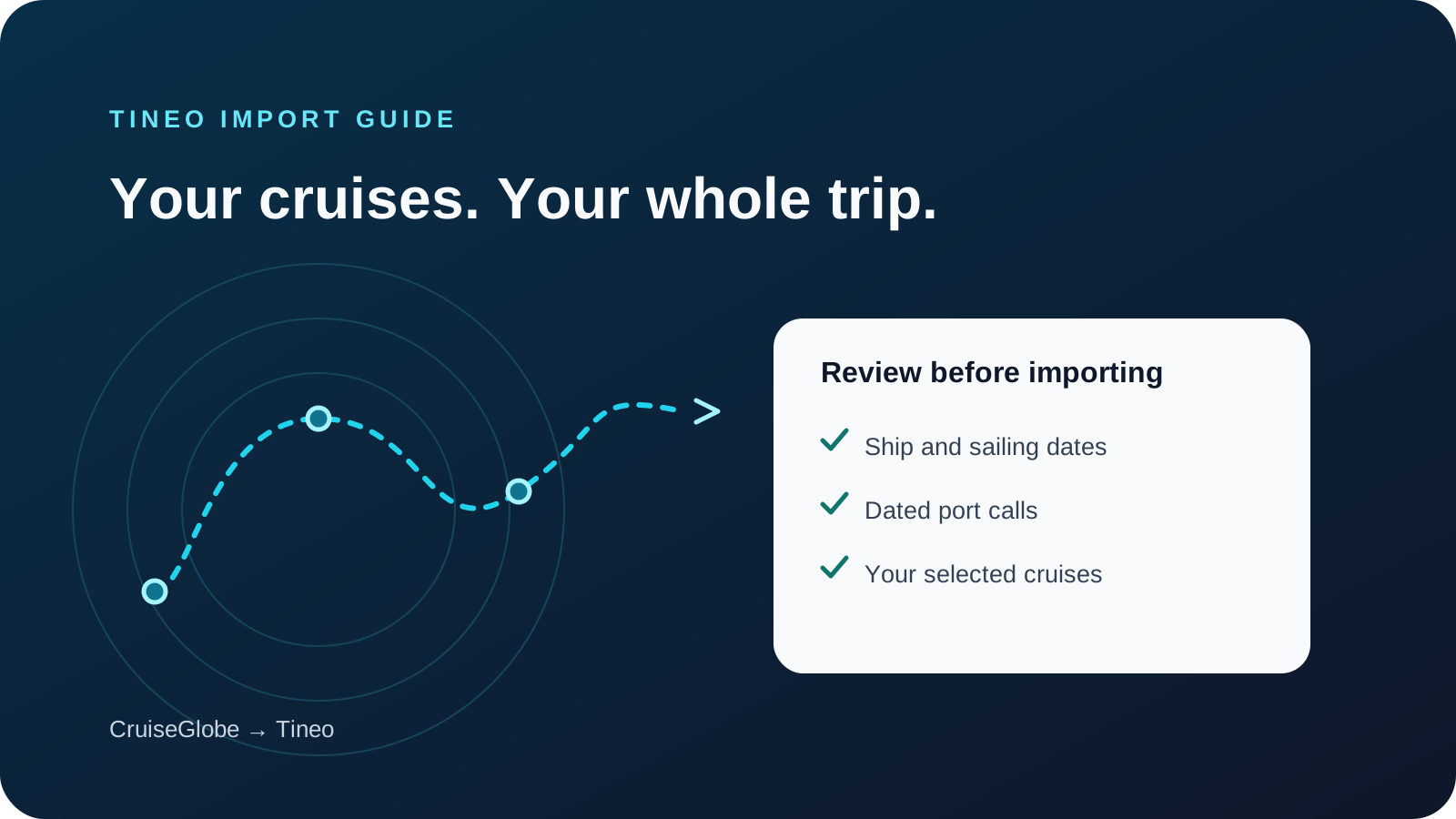
Bring The Cruise Globe cruises into Tineo with the Chrome extension. Review ships, sailing dates, and port calls before importing your selected trips.