

How to Import TripIt Trips into Tineo
Import TripIt trips into Tineo with the Chrome extension. Review upcoming trips, choose whether to include past travel, and check the results before planning.

On this page
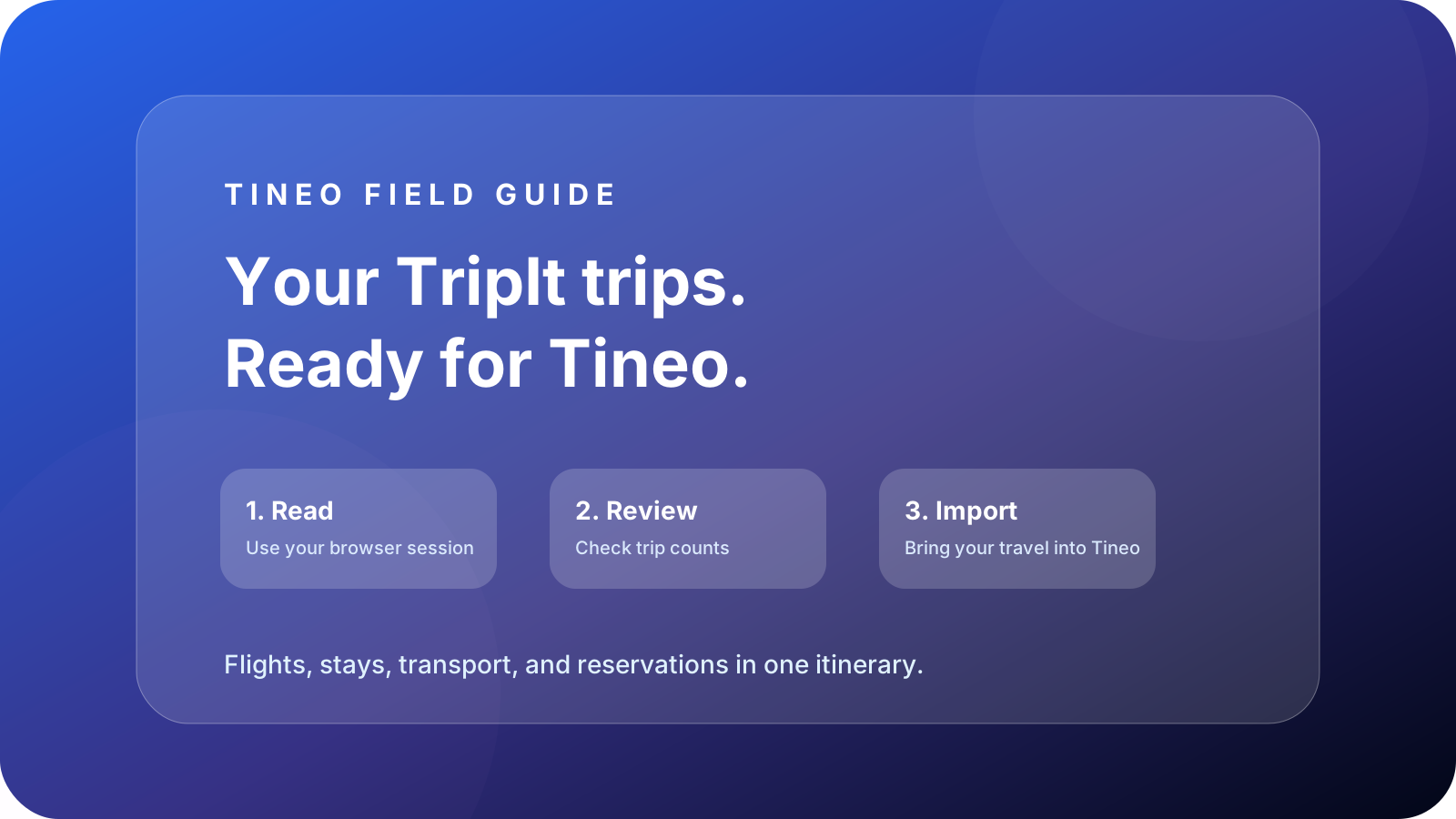
Import TripIt trips into Tineo with the Tineo Chrome extension: read your trips from your signed-in TripIt browser session, review the summary in Tineo, and select Start import. You do not need to download an export file for the normal workflow.
This guide is published by Tineo. Tineo is not affiliated with, endorsed by, or sponsored by TripIt.
1. Install the extension and sign in
Use Chrome on a computer. Install Tineo from the Chrome Web Store, open the extension, and sign in with the Tineo account that should receive your trips. Open TripIt and sign in there too.
Your TripIt password and cookies stay on TripIt; you do not need to copy them into Tineo for this browser method. On a phone or tablet, start the browser step on a computer, then use the same Tineo account to see the imported trips on your other devices.
2. Read your TripIt trips
Choose Import from TripIt in the extension, then Continue. Allow the requested TripIt access when Chrome asks. Keep the TripIt tab open while the extension reads your trips. If TripIt requests sign-in or verification, complete it on TripIt and retry the read.
The extension reads upcoming and past trips. After a complete read, it opens Import from TripIt in Tineo. Reading and loading the data does not start the import.
3. Review upcoming and past travel
The review shows counts for Trips, Upcoming, and Past, along with the number of trips with detected plans selected for import. Check those counts against what you expected.
Scroll sideways to read every column.
| Review detail | What to do |
|---|---|
| Upcoming trips | Check that the summary includes the travel you want to bring over |
| Past trips | Select Include past trips if you want travel history |
| Selected trip count | Check how including past trips changes the number to import |
| Trips without supported plans | These are not imported; check the original TripIt trip |
| No upcoming trips with plans | Include past trips if your intended import is historical travel |
The TripIt screen uses the upcoming/past selection shown here. The KAYAK and Expedia guides cover their separate per-item review controls.
For an illustrative example, imagine TripIt contains two upcoming holidays and several past work trips. Turn Include past trips off to begin with upcoming travel. To bring over the history too, enable it and check the selected count. Trips must contain supported plans to be imported.
4. Start import and check the result
Select Start import when the summary matches your intention. Large exports can take time; follow the progress and final result instead of starting a second import immediately.
Open the resulting trips and compare dates and booking details with your original confirmations. An imported itinerary is not a change to the underlying reservation. Keep original tickets and booking documents available, and check whether the details you need made it across.
If an import fails or completes only partly, read the result and import history before retrying. Do not assume every item was added just because the browser read finished.
If the extension cannot hand over the trips
No trips waiting: Open the extension and choose Import from TripIt again.
The capture expired: The extension handoff expires after 60 minutes. Read your trips again, then return to Tineo.
The extension is unreachable: Check that it is installed and enabled in this Chrome profile, reload the Tineo page, and try loading the trips again.
You saved a file: Select Save on the completed TripIt read or the pending-import banner. In the save tab that opens, select Save JSON to keep a local copy of captured TripIt data. Use the TripIt import page’s file-upload option to review it. The normal browser handoff avoids this extra download and upload.
Import and export: which direction does this support?
This guide covers TripIt → Tineo. A TripIt export saved by the Tineo extension contains source data for importing into Tineo. It is not an export of your existing Tineo itinerary to TripIt, and it does not set up continuous synchronization.
For new bookings after the move, see how to organize travel confirmation emails. If you are still choosing an organizer, the TripIt versus Tineo comparison covers that separate decision. For data-handling details, read the Tineo privacy policy.
Frequently asked questions
Do I need a TripIt export file?
No. The Chrome extension can hand captured trips directly to Tineo for review. A local JSON backup is optional.
Can I import past TripIt trips?
Yes. Enable Include past trips in the review and check the selected trip count. Trips without supported plans are not imported.
Can I export Tineo trips back to TripIt with this extension?
This workflow imports TripIt data into Tineo. It does not export existing Tineo trips to TripIt or establish continuous synchronization.
Keep reading
Expedia
How to Import Expedia Trips into Tineo
Import Expedia trips into Tineo with the Chrome extension. Review booking details, omit unsupported items, and approve missing details added to existing plans.
KAYAK
How to Import KAYAK Trips into Tineo
Learn how to import KAYAK Trips into Tineo with the Chrome extension, review booked flights, hotels and other plans, and handle duplicates before you import.
Cruise Travel
How to Import CruiseGlobe Cruises into Tineo
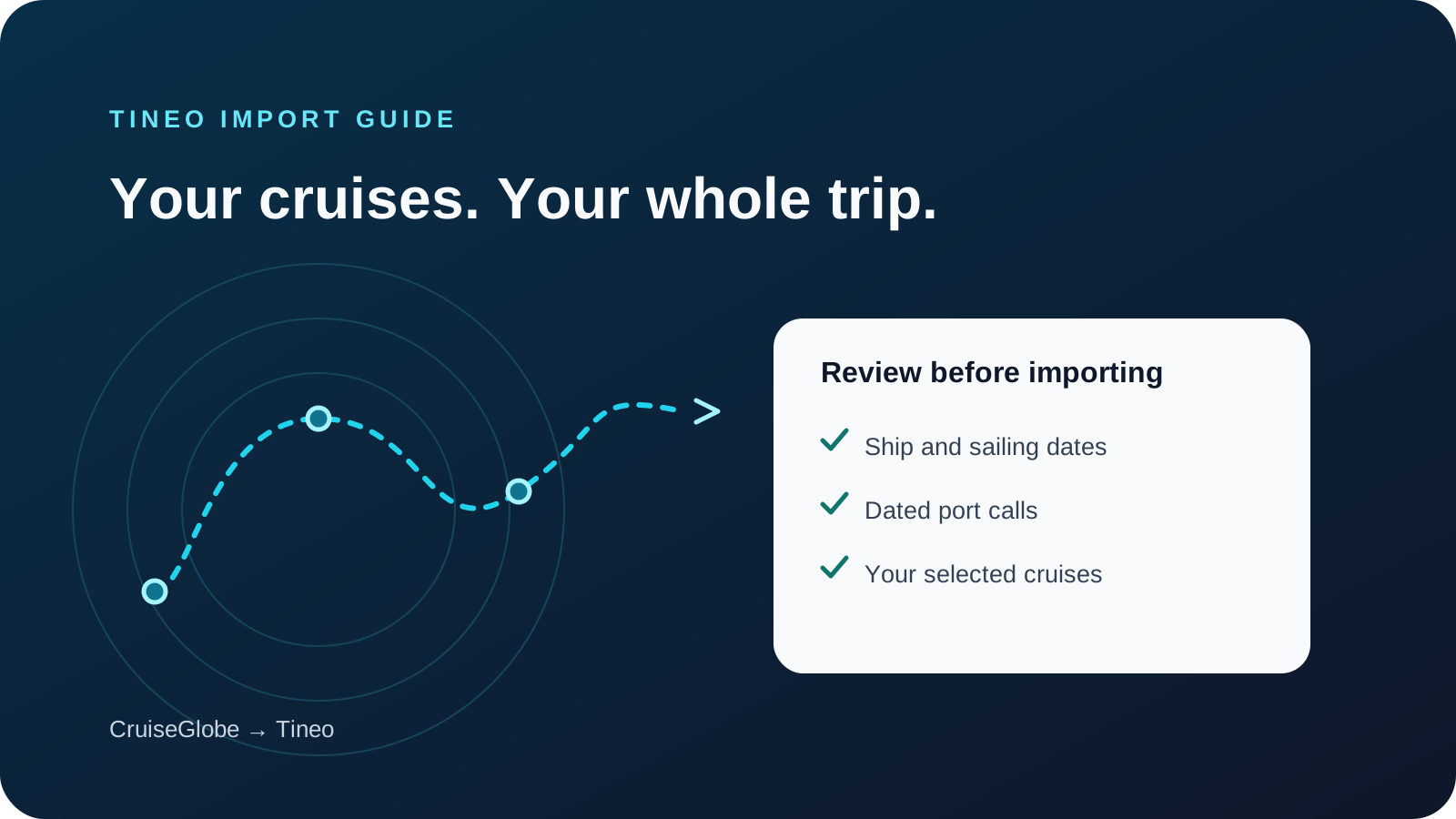
Bring The Cruise Globe cruises into Tineo with the Chrome extension. Review ships, sailing dates, and port calls before importing your selected trips.