

How to Import CruiseGlobe Cruises into Tineo
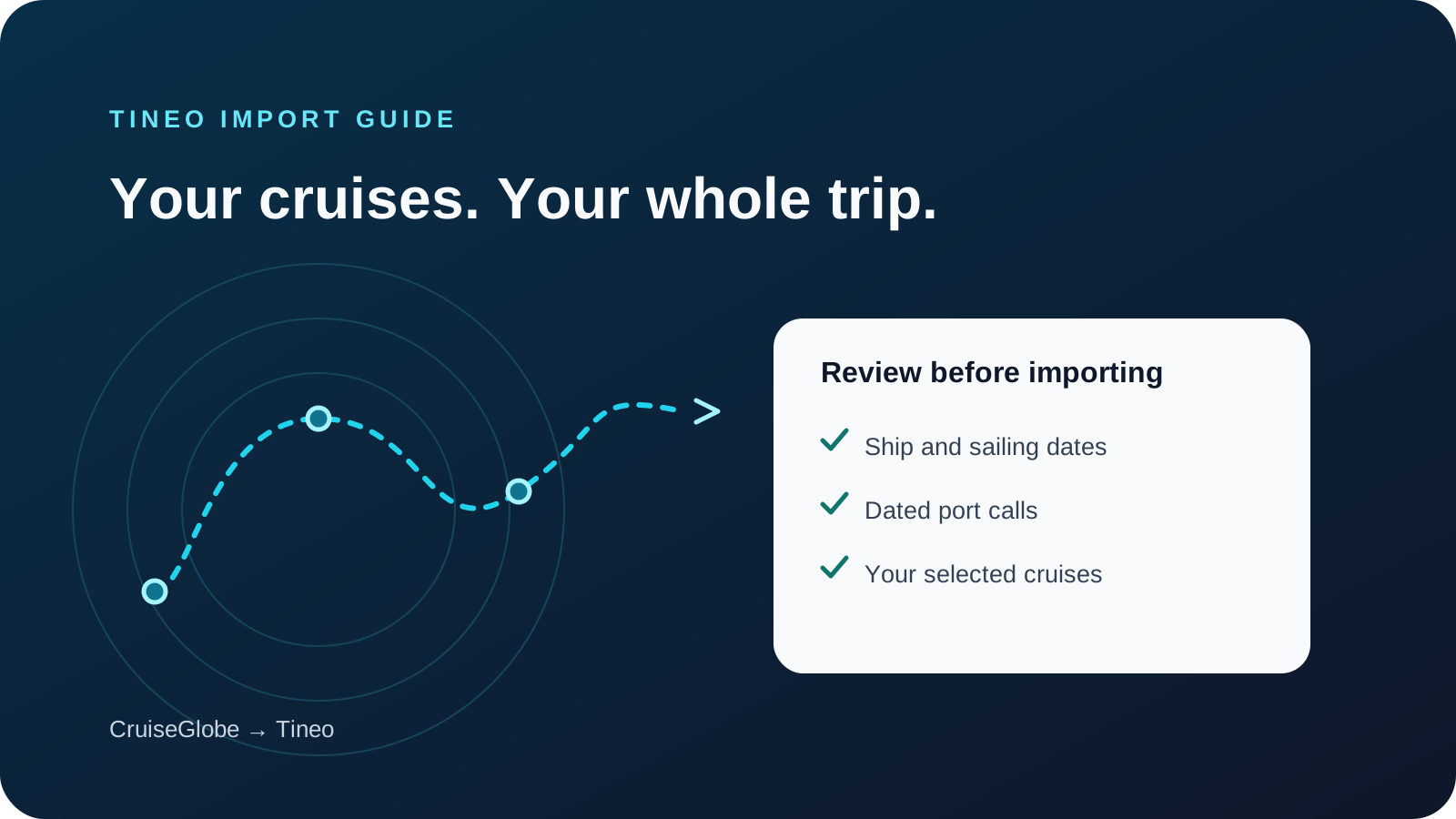
Bring The Cruise Globe cruises into Tineo with the Chrome extension. Review ships, sailing dates, and port calls before importing your selected trips.

On this page
Your cruise is only part of the trip. There may also be a flight to the port, a hotel the night before, and a transfer after disembarkation. Tineo’s CruiseGlobe importer brings your saved cruises from The Cruise Globe into Tineo, where you can organize the rest of that travel alongside them. The Chrome extension reads the cruises, opens Tineo automatically, and lets you review the details before adding anything to your itinerary.
Before you start: Install or update the Tineo extension from the Chrome Web Store. If Import from CruiseGlobe is not yet visible, check for the available extension update before continuing.
The Cruise Globe is a personal cruise logbook for past, ongoing, and future sailings. This guide is published by Tineo and covers bringing those cruise records into a broader travel itinerary. Tineo is not affiliated with, endorsed by, or sponsored by The Cruise Globe.
What you need before importing
Use Chrome on a computer, with the Tineo extension that includes CruiseGlobe import. Sign in to your Tineo account in the extension, and sign in to The Cruise Globe in Chrome. Your saved cruises need to be visible in your own account.
The import reads your owned cruise records. Cruises you only follow are outside this import. You choose which of the captured cruises to add when you reach the Tineo review screen.
The extension uses your signed-in CruiseGlobe browser session. You do not paste your CruiseGlobe password into Tineo. Chrome may ask you to allow the extension to access thecruiseglobe.com when you start.
How to import CruiseGlobe cruises into Tineo
1. Sign in on your computer
Open Chrome, sign in to Tineo in the extension, and open your CruiseGlobe account. If CruiseGlobe asks you to sign in again or complete a verification step, finish that in its own tab.
2. Read your cruises
Click the Tineo extension icon and choose Import from CruiseGlobe. Select Continue, and allow access to thecruiseglobe.com if Chrome asks.
Keep the CruiseGlobe tab open while the extension reads the cruise list and individual itineraries. You can close the extension popup and reopen it to check progress. The import reads the account records; you do not have to copy each cruise or port into a form.
3. Review in Tineo
When reading finishes, Tineo opens automatically to Import from The Cruise Globe. The cruise data is delivered to Tineo for review, but previewing does not create trips or itinerary plans.
Check the ship, sailing dates, embarkation and disembarkation ports, and any dated port calls. Open Cruise details and import checks to read the individual results and warnings. Leave out any cruise you do not want to import. Selection applies to the whole cruise, rather than individual port calls.
4. Confirm your selection
If you change the selected cruises, select Review selection again so Tineo checks that selection. Resolve any Needs review or Missing information result, or leave that cruise out before continuing.
Select the Import button for your chosen trips and keep the page open until processing finishes. Read the result for each cruise, then use Open trip to check the saved itinerary.
What comes across, and what to check
The import uses the cruise and port details available from CruiseGlobe. It cannot fill gaps from a cruise map alone.
Scroll sideways to read every column.
| CruiseGlobe detail | What to expect in Tineo |
|---|---|
| Ship and cruise line | Cruise details when supplied by the source |
| Sailing start and end dates | The cruise’s date range |
| Embarkation and disembarkation ports | Endpoint names and countries when supplied |
| Port calls with valid arrival and departure dates | Cruise itinerary days on those dates |
| Port calls without dates | Port names in cruise notes, with a warning instead of guessed dates |
| Route still processing or no port calls available | A warning; a cruise may have its sailing details without port-day plans |
Check dates separately from times. A dated port call does not establish a docking time, excursion meeting time, or all-aboard deadline. Use your cruise line’s current schedule for those details and add them to your plan as needed.
The importer does not turn gaps between ports into sea days. It also does not recreate CruiseGlobe’s AIS route map, transfer booking documents, or establish a cabin assignment or booking confirmation number from a cruise-log record. Add separate reservations and files from their original confirmations.
A practical example: finish the trip around the sailing
Suppose you have a seven-night sailing saved in CruiseGlobe, plus a flight and one hotel night before departure. This is an illustrative planning example, not a record from a traveler’s account.
First, import the cruise and check its dated port calls. Next, add the flight and hotel from their confirmations to the trip you want to use. Tineo supports turning travel confirmation emails into itinerary plans, so those bookings can sit alongside the cruise. Then add your terminal transfer, boarding documents, and excursion information where you need them.
For a group sailing, our cruise group trip planner guide covers the practical details around embarkation, port days, and separate arrivals.
If the import needs attention
CruiseGlobe asks you to sign in. Complete sign-in or verification in the CruiseGlobe tab, then return to the extension and try again.
The read is incomplete. Read your cruises again. An incomplete capture cannot be imported, even if it contains some cruises. A complete read can still contain warnings about missing source details, such as undated ports; read those warnings in the preview.
Tineo does not open, or you closed its tab. Reopen the extension and select Finish import while a complete capture is still available. The extension holds captured itinerary data on the device for up to 60 minutes. If it has expired, read the cruises again.
You have a saved JSON file. On Tineo’s import page, choose Have an export file? and select the CruiseGlobe JSON saved by the Tineo extension. This recovery route uses the same preview and import checks. A file download is not required for the normal flow.
A cruise already exists or has changed. An unchanged record that was imported before can show Already imported. Similar sailings, changed source details, or edits to the existing Tineo trip can require review. This importer creates plans without overwriting existing ones, so do not assume importing again updates the sailing.
For how Tineo handles travel information, see the Tineo privacy policy.
CruiseGlobe export and Tineo import: which direction?
This workflow moves cruises from CruiseGlobe into Tineo. A JSON file saved by the extension contains captured CruiseGlobe data for the Tineo import. It is not a way to export Tineo trips back to CruiseGlobe, and it does not establish continuous synchronization.
Frequently asked questions
Can I import past and future CruiseGlobe cruises?
The importer reads your owned past and future cruise records. What appears in Tineo depends on the details CruiseGlobe makes available. Missing port dates are not invented.
Does this keep CruiseGlobe and Tineo in sync?
No. This is an import you start, review, and confirm. It does not continuously sync changes or overwrite existing Tineo plans. Changed records can require review when you import again.
Can I import from my phone?
Start the browser import in Chrome on a computer with the Tineo extension. After importing, sign in to the same Tineo account on your phone to see the trips.
What happens when a port has no date?
Tineo keeps undated port names in the cruise notes and shows a warning. It does not create dated itinerary days for those ports or infer sea days from gaps.
Do I need to download a CruiseGlobe export file?
No. The normal flow delivers the cruise data from the extension to Tineo automatically for review. A JSON file saved by the Tineo extension is an optional recovery route.
Keep reading
Tineo
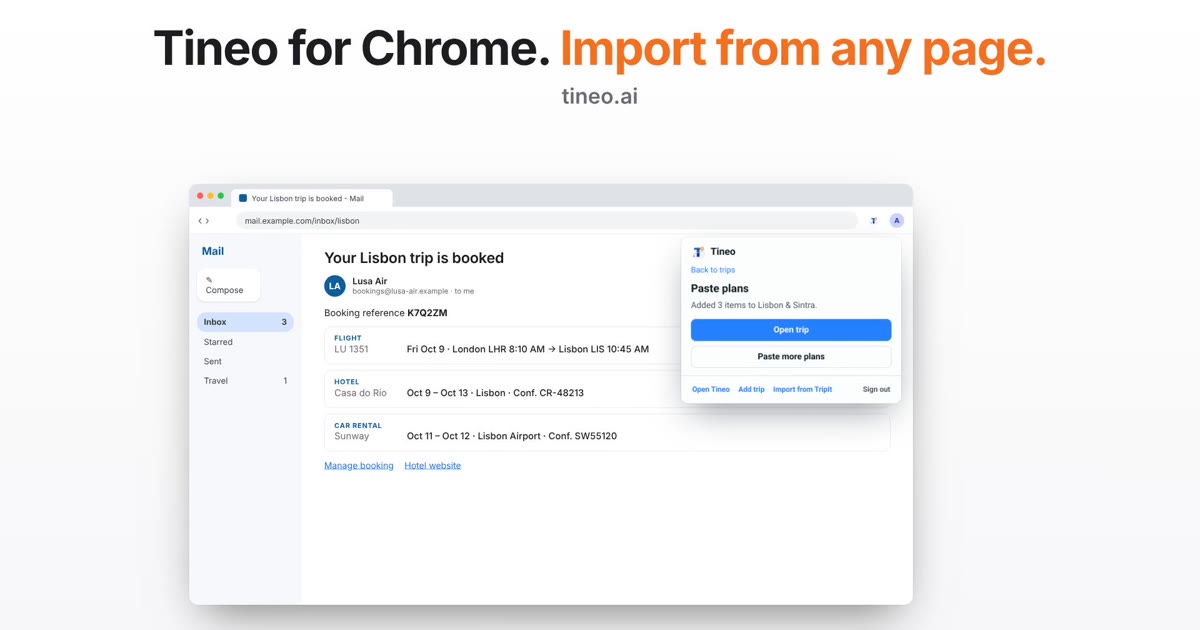
Tineo for Chrome: Import Your Booking From the Open Email
The Tineo Chrome extension can now read the booking email or page you have open and turn it into plans. Check the text, select Find plans, and choose what to add.
Expedia
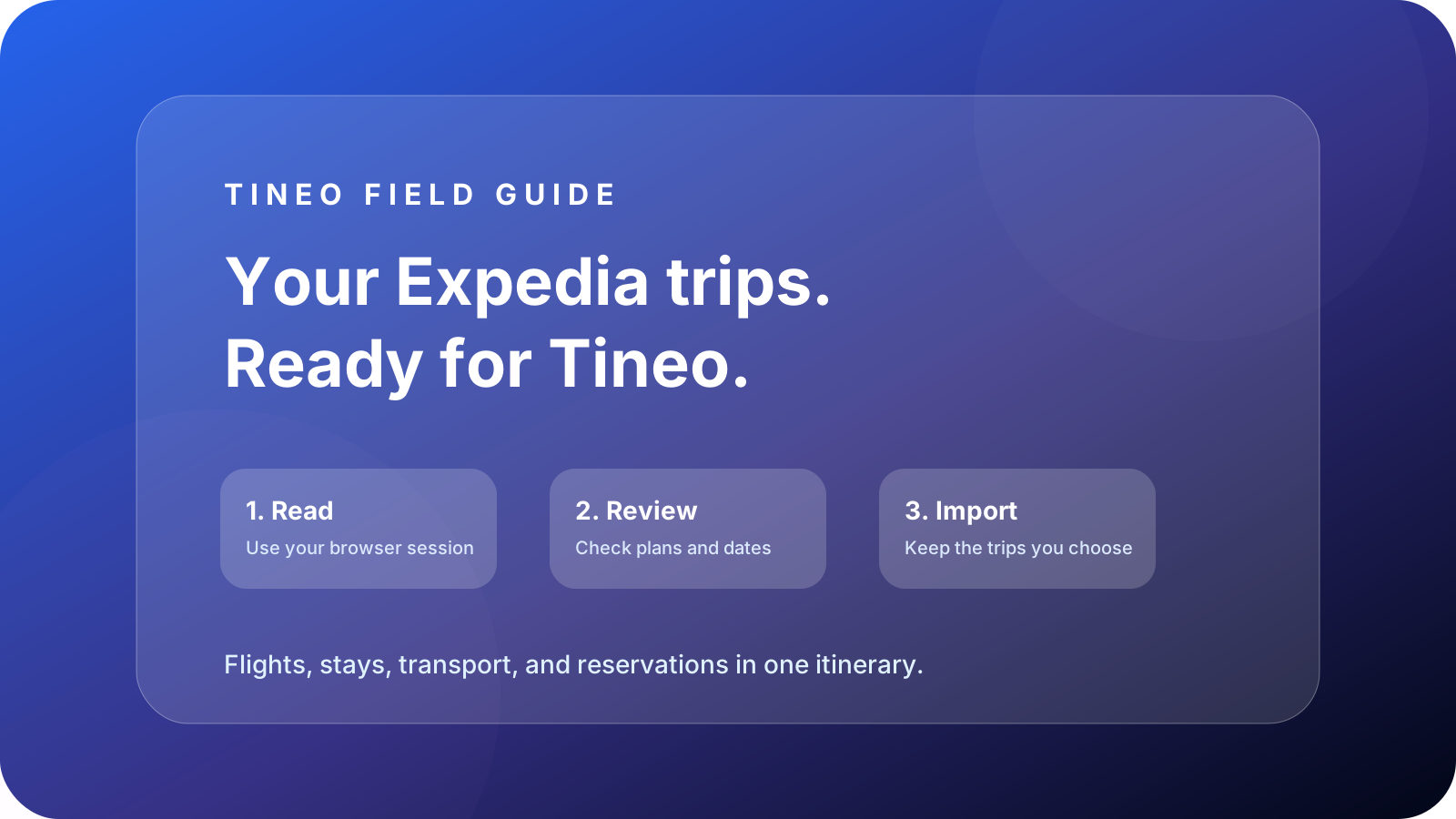
How to Import Expedia Trips into Tineo
Import Expedia trips into Tineo with the Chrome extension. Review booking details, omit unsupported items, and approve missing details added to existing plans.
TripIt
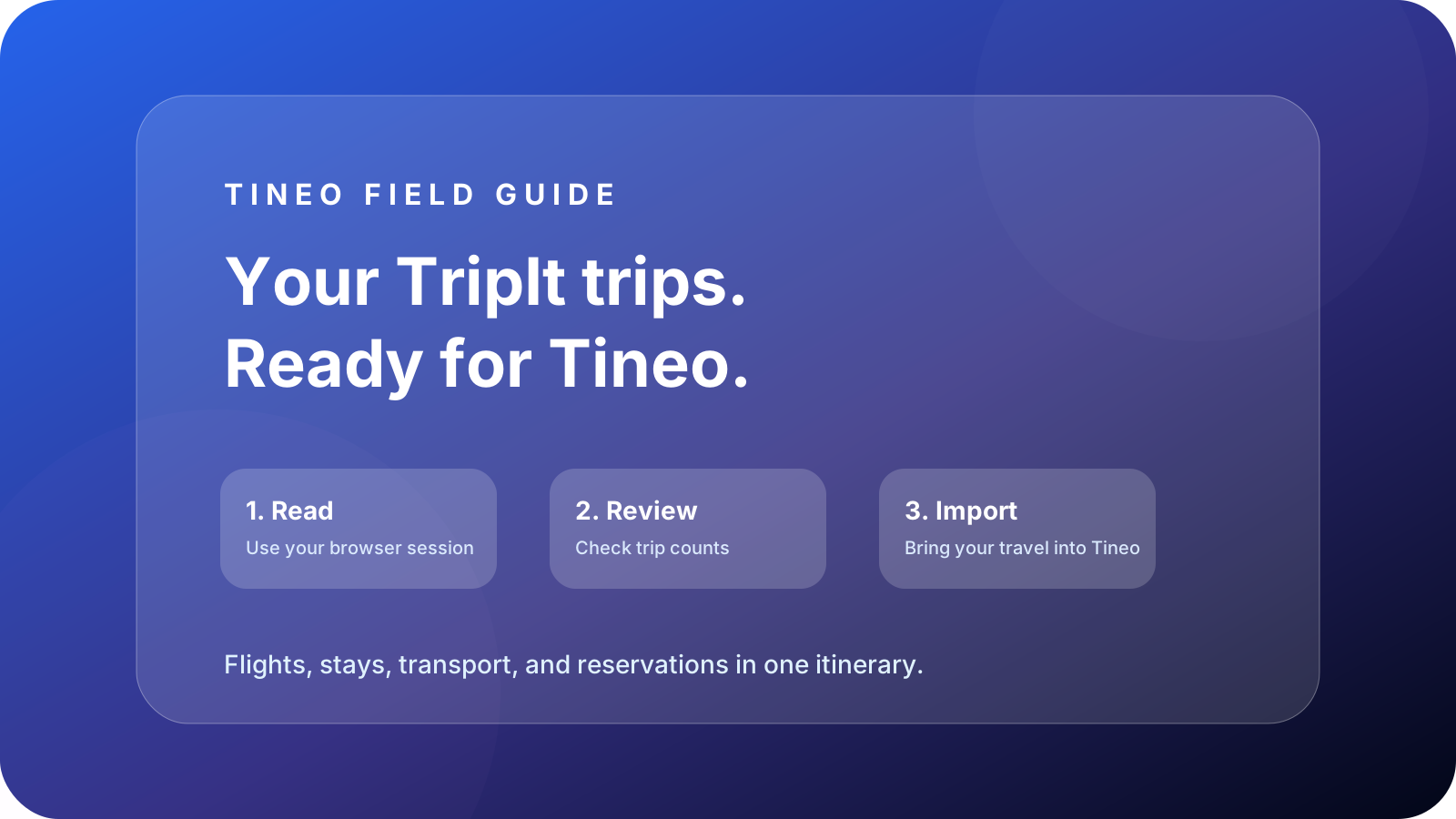
How to Import TripIt Trips into Tineo
Import TripIt trips into Tineo with the Chrome extension. Review upcoming trips, choose whether to include past travel, and check the results before planning.