

How to Import KAYAK Trips into Tineo
Learn how to import KAYAK Trips into Tineo with the Chrome extension, review booked flights, hotels and other plans, and handle duplicates before you import.

On this page
Your KAYAK trip may already contain the flight, hotel, rental car, and dinner you need. Moving that itinerary to Tineo should start with those existing details, rather than another round of typing confirmation numbers.
Quick answer
Tineo’s KAYAK importer uses the Tineo Chrome extension to read trips from your signed-in KAYAK browser session and open a preview in Tineo. You review the proposed plans, choose which trips to keep, and confirm the import. It is a one-time transfer, with checks for existing plans and conflicting details.
Before you start: use a Tineo Chrome extension version that includes Import from KAYAK. If you do not see that action, get the latest available extension update and check again. The steps below apply when your extension includes it.
This guide is published by Tineo. The importer is not an official KAYAK API integration or a claim of partnership with KAYAK.
Install or update Tineo from the Chrome Web Store.
What can you bring over from KAYAK?
The importer recognizes flights, hotels, car rentals, trains, buses, ferries, custom events, directions, and restaurants. A recognized event still needs enough information to become a usable itinerary item. The preview tells you what is ready and what needs attention.
Scroll sideways to read every column.
| What is in your KAYAK trip | What to expect in Tineo |
|---|---|
| Booked flights, stays, and other supported plans | Proposed itinerary items, subject to validation |
| A journey with several legs | Several output segments may come from one source event |
| Saved ideas, items in a cart, or unbooked suggestions | Excluded from confirmed-reservation imports |
| An exact item already imported | Skipped rather than created again |
| Changed details or a conflicting existing plan | Marked for review rather than automatically overwritten |
| Attachments and booking documents | Not automatically downloaded from KAYAK |
The distinction between an idea and a booking matters. KAYAK lets you organize itineraries and manually add activities, as its account and Trips help explains. Seeing an item in a trip does not by itself mean it should become a confirmed reservation in another app.
1. Check your extension and accounts
Use Chrome on a computer and a Tineo extension build that includes Import from KAYAK. Sign in to the extension and Tineo website with the account that should receive your trips. Sign in to KAYAK in the browser too.
If you are starting on a phone or tablet, return to the reading step on a computer. After import, you can open the resulting trips in Tineo on your other devices.
You can reach the review page through Settings → Preferences → Imports → KAYAK, or open Import from KAYAK. If the extension action is missing, get the latest available extension update and check again before troubleshooting your KAYAK account.
2. Read your KAYAK trips
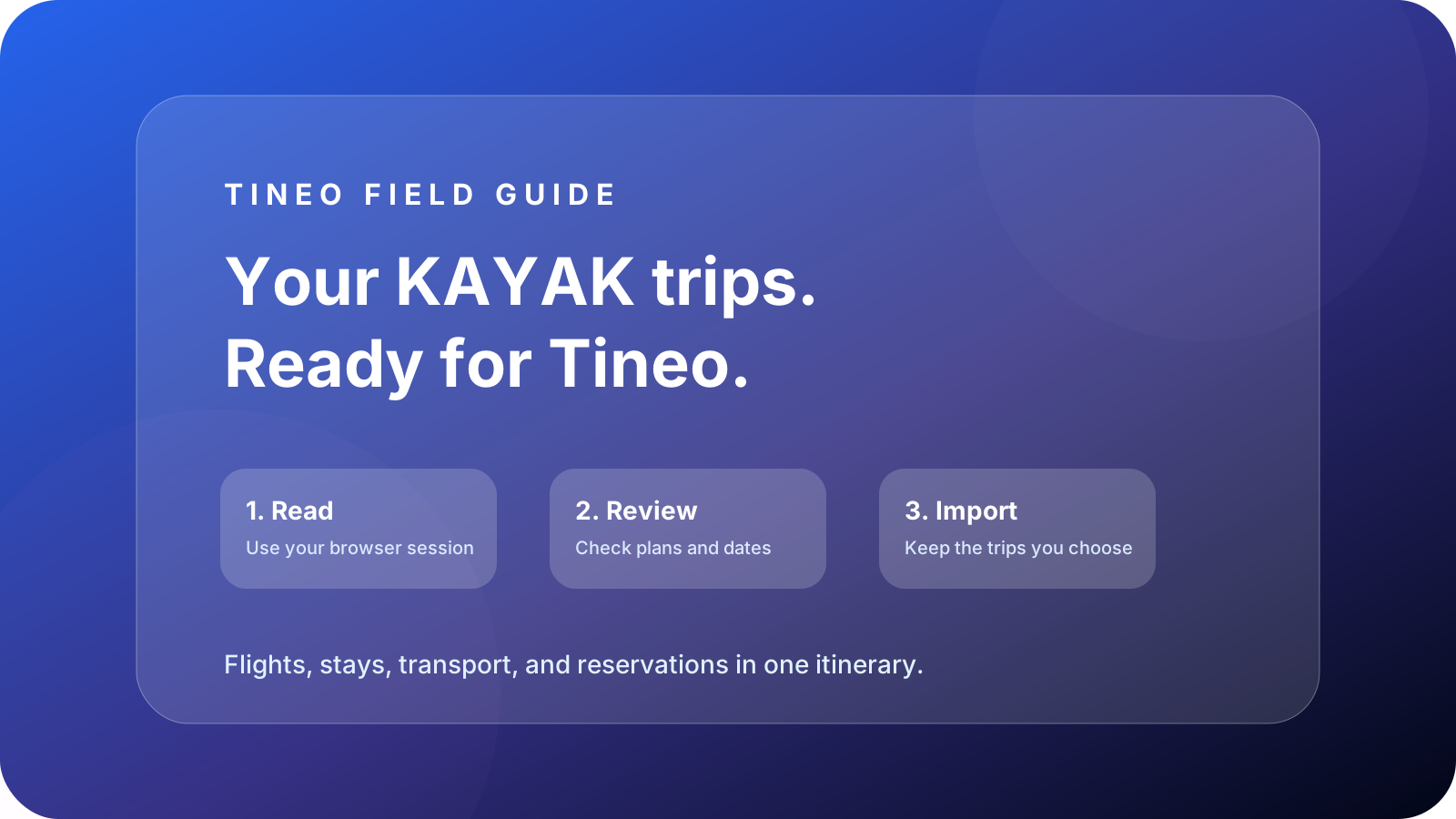
Open the Tineo extension, choose Import from KAYAK, then Continue. Allow access to www.kayak.com when Chrome asks. Keep the KAYAK tab open while the extension reads your trip list and details, including available past and upcoming trips.
If KAYAK asks you to sign in or complete verification, do that in the KAYAK tab, then choose Try again in the extension. You do not need to paste a KAYAK password, cookies, or session tokens into Tineo.
After a complete read, Tineo opens the review automatically. If you return later, use Finish import in the extension or Load trips from extension on the import page. The normal workflow does not require downloading a file and uploading it again.
3. Review the proposed itinerary
Expand Plan details and import checks for each trip. Check travel dates, confirmation numbers, booking states, and warnings. Previewing does not create trips or plans in Tineo.
Deselect whole trips you do not want. If an event has missing or unsupported information, Leave events out of this import lets you omit it. Omitting an event leaves out all of its segments and keeps the original KAYAK trip unchanged. After changing the selection or omissions, choose Review selection again.
For an illustrative example, imagine a trip with a booked outbound flight, a hotel reservation, and a saved restaurant idea. The flight and hotel can be proposed for import if their details validate. The saved restaurant idea is excluded. A connecting flight may create more than one segment, so a different source-event count and output-segment count is not necessarily a problem.
Resolve the warnings before continuing. A trip with unresolved blockers cannot be imported.
4. Import and check the result
Choose Import and keep the page open until the per-trip results appear. Open each imported trip and check the itinerary against the original confirmations, especially overnight journeys and arrival dates.
Exact previously imported items are recognized on another review. Changed plans require attention; importing again does not silently overwrite them. Source cancellations are identified, but this workflow does not automatically cancel or delete an existing Tineo plan.
Keep tickets, boarding passes, and other documents separately because the importer does not download KAYAK attachments. Importing also does not change the underlying reservation. For booking changes, follow the booking provider’s instructions; KAYAK’s booking help explains that the booking company manages the reservation.
If the reading or import stops
An incomplete capture cannot be imported. Keep the KAYAK tab open and choose Try again in the extension to read the trips again. If an import partially fails, inspect the results, resolve the issue, and use Review again before retrying.
The extension also offers Save JSON for a local backup of its capture. On the import page, expand Have an export file? to upload that Tineo-generated JSON through the same preview checks. Keep the file somewhere you trust: it contains itinerary information. This backup is optional, and saving it does not create trips.
Once the bookings are in place, use the Tineo quick-start guide to organize the rest of the trip. For new confirmations arriving later, see how to organize travel confirmation emails.
KAYAK export and Tineo import: which direction?
The extension transfers KAYAK → Tineo. Its optional JSON export contains captured KAYAK data for import into Tineo; it does not send existing Tineo trips back to KAYAK. For other accounts, follow the TripIt import guide or Expedia import guide.
Frequently asked questions
Can I import KAYAK Trips into Tineo now?
Use a Tineo Chrome extension version that includes Import from KAYAK. If you do not see that action, get the latest available extension update and check again before following this guide.
Does importing KAYAK Trips set up automatic sync?
No. This is a one-time import from your signed-in KAYAK browser session. Later changes are not automatically synchronized, and conflicting changes require review.
Are saved KAYAK ideas imported as reservations?
No. Saved, in-cart, and unbooked suggestions are excluded from confirmed-reservation imports. Missing or contradictory booking information needs review.
Will importing change or delete my KAYAK trips?
The workflow reads KAYAK itinerary data and lets you choose what to create in Tineo. Deselecting a trip or omitting an event does not change the original KAYAK trip.
Can I import from my phone?
Complete the browser reading step in Chrome on a computer. After import, open the resulting trips in Tineo on your other devices.
Keep reading
Expedia
How to Import Expedia Trips into Tineo
Import Expedia trips into Tineo with the Chrome extension. Review booking details, omit unsupported items, and approve missing details added to existing plans.
TripIt
How to Import TripIt Trips into Tineo
Import TripIt trips into Tineo with the Chrome extension. Review upcoming trips, choose whether to include past travel, and check the results before planning.
AI Travel
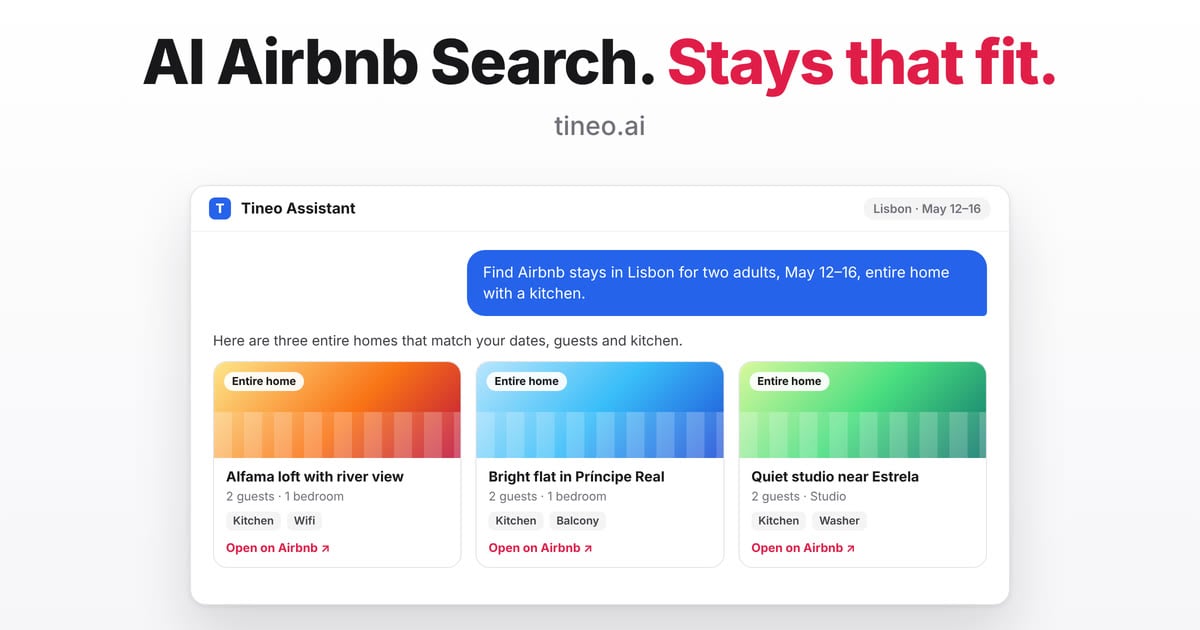
AI Airbnb Search: find stays with Tineo Ultra
Use Tineo's AI Airbnb Search to compare stays by destination, dates and traveler needs, then confirm the details on Airbnb before booking.