

Best iPhone Travel Apps: Save Maps and Import Bookings Before You Go
Choose iPhone travel apps for maps, flights, and bookings, then use Tineo to import confirmations and share one itinerary. Set up offline maps, too.

On this page

Install these categories before your next trip: maps and navigation, an itinerary manager that auto-imports confirmation emails, a flight tracker, a booking app, a translator, a money and exchange app, offline maps, and a group expense splitter. The itinerary manager matters most, because it keeps every booking on one shareable timeline. Today, download your maps and connect your email or calendar.
TL;DR:
- Choose Apple Maps for CarPlay, Apple Watch haptics, and city Guides, or Google Maps for broader place coverage, reviews, and transit routing.
- Downloaded maps support driving directions, but walking, biking, and transit can be limited; download destination areas and language packs, then test them in airplane mode.
- Connect the inbox that receives confirmations to an itinerary manager, then enable calendar sync and offline access so companions can use one updated trip timeline.
- Prioritize shared itineraries and expense splitting for group trips, flight alerts for frequent flyers, and offline maps and translation when mobile data may be scarce.
- Tineo organizes existing bookings rather than booking travel; its free plan costs $0 monthly, while Ultra costs $4.99 monthly or $39.99 yearly.
Table of Contents
- 1. Which travel app categories should you install on your iPhone?
- 2. How do you choose the right travel apps for your trip?
- 3. Why do itinerary managers with email auto-import save time?
- 4. What should you configure on your iPhone before you go?
- 5. How do you keep travel apps secure and decide what to pay for?
- 6. Where does Tineo fit as your itinerary hub?
- FAQ
- Sources
1. Which travel app categories should you install on your iPhone?
A good iPhone travel setup is a small, reliable stack rather than a long list of apps. PCMag’s travel app roundup makes the same point: start with maps, translation, booking and money, then add specialized apps based on how you travel. Here is what each category does and which iOS features to look for.
Navigation. Apple Maps is the better pick when you want tight iPhone integration: turn-by-turn directions, CarPlay, Apple Watch haptics and curated city Guides, as Apple describes on its Maps page. Google Maps tends to win on place coverage, with photos, reviews and transit routing, and it also offers offline downloads for selected areas. Many travelers keep both and switch depending on the city.
Itinerary manager. This is the app that holds your flights, hotels, rental cars and activities in one timeline. We cover why it matters in its own section below.
Flight tracker. Specialist apps such as Flighty pull data from sources like the FAA and Eurocontrol. The Points Guy notes that these tools can send proactive notifications and flight-change alerts faster than many airlines. On iPhone, the real advantage is glanceable information: Lock Screen widgets and Live Activities show gate and terminal changes without opening anything. If you are replacing App in the Air, our guide to App in the Air alternatives covers what happened to it and how to bring your flight history with you.
Booking apps. Airline and hotel apps are worth installing for saved reservations, mobile check-in and digital boarding passes. Keep the confirmation emails, too, since they feed your itinerary manager.
Translation. Choose an app that offers downloadable offline language packs and camera translation. Menus and street signs are where you will use it most.
Money and exchange. Use an app that shows mid-market exchange rates so you can spot a poor rate at an airport kiosk or a card terminal. Pre-funding a travel card or multi-currency wallet before departure also helps you avoid surprise bank fees.
Group tools. For shared trips, you need a shared itinerary and an expense splitter. Our guide to a group travel planner app covers the itinerary side.
Offline maps. Downloaded areas keep working without a signal, but not everything survives the trip offline. Driving directions generally hold up, while transit, biking and walking directions can be unavailable or degraded.
Quick priorities when you are comparing apps on iPhone:
- Offline support for maps, language packs and trip details
- Widgets or Live Activities for time-sensitive information
- Calendar and email sync so you are not retyping bookings
- Sharing options for travel companions
Pro Tip: Open each app once on Wi-Fi before you leave, sign in, and allow notifications. Many apps only prompt for permissions on first launch, and you do not want to be handling that at a boarding gate.
2. How do you choose the right travel apps for your trip?
Match the stack to the trip, then run through a short setup before you leave. The criteria below do most of the filtering for you:
- Offline capability: Does it still work with no signal?
- iPhone features: Does it offer widgets, Live Activities or Siri Shortcuts?
- Calendar and email sync: Can it pull in bookings without manual entry?
- Collaboration: Can others view or edit the trip?
- Cost model: Is the free tier enough, or does the key feature sit behind a subscription?
- Privacy: Does it ask only for the permissions it needs?
Trip style changes the priorities. A solo city break needs maps, a translator and a flight tracker. A group trip needs a shared itinerary and expense splitting first. Frequent flyers get the most from a flight tracker and an itinerary manager. A road trip leans on offline maps. If you expect little mobile data, put offline maps and language packs at the top of the list.
Pre-trip setup, in order:
- Download offline maps for every city and region you will visit.
- Download translation language packs.
- Add payment methods to Apple Wallet and your money app.
- Connect your email or calendar to your itinerary manager.
- Add trip widgets to your Home Screen and Lock Screen.
- Switch on airplane mode and confirm your itinerary and maps still open.
Pro Tip: Do the airplane mode test the night before, not at the airport. If something fails to load offline, you still have time to fix it.
3. Why do itinerary managers with email auto-import save time?
Because your bookings already exist in your inbox. The Points Guy reports that itinerary tools with email auto-import monitor a connected inbox, extract flight, hotel, car rental and activity reservations, and consolidate them into a single shareable timeline. Features often include delay alerts, gate change notifications and collaborative permissions for group travel.
That matters most on busy travel days. Consider three common scenarios:
- Airport arrival: You need the boarding pass, gate and confirmation number in seconds, not after scrolling through a hundred emails.
- Last-minute changes: When a flight shifts or a hotel moves your check-in, an updated timeline beats a forwarded message thread.
- Family or group coordination: One shared trip means nobody asks “what time is the transfer?” in the group chat. Our guide to sharing a travel itinerary with auto import walks through it, and you can also share flight details by text or maps, or use a trip link.
A typical setup checklist looks like this:
- Link the email account that receives your confirmations
- Enable calendar sync so trip events appear in the Calendar app
- Allow offline trip downloads
- Invite your travel companions
If you want a broader comparison of options, see our roundup of the best itinerary apps.
4. What should you configure on your iPhone before you go?
Offline access and connectivity come first, since everything else depends on them. Apple documents that with Maps on iOS 17 or later, offline maps can include turn-by-turn directions and place details, but availability varies by region and offline data may not sync across devices. So download on the iPhone you will actually carry.

For Google Maps, Google’s help page on offline areas explains that driving routes work inside downloaded areas, while transit, bicycling and walking directions are often limited. Download on Wi-Fi before you leave.
Your pre-departure configuration list:
- Download offline maps in both Apple Maps and Google Maps for key destinations
- Confirm your roaming plan, or install a local or travel eSIM before landing
- Add a flight tracker widget to your Lock Screen. Flighty’s iOS Lock Screen widgets surface terminal, gate, seat and baggage claim without opening the app
- Add a trip countdown widget so your departure details are always visible
For readers who want to keep trip planning on their own device, this partner piece on offline AI for travelers covers a private, no-cloud approach.
Pro Tip: Screenshot your boarding pass and hotel address as a backup, but treat it as a fallback. A live itinerary that updates is more reliable than a static image.
5. How do you keep travel apps secure and decide what to pay for?
Start with the basics, then decide on subscriptions based on how often you travel.
- Lock down the device: Keep your passcode active and use Face ID or Touch ID for any app that stores documents or payment details.
- Turn on two-factor authentication for your email, booking and money accounts.
- Review permissions: When an app requests inbox access for auto-import, read what it asks for. You can revoke access later in your email provider’s security settings.
- Pay only for what you use: Occasional travelers are usually fine with free features. Frequent travelers may find premium tiers worth it for faster flight alerts and offline capability. Executive Traveller cites an annual Flighty plan around US$59.99, which is the kind of cost to weigh against how many flights you take.
A useful rule: pay for a subscription only after the free tier has failed you on a real trip.
6. Where does Tineo fit as your itinerary hub?
We built Tineo to be the itinerary manager in the stack above. Forward or connect your confirmation emails, and we organize flights, lodging, car rentals and activities into one trip timeline. You can open it on web, iOS and Android, share it with friends or family, and keep trip details available when you are offline. Our travel organizer guide shows how it works in practice.
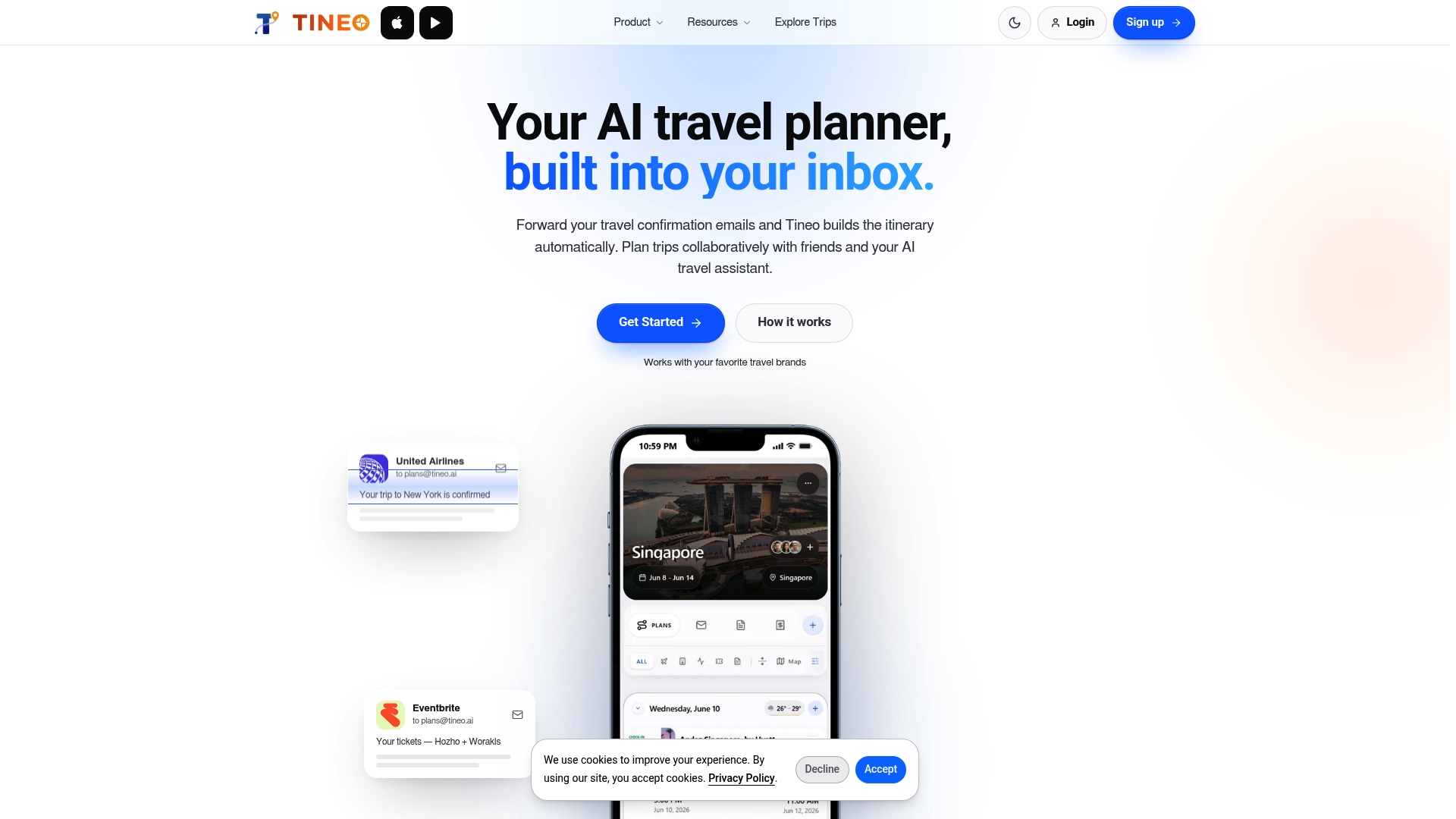
Why add it to your setup:
- Less manual entry, since bookings come in from your emails
- Simpler group coordination through one shared trip
- Documents, reservations and timeline in a single place
Tineo does not book travel for you. It organizes what you have already booked. Tineo Free costs $0 per month, and Tineo Ultra is $4.99 per month or $39.99 per year, with advanced AI capabilities and document intelligence. To test it, Tineo, import one confirmation email, and send yourself a shared trip link to see how it looks to a travel companion.
FAQ
What is the best travel itinerary app for iPhone?
The best choice is an itinerary app that auto-imports confirmation emails, works offline and shares trips with companions. We recommend Tineo for keeping bookings in one timeline. Compare options in our itinerary app roundup.
What is the best travel map app for iPhone?
It depends on the trip. Apple Maps offers deep iPhone integration, while Google Maps offers broad place coverage and offline downloads. Many travelers install both and download offline areas in each.
What is the number one travel app?
No single app covers every need. A map app and an itinerary manager are the most useful pair, with a flight tracker, translator and money app added by trip type.
Do offline maps work for walking and transit?
Only partly. Driving directions usually work inside downloaded areas, but transit, walking and biking directions can be limited offline. Download maps on Wi-Fi and test them in airplane mode.
Sources
- Thepointsguy
- Flighty’s app will bring flight tracking and more to your iOS 16 Lock Screen | TechCrunch
- How to download maps to use offline on your iPhone - Apple Support
- Google Maps App - App Store