

Tineo Is Ready for iPhone Duo: A Layout for Every Posture
Tineo on iPhone Duo adapts to every posture: closed, book, laptop and fully open. See how your trips, plans and map use the side strip and both pages.

On this page
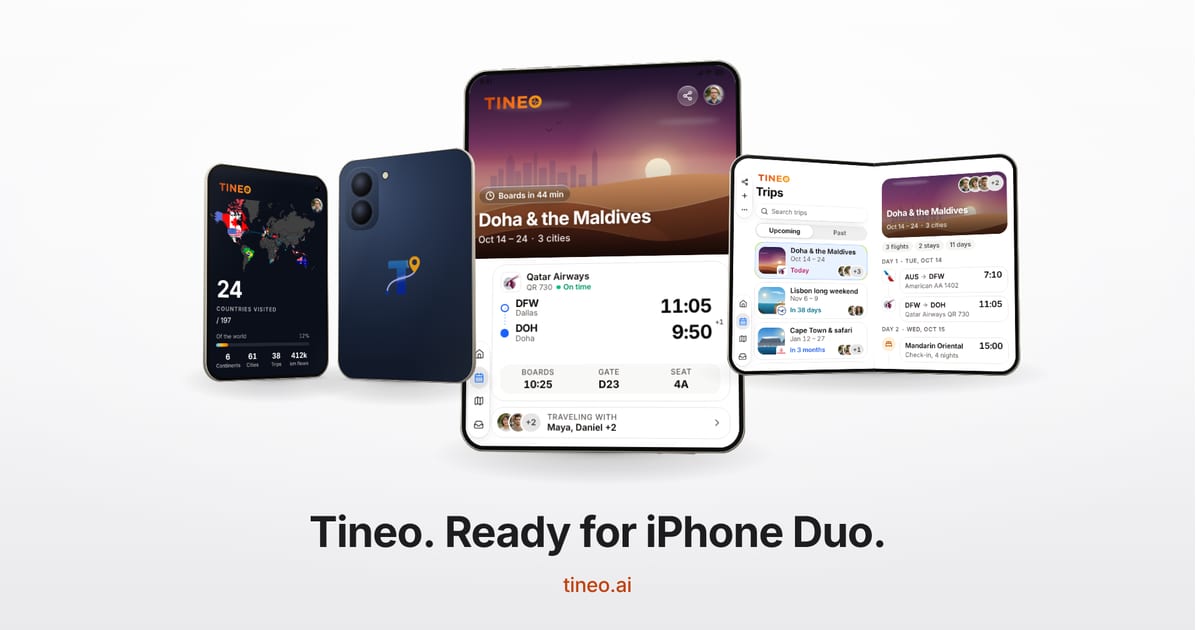
Tineo is ready for iPhone Duo. Closed in one hand, half open like a book, propped up like a laptop or fully open, Tineo gives each posture a layout made for it. The menu and tabs move into the side strip or the header so pages run full height, two-page views split right on the hinge, and the trip map runs edge to edge. The iPhone Duo layouts arrive with the next Tineo update on the App Store; turn on automatic updates and they’ll be there when it lands.
The Tineo for iPhone Duo teaser (18 seconds, with sound). Watch or share it directly: landscape 16:9 video or portrait 9:16 video.
Closed: the side strip becomes the header
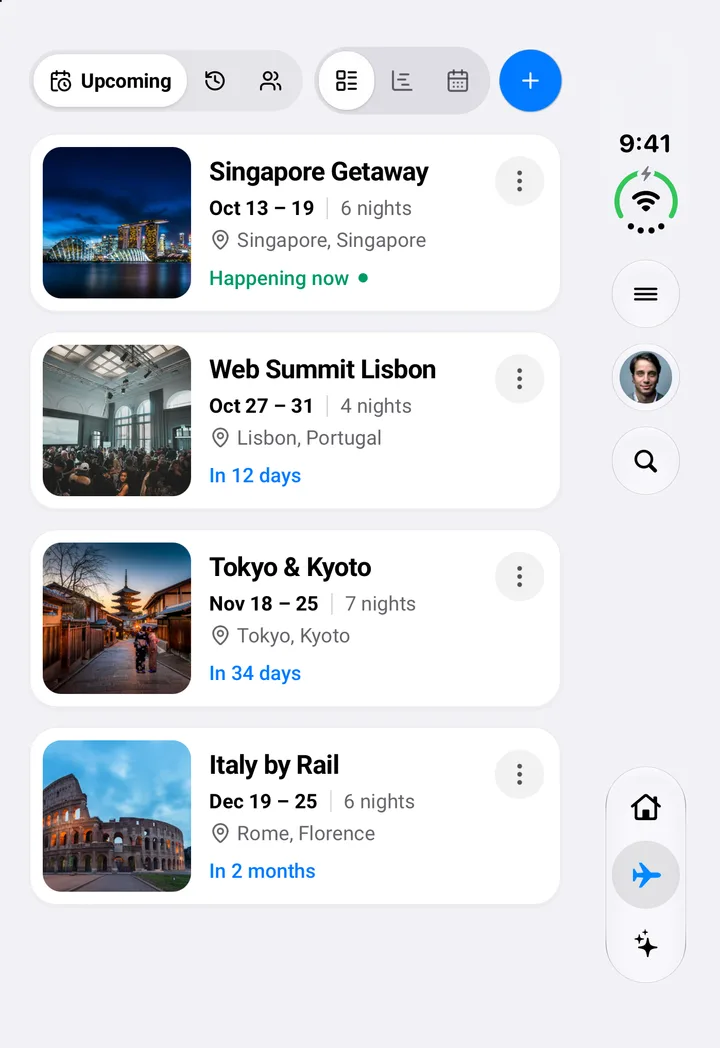
On the outer display, the system’s vertical side strip becomes Tineo’s header. The menu, your profile, search, Back and the Home, Trips and Assistant tabs all sit in the strip, so nothing is stacked on top of your trips and every page runs the full height of the screen.
The Trips page is the one you know from iPhone: Upcoming, Past and Friends, with Cards, Timeline and Calendar views on a single row.
Book: your itinerary on one page, what’s happening now on the other
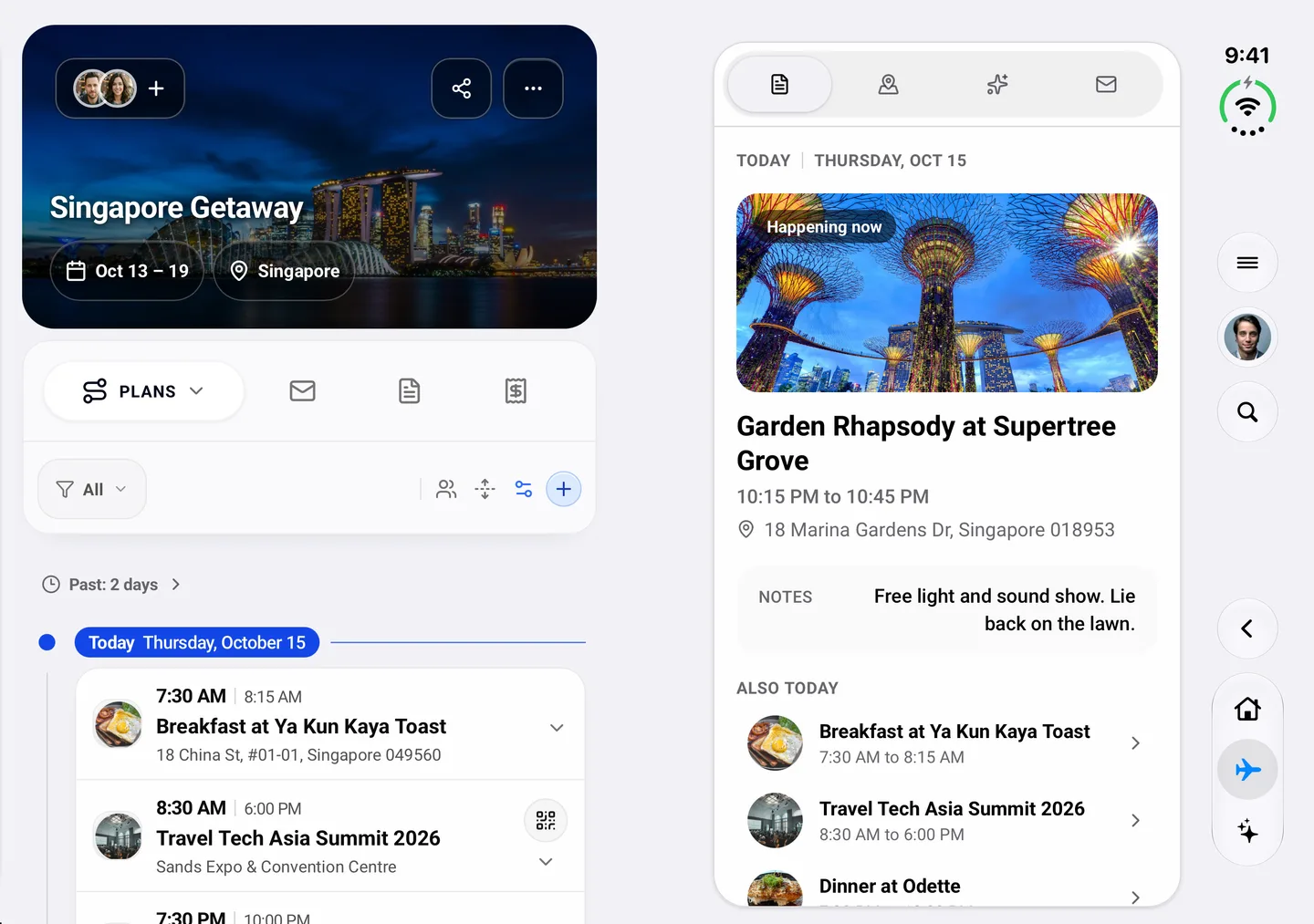
Half open with the hinge upright, iPhone Duo reads like a book. Tineo puts the trip and its itinerary on the left page, with each day as an accordion you can open and close. The right page opens on the plan happening now, or the one up next, with its photo, time, address and notes, followed by the rest of today.
Laptop: the trip and the map above the fold
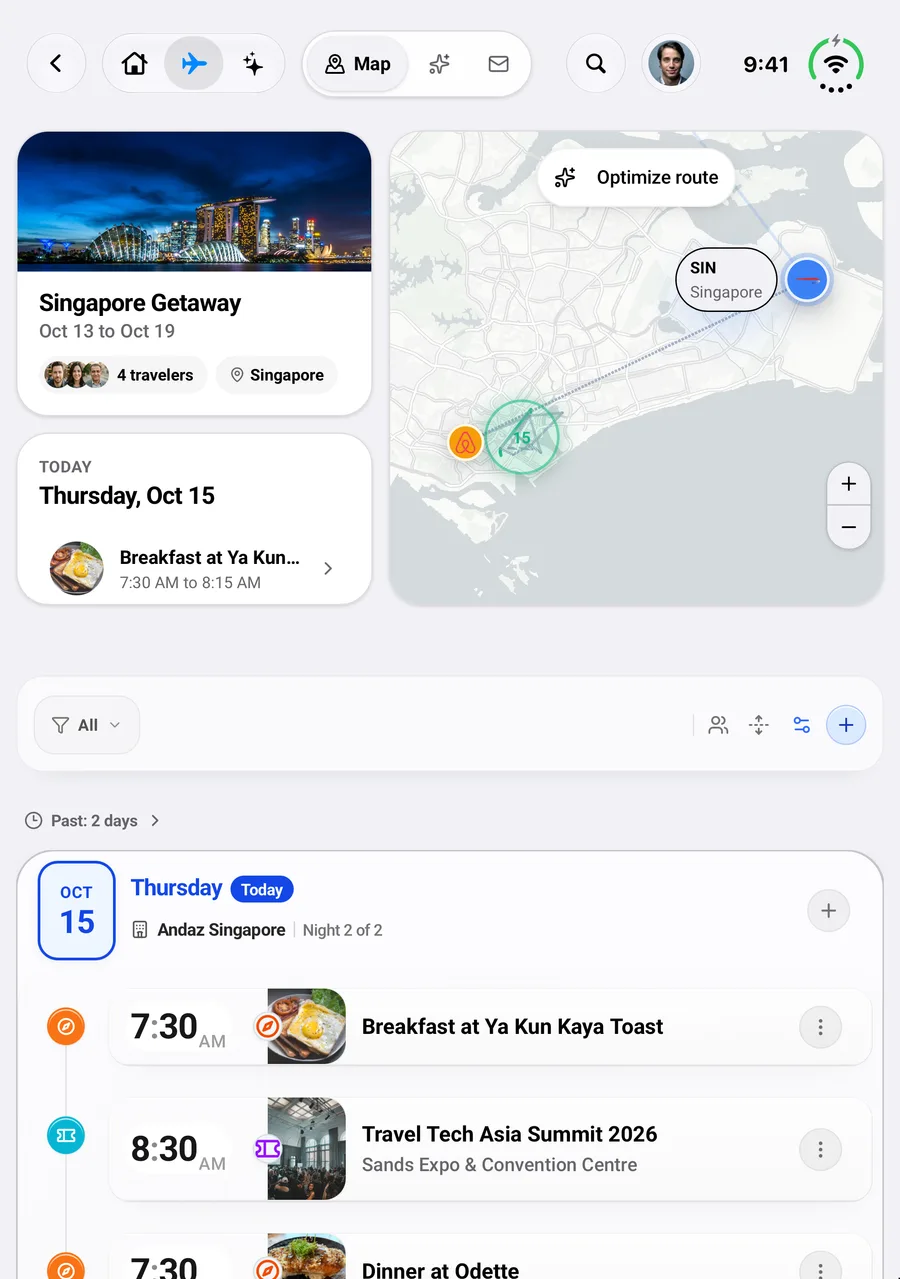
Half open with the hinge level, the top half becomes a dashboard: the trip card, the plan you’re looking at and the map, all above the fold. Your plans run below the hinge. Map, AI and Emails join the header, next to Back and the Home, Trips and Assistant tabs.
Fully open in portrait: a taller view of your trips
Unfolded in portrait, Home, Trips and Assistant move into the header, so there’s no tab bar at the bottom of the screen. The Trips tab opens on your trip’s cover with the next plans and their photos underneath.
Fully open in landscape: two pages, split on the hinge
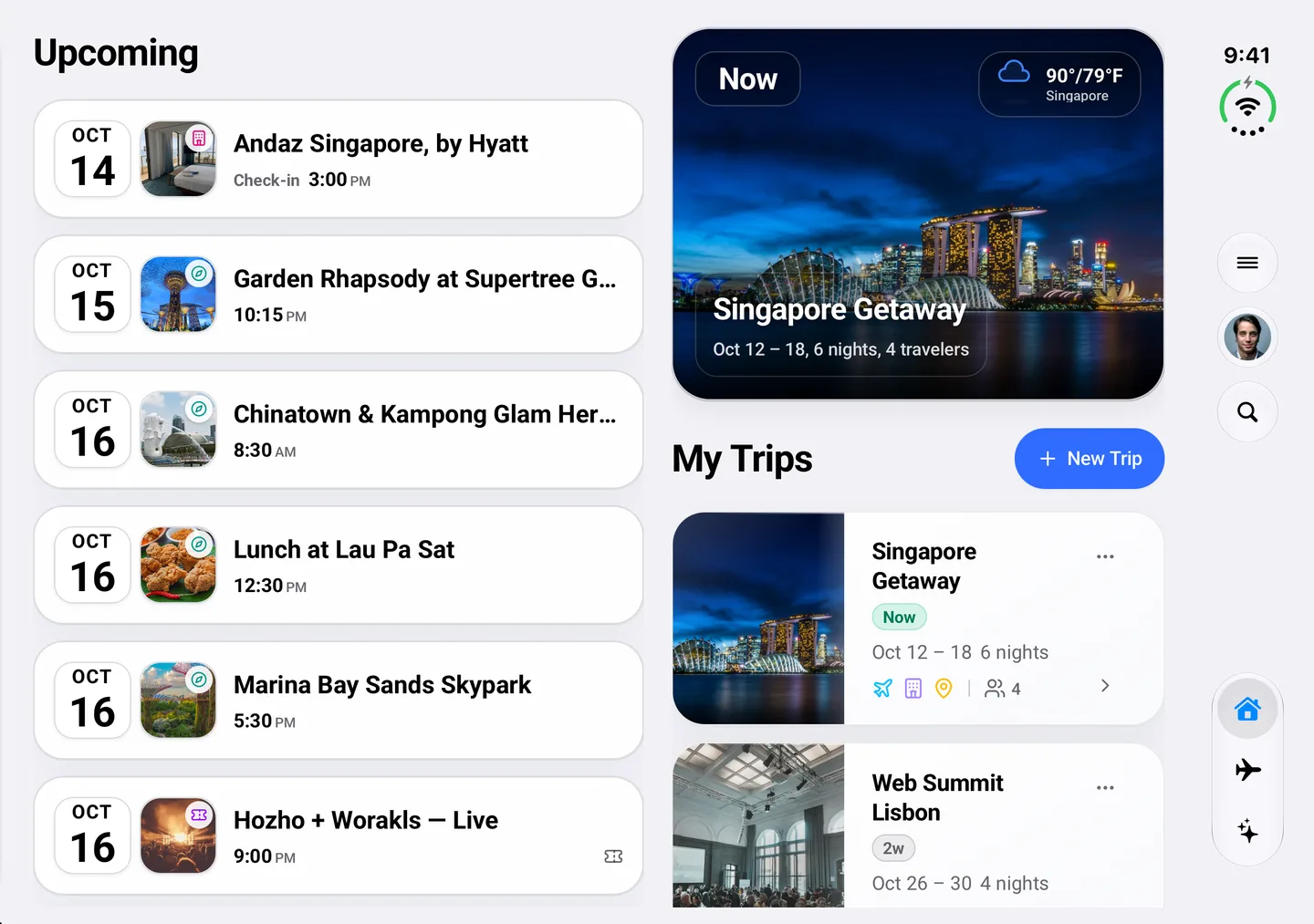
Turn the fully open iPhone Duo sideways and Tineo becomes a two-page spread. Home shows your upcoming plans on the left page and the trip happening now, plus My Trips, on the right. The split sits exactly on the hinge, and you can drag the seam to give either side more room. Tineo remembers where you left it.
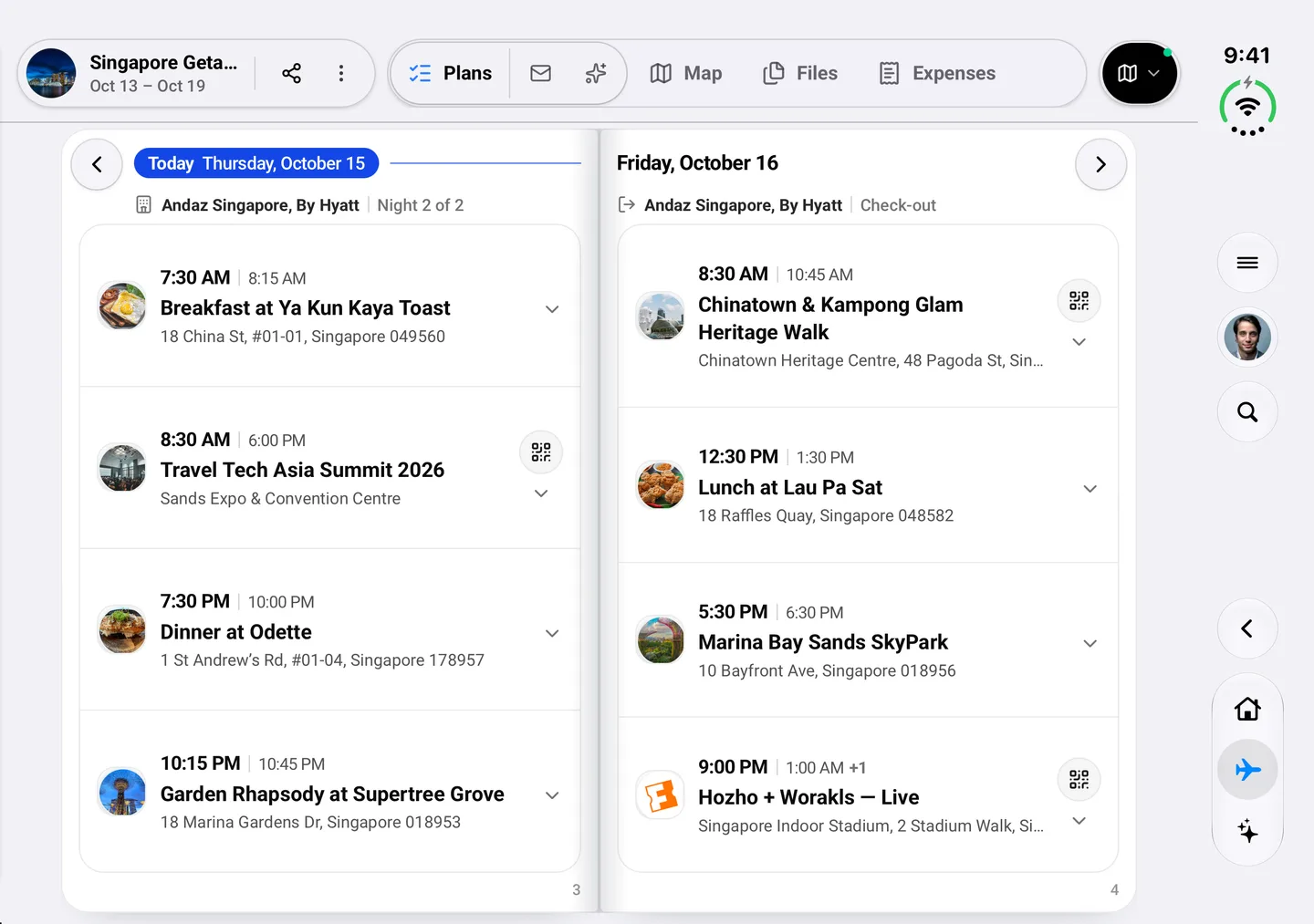
Open a trip and it switches to the Canvas trip view. Plans open as a book, one day per page: today on the left, tomorrow on the right. Turn the page to see the next days.
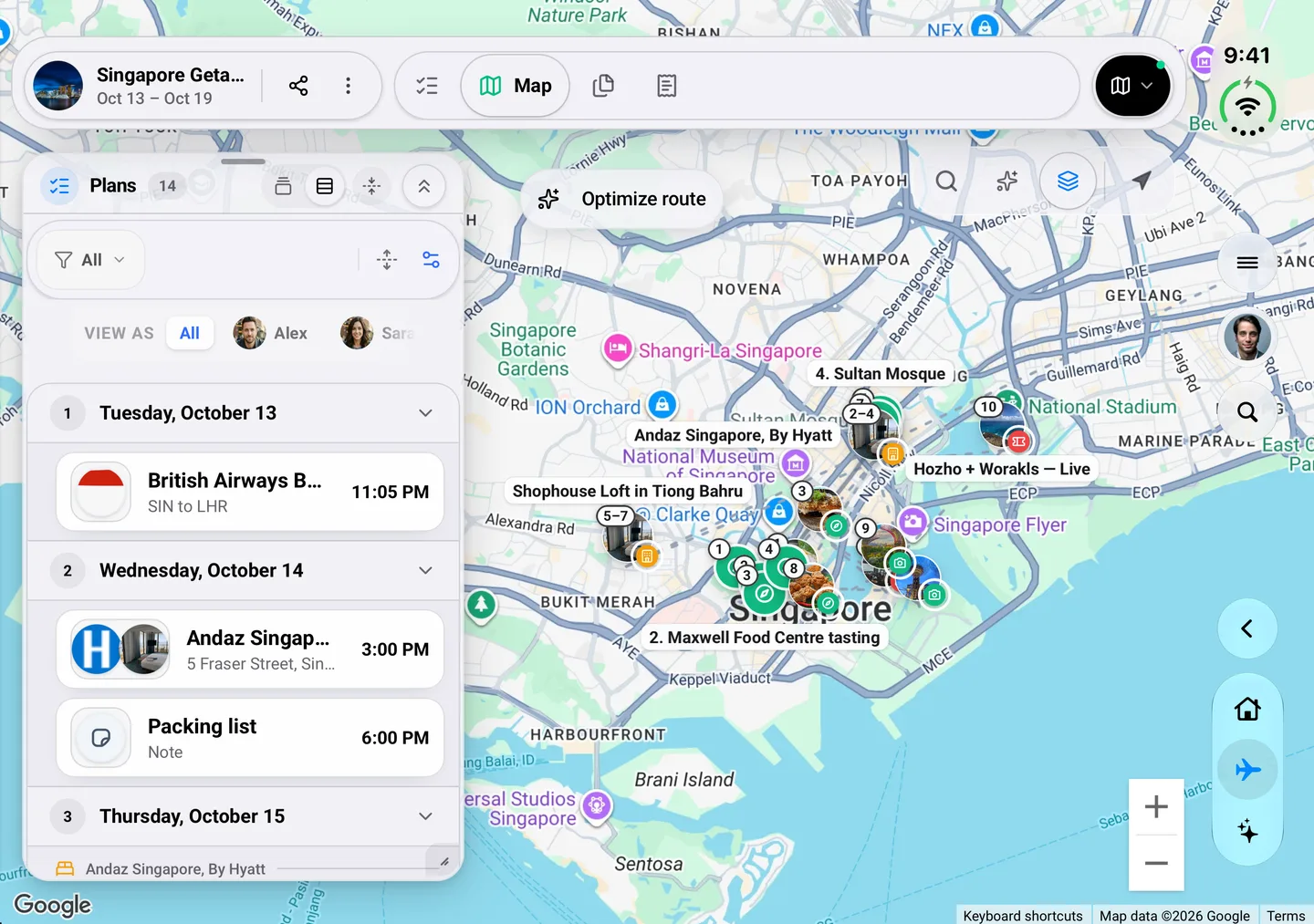
Switch to Map and the map runs under the side strip, edge to edge, with your plans in a panel beside it.
Every posture at a glance
Scroll sideways to read every column.
| Posture | How you hold it | What Tineo shows |
|---|---|---|
| Closed | Folded, using the outer display | The side strip as the header, full-height pages, and the Trips page with Cards, Timeline and Calendar |
| Book | Half open, hinge upright | The itinerary as day accordions on the left page, the plan happening now or up next on the right |
| Laptop | Half open, hinge level | The trip card, plan detail and map above the fold, plans below; Map, AI and Emails in the header |
| Fully open, portrait | Unfolded, held upright | Home, Trips and Assistant in the header; the trip cover and next plans with photos |
| Fully open, landscape | Unfolded, held sideways | Two-page spreads split on the hinge with a draggable seam, the Canvas trip view, and a page-turn book for your days |
You don’t need to set anything up. Tineo switches layout as you fold, unfold or turn your iPhone Duo.
Smaller touches
- Photo pins on the map: on iPhone Duo, the trip map shows your plans’ photos on their pins, so you can spot the restaurant or the museum at a glance.
- Smarter map labels: labels are placed around the pins inside the visible part of the map, so they don’t pile up on each other.
- An iOS 27-style menu: the navigation menu now looks like the Settings app in iOS 27, with colourful rounded icons.
Portrait 9:16 cut for phones and Stories. Direct links: portrait 9:16 video or landscape 16:9 video.
How to get started
- Install Tineo from the App Store on your iPhone Duo, and update to the latest version once it’s out: the Duo layouts come with the next update.
- Sign in. Your trips are already there.
- Fold, unfold or turn the device. Tineo picks the layout for you.
New to Tineo? Forward a booking confirmation email and Tineo turns it into an organised itinerary, which then shows up on your iPhone Duo.
Tineo on your other devices
Your trips follow you. Tineo is on iPhone, iPad and Mac from the App Store, on Apple Watch with flight and plan complications, on Android from Google Play, and on the web at tineo.ai.
You can also bring your trips into an AI conversation. Tineo is in Claude’s connector directory and ChatGPT’s plugin directory, and developers can connect Tineo’s MCP server to Claude Code.
Screenshots and the teaser show the iPhone Duo simulator with sample trips, not real traveler data.
Frequently asked questions
Which iPhone Duo postures does Tineo support?
All of them: closed on the outer display, book (half open with the hinge upright), laptop (half open with the hinge level), and fully open in portrait or landscape. Tineo switches layout as you fold, unfold or turn the device, with nothing to set up.
Where are the menu and tabs when my iPhone Duo is closed?
In the system’s vertical side strip. Tineo turns the strip into its header, with the menu, your profile, search, Back and the Home, Trips and Assistant tabs, so every page runs the full height of the outer display.
Can I change where the two pages split?
Yes. When the iPhone Duo is fully open in landscape, Home and the trip view split exactly on the hinge. Drag the seam to give one side more room, and Tineo remembers your width.
Is Tineo on iPhone Duo a separate app?
No. It’s the same Tineo app from the App Store, with the same trips you see on your iPhone, iPad, Mac, Apple Watch, Android phone and on the web at tineo.ai.
Keep reading

Tineo
Smart Check-In: When Check-In Opens and Closes for Your Airline
Tineo Smart Check-In shows when check-in opens and closes for your airline and route, adds airline notes, and opens the airline's own check-in page in one tap.
Tineo
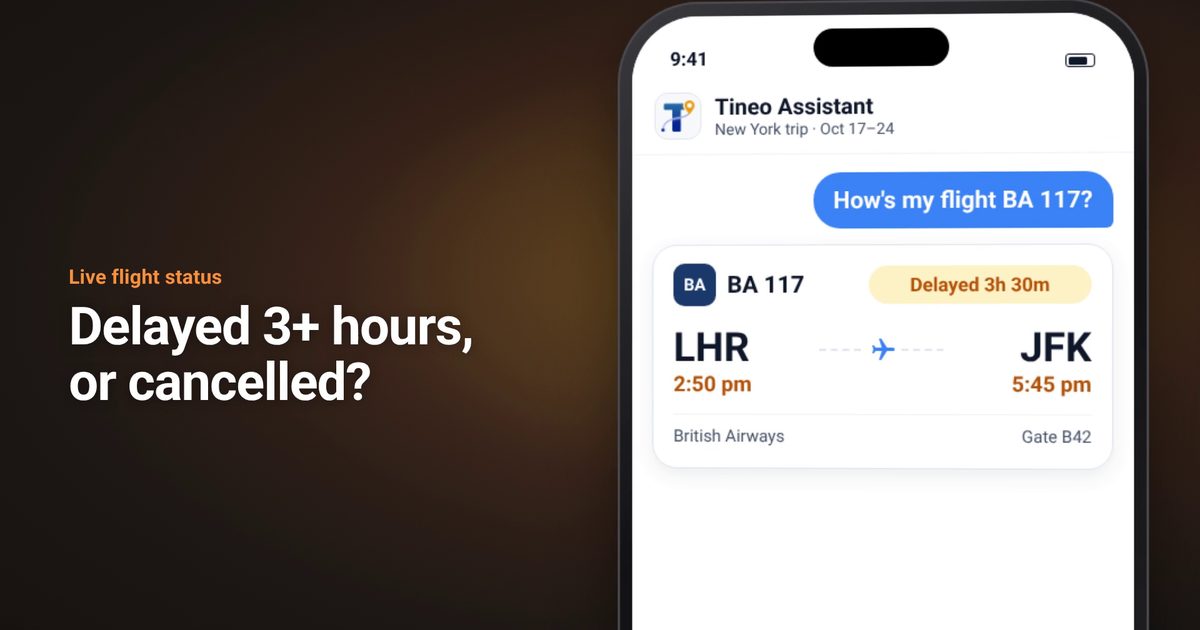
Flight Cancelled or 3+ Hours Late? Check Your Claim With AirHelp
When your flight is cancelled or arriving 3+ hours late, Tineo now links you to an AirHelp compensation check in the assistant and flight alerts.

Tineo
Tineo for Chrome: Import Your Booking From the Open Email
The Tineo Chrome extension can now read the booking email or page you have open and turn it into plans. Check the text, select Find plans, and choose what to add.