

Sync Trip Calendars: Subscribe, Don’t Import in Google, Outlook & Apple
Add trips to Google, Outlook, or Apple Calendar by subscribing instead of importing. Includes steps for a Trip.com booking and how Tineo publishes a feed.

On this page

The fastest way to see your trips alongside your schedule is to subscribe to your travel app’s iCal (ICS) feed or enable your email-to-calendar feature in Google Calendar. Subscribing creates a dynamic, read-only link that updates on its own, while importing a file only captures a one-time snapshot. Expect some lag: calendars check feeds on their own schedule, sometimes within hours, sometimes up to a day.
TL;DR:
- Subscribe to the travel app’s ICS feed rather than importing a file; subscriptions reflect itinerary changes, while imports remain fixed snapshots.
- Feed updates may take several hours or up to a day; Outlook subscriptions added through the web often refresh about every four hours.
- Keep secret ICS URLs private because anyone who obtains one can view trip details; use a dedicated calendar and limit shared events to availability.
- Avoid duplicate bookings by choosing one sync method per trip; remove imported events before subscribing, and disable Gmail Smart Features when its automatic extraction overlaps.
Table of Contents
- How calendar subscriptions work: import vs subscribe
- Add a trip to Google Calendar step by step
- Subscribe to a trip feed in Outlook, web and desktop
- Apple Calendar and iCloud quick steps
- Add a Trip.com booking to your phone calendar
- Common problems and how to fix them
- Privacy, visibility, and sharing controls for synced trips
- How Tineo helps with trip calendar sync
- How to sync trip calendars across multiple devices and platforms
- Managing synchronization conflicts and duplicate events
- Security considerations when syncing trip calendars via third-party apps
- Try Tineo to collect reservations and publish a calendar feed
- FAQ
- Sources
How calendar subscriptions work: import vs subscribe
Most travel apps that let you sync trips generate a private iCal (ICS) address behind the scenes. That address is a feed, not a file, and it’s what lets your calendar app check back for changes instead of locking in a single version of your trip.
Understanding the difference between importing and subscribing saves a lot of frustration later:
- Importing an .ics file adds a fixed set of events to your calendar as they existed the moment you downloaded the file.
- Subscribing to the same feed’s URL creates a live connection, so added, canceled, or rescheduled bookings show up automatically.
Google’s documentation on syncing with other calendar programs describes this same distinction from the other direction: a “secret address in iCal format” lets another app view your Google Calendar as a read-only feed. The same logic applies when a travel app publishes its own secret URL for you to add elsewhere.
Subscribing is the better choice whenever your itinerary might change, which covers nearly every real trip. Importing is acceptable only for something static, such as a conference schedule you know won’t move. The trade-off is privacy: a subscribed feed often keeps updating even after you’ve forgotten about it, so it’s worth reviewing which calendars you’ve subscribed to every so often.
Pro Tip: Before adding any feed, open the ICS URL once in a browser tab to confirm it loads text instead of an error page. A broken link will fail silently in some calendar apps.
Add a trip to Google Calendar step by step
Google Calendar supports both subscription feeds and automatic event creation from your inbox, and the two work differently enough that it helps to know which one you’re using.
To subscribe to a travel app’s feed on desktop:
- Open Google Calendar on the web and find “Other calendars” in the left sidebar.
- Click the plus icon, then choose “From URL.”
- Paste the secret ICS address from your travel app, exactly as provided, following the standard URL-subscription method Google and third-party guides describe.
- Click “Add calendar,” then confirm it appears under “Other calendars” in the sidebar.
- Give it a few minutes, then refresh to check that trip events have populated.
Separately, Google can create events directly from confirmation emails without any feed at all. When Smart Features are turned on in Gmail, Google automatically adds flights, hotel stays, and other reservations to your calendar, pulling the date, time, and location straight from the email and linking back to a “View confirmation” button. This happens without you subscribing to anything, which is convenient, but it only works for emails Google recognizes and only for the Gmail account where Smart Features are enabled.
One detail worth knowing before you turn this on: events created automatically from Gmail default to visible only to you, not to anyone your calendar is shared with. That’s a sensible default for reservation details, but it also means collaborators won’t see the trip unless you adjust sharing settings separately, which we cover in the privacy section below.
If you’d rather enter flight and hotel details by hand, or your email provider doesn’t support automatic extraction, manual entry remains a reliable fallback, though some booking details may not carry over cleanly when you later sync that calendar to a different platform.
Subscribe to a trip feed in Outlook, web and desktop
Outlook handles subscribed calendars well through its web interface and less consistently through the desktop app, so the order you do things in actually matters.
The most reliable path:
- Sign in to Outlook on the web and open Calendar.
- Select “Add calendar,” then “Subscribe from web.”
- Paste the ICS URL from your travel app and give the calendar a name you’ll recognize.
- Save, then check back after a short wait to confirm events have loaded, since Outlook.com and Outlook on the web manage subscriptions through Exchange Online, which refreshes feeds on its own schedule with some delay rather than instantly.
Desktop Outlook can be the weaker link here. If a subscription added through the desktop app refuses to populate or stops updating, a few fixes tend to resolve it:
- Add the subscription through Outlook on the web first, since Exchange Online often succeeds where the desktop client fails, then let it sync down to desktop.
- Remove the calendar entirely and re-add it rather than trying to repair an existing subscription.
- Confirm which account type you’re using (Microsoft 365, Outlook.com, or an on-premises Exchange account), since subscription behavior differs across them.
- Check whether your organization’s IT policy restricts external calendar subscriptions, which can block the feed silently.
For property managers or travel coordinators who need near real-time updates across a team, an ICS subscription may not be the right tool at all. A shared Microsoft 365 calendar, with proper permissions set for each team member, updates faster and supports two-way edits that a one-way subscription feed can’t offer.
Apple Calendar and iCloud quick steps
Subscribing to a trip feed on Apple devices follows a similar pattern to Google and Outlook, with a couple of Apple-specific quirks worth knowing before you start.
- On a Mac, open Calendar, choose File, then “New Calendar Subscription,” and paste the feed’s webcal:// or https:// address.
- On iPhone or iPad, go to Settings, Calendar, Accounts, Add Account, Other, then “Add Subscribed Calendar,” and paste the same URL.
- Subscribed calendars in iCloud are typically read-only, so you won’t be able to edit individual events once they’ve synced; use an account-based calendar instead if you need to make changes directly.
- If events load only partially, confirm the feed URL uses a standard web port, since unusual configurations can cause iOS and macOS to time out before the full feed downloads.
Once added, subscribed calendars in Apple Calendar sync across your other Apple devices automatically through iCloud, so you only need to set it up once per Apple ID.
Add a Trip.com booking to your phone calendar
A guide hosted on Trip.com, written by a contributor and dated August 2025, describes an in-app route for hotel bookings:
- Open the Trip.com app and sign in.
- Go to your booked trips and open the hotel reservation.
- Scroll to the bottom of the booking page and tap “Add to smartphone calendar.”
- If nothing appears, check that the app has full calendar access in your phone’s settings.
- Open your calendar app and confirm the stay is on the right dates.
That guide covers hotel reservations in the app only. It does not describe a website option, and it does not say whether the event changes when the booking does, so treat it as a one-time copy and recheck it after any change.
For flights, trains, or a trip booked across several sites, the subscribe route in this guide works for any provider: forward each confirmation email to an itinerary app that publishes a calendar feed, then subscribe to that feed once in Google, Outlook, or Apple Calendar.
Common problems and how to fix them
Most “my trip calendar isn’t updating” complaints come down to expected polling delays rather than an actual failure, but it’s worth knowing when something is genuinely broken.
First, set realistic expectations. Subscribed calendars are not instant. Platform documentation and support threads consistently describe polling delays ranging from a few hours to as long as a full day, and Outlook accounts added through the web interface often refresh roughly every four hours when managed through Exchange Online. If it’s been less than a day, the fix may simply be patience.
If a feed genuinely seems stuck, work through this checklist:
- Run the ICS URL through an online iCalendar validator to confirm the feed itself is well formed.
- Remove the subscription completely and re-add it through the web version of your calendar app rather than the desktop client.
- Test the same feed in a different calendar client, such as Thunderbird, to tell whether the problem is the feed or the app you’re using.
- Check for authentication headers or caching behavior that some servers apply differently to calendar requests, which can cause partial or stalled reads.
- Confirm the feed is served over a standard port, since non-standard configurations can cause some clients to load only a portion of events.
Pro Tip: If you’re troubleshooting a feed you control or one a property management tool generates, host a test version of the .ics file on a standard web server using port 80 or 443, then validate it before troubleshooting the calendar client itself.
Privacy, visibility, and sharing controls for synced trips
Syncing a trip calendar means reservation details, sometimes including confirmation numbers or guest names, now live somewhere other than your inbox, so it’s worth a minute to check who can actually see them.
- Events that Google creates automatically from Gmail default to visible only to you, even on a shared calendar, unless you manually change the event’s visibility.
- Shared calendars can be configured to show collaborators only “busy” or “free” status instead of full event details, which is worth setting deliberately rather than leaving at the default.
- Creating a dedicated calendar just for travel, separate from your main personal or work calendar, makes it much easier to control exactly who sees trip details when you share access.
- Property managers juggling multiple reservations can share a calendar that exposes only availability to partners or cleaning staff, keeping guest names and booking details out of that shared view entirely.
None of these settings are complicated once you know where to look, but they’re easy to skip when you’re focused on just getting the feed to work. Taking the extra few minutes after setup, rather than before, tends to be when most people actually remember to check them.
How Tineo helps with trip calendar sync
We built Tineo around a simple idea: your booking confirmations shouldn’t live scattered across your inbox when they could already be organized into one shareable trip.
- We organize flight, hotel, car rental, and activity confirmation emails into a single itinerary accessible across multiple platforms.
- In calendar settings you can link a Google or Microsoft account, or subscribe to a private, read-only iCal feed of your Tineo trips in Apple Calendar, Google Calendar, or Outlook. Subscribed calendars can take up to a day to refresh.
- Families planning a shared trip can view travel details collectively in one place rather than in separate email threads.
- Property managers managing multiple bookings can organize reservation details together to ease coordination.
- Teams coordinating travel can work from a shared itinerary to simplify communication.
If you’re already using email forwarding to build out a trip, our guide on turning confirmation emails into a live itinerary walks through the setup in more detail, and our overview of sharing flight details quickly with a group covers the group-coordination side of the same workflow.
How to sync trip calendars across multiple devices and platforms
Keeping a trip calendar consistent across a phone, a laptop, and a tablet works best when you treat one platform as the source and let the others subscribe to it, rather than adding the same feed separately everywhere and hoping they match.
If your trip lives in Google Calendar, signing into the same Google account on every device keeps events consistent automatically, since Google syncs natively across its own apps. The friction shows up when you cross ecosystems, like viewing a Google-based trip on an Apple device or an Outlook-based one on Android.
In that case, the subscription method already described works the same way regardless of device: grab the feed’s secret URL once, then add it as a subscription in each calendar app you use, whether that’s Apple Calendar on an iPhone, Outlook on a work laptop, or Samsung Calendar on an Android phone. Samsung Calendar, like most calendar apps built on standard calendar protocols, accepts the same ICS subscription format, so the steps are nearly identical to adding a feed in Google Calendar or Outlook.
The practical habit that keeps everything aligned is subscribing once per device to the same feed URL, rather than re-exporting or re-importing files each time something changes. Since a subscription updates on its own, you only need to set it up once per device and then leave it alone.
Managing synchronization conflicts and duplicate events
Duplicate events usually show up when the same trip gets added to a calendar more than once through different methods, most often when someone both imports a file and later subscribes to the live feed for the same trip.
The simplest fix is to pick one method per trip and stick with it. If you’ve already imported an .ics file and later want live updates, delete the imported events first, then add the feed as a subscription rather than layering both on top of each other.

A second common source of duplicates is Google’s automatic event creation from Gmail running alongside a manual subscription to the same travel app’s feed. Since Google extracts reservation details from confirmation emails independently of any calendar subscription you’ve set up, the same flight can appear twice: once from Gmail’s extraction and once from the subscribed feed. Turning off Smart Features for trips you’re tracking through a subscription avoids the overlap.
If duplicates appear only occasionally rather than every time, it’s often a sign the feed itself is being read inconsistently rather than a setup mistake. Re-adding the subscription through the web version of your calendar app, as described in the troubleshooting section above, tends to clear up intermittent duplication without requiring you to delete and rebuild the whole calendar.
Security considerations when syncing trip calendars via third-party apps
Any ICS feed you subscribe to is, by design, a link that keeps pulling data into your calendar indefinitely, so it’s worth treating those secret URLs with the same care as a password.
Because the feed’s security relies entirely on the URL staying private rather than requiring a login, anyone who obtains that link can view your trip details, including dates, destinations, and sometimes confirmation information. Avoid pasting a feed’s secret URL into public documents, group chats visible to people outside your trip, or anywhere it could be indexed by search engines.
If you’re syncing trips through a third-party travel app, check whether the app lets you regenerate or revoke the feed URL if you ever suspect it’s been exposed, similar to resetting a password. Not every app offers this, so it’s a reasonable question to ask before relying heavily on a given service for ongoing sync.
Finally, treat calendar sync as a way to see your schedule at a glance, not as your primary record of trip details. Keep boarding passes, confirmation numbers, and full booking documents inside your travel app itself, where they’re easier to search and less exposed than a calendar event visible to anyone you’ve shared that calendar with.
Try Tineo to collect reservations and publish a calendar feed
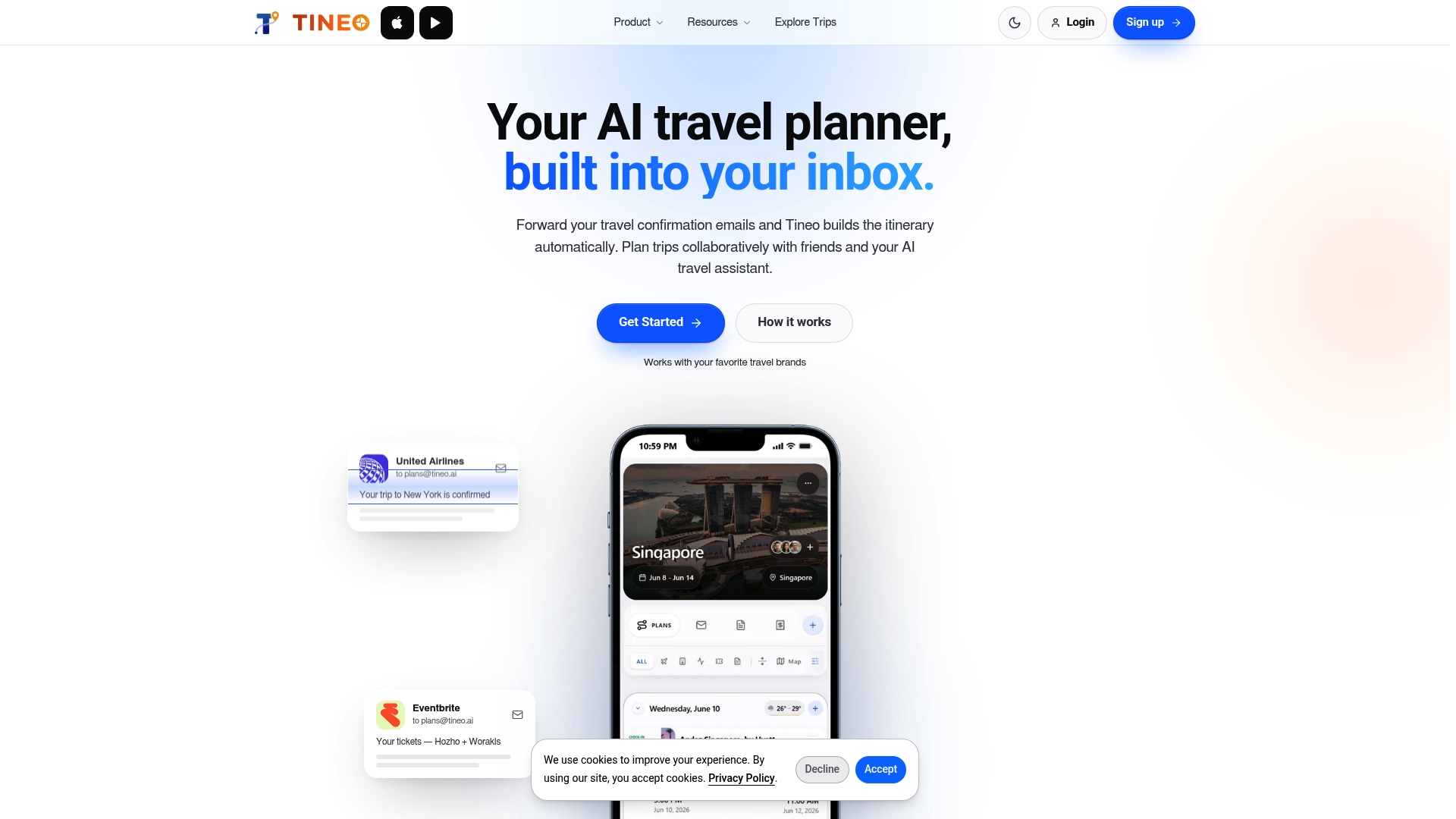
Once your confirmation emails are organized in one place, publishing them to a calendar you already check becomes a much smaller step. We make that first part simple: forward or auto-import your booking emails, and we organize them into one itinerary you can access on web, iOS, and Android. From there, sharing or exporting your trip to a calendar follows the same subscribe-based approach covered throughout this guide.
Getting started costs nothing with Tineo Free, and Tineo Ultra adds deeper sharing tools for $4.99 per month or $39.99 per year for travelers and families who coordinate trips often.
FAQ
What is the best trip planner to use?
The right trip planner depends on whether you want manual itinerary building or automatic organization from your booking emails. Apps that auto-import confirmations, like Tineo, reduce manual entry compared to building an itinerary from scratch.
How do I add my trip to my calendar?
Subscribe to your travel app’s ICS feed URL through your calendar’s “Add by URL” (Google) or “Subscribe from web” (Outlook) option, or enable Smart Features in Gmail to let Google add reservation events automatically. Subscribing keeps the calendar updated as your trip changes, while importing a file only captures a one-time snapshot.
What is the best travel calendar app?
There isn’t one single best app for everyone, since the right choice depends on whether you want a standalone calendar feed or a full itinerary manager that also organizes documents and bookings. Google Calendar and Outlook both support subscribing to travel feeds natively, while dedicated travel apps add organization on top of that sync.
How do I add a Trip.com booking to my phone calendar?
For a hotel booking, a guide hosted on Trip.com describes opening the reservation in the Trip.com app and tapping “Add to smartphone calendar” at the bottom of the page, with calendar access allowed for the app. For other bookings, or to keep the event current, forward the confirmation email to an itinerary app that publishes a calendar feed and subscribe to that feed.
Why does my subscribed calendar not show new trip updates right away?
Subscribed calendars update on a polling schedule set by the calendar app, not in real time, so delays of several hours, and sometimes up to a day, are normal. If it’s been longer than that, removing and re-adding the subscription through your calendar’s web interface usually resolves it.
Sources
- Syncing Trip.com bookings with calendar, contributor guide on Trip.com
- How to add a calendar via URL to Google Calendar
- Import or subscribe to a calendar in Outlook.com or Outlook on the web
- Outlook enterprise: issues subscribing to Internet calendars (Microsoft Community / Docs excerpts)
- How to add your flight and hotel reservation details to Google Calendar
Recommended
Keep reading
airport prompt chatgpt
AI Prompts for the Airport and Travel Days: 18 to Copy into ChatGPT, Claude or Gemini
Copy-and-paste AI prompts for the day you fly: leaving on time, tight connections, delays, cancellations, lost bags and arrival. Works in ChatGPT, Claude and Gemini.

best ai for travel planning
Best AI for Travel Planning: ChatGPT vs Claude vs Gemini
We gave ChatGPT and Claude the same four travel tasks through their APIs and checked Gemini against Google's help pages. What each does well, and which one can save your real bookings.
claude travel prompts
Claude Travel Prompts You Can Copy: 20 for Planning, Booking and the Trip Itself
Copy-and-paste Claude travel prompts for routes, budgets, flights, hotels and travel days, including prompts that use Claude's travel connectors and your own saved itinerary.