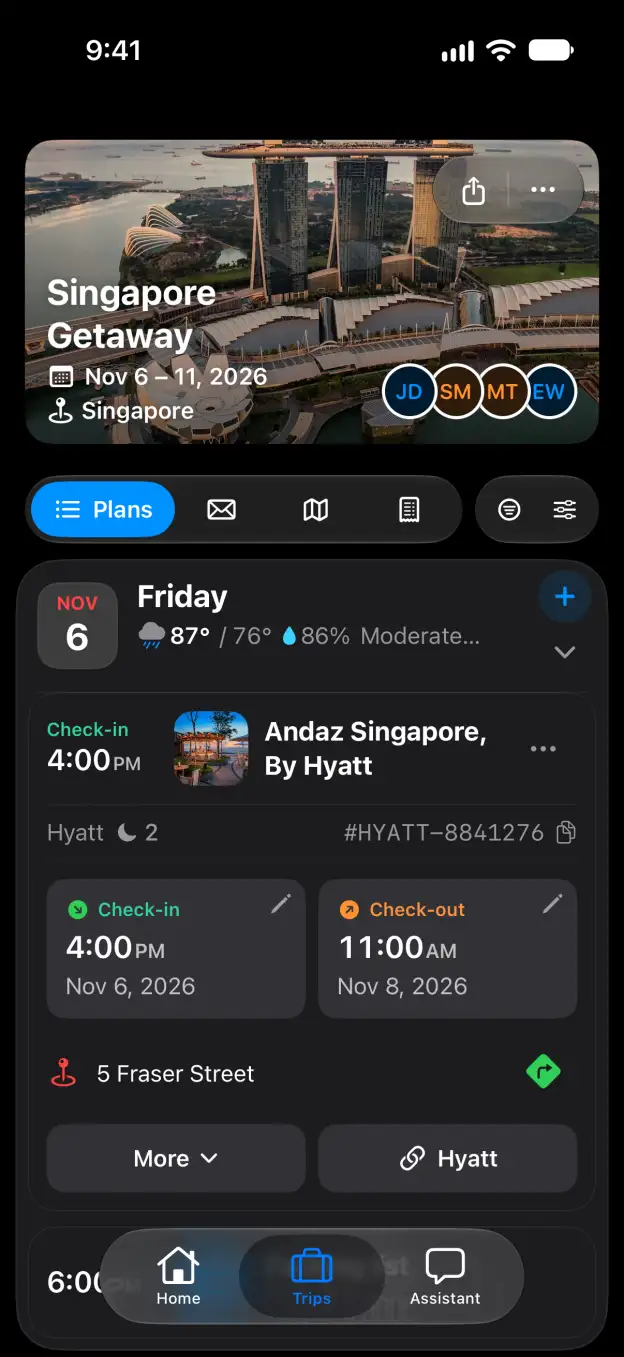

Tineo how-to guide

How to sync trips to your calendar in Tineo

Subscribe to your Tineo trips and choose which trips appear in your calendars.

Steps

  1. In Settings, open Calendar sync. Under Apple iCal & Subscribed Feeds, click Enable iCal Feed if your feed is not on yet.
  2. Click iCal Feed to open the subscription options.
  3. Choose Google Calendar, Apple or Outlook under Subscribe in one tap. Complete the subscription in your calendar app. For manual setup, open How do I keep this synced automatically?.
  4. To change which trips appear, open a trip. Click More trip actions and choose Edit.
  5. Turn Show on my calendars on to include the trip, or off to hide it.
  6. Click Save. Your choice applies to your own Google, Outlook and subscribed calendars.

Good to know

Related

Start planning with Tineo More Calendar Sync guides

Loading…

⚠️

Unable to Load

The app couldn't start. Please check your connection and try again.

Your AI travel planner, 
built into your inbox. 

Forward your travel confirmation emails and Tineo builds the itinerary automatically. Plan trips collaboratively with friends and your AI travel assistant.

Works with your favorite travel brands
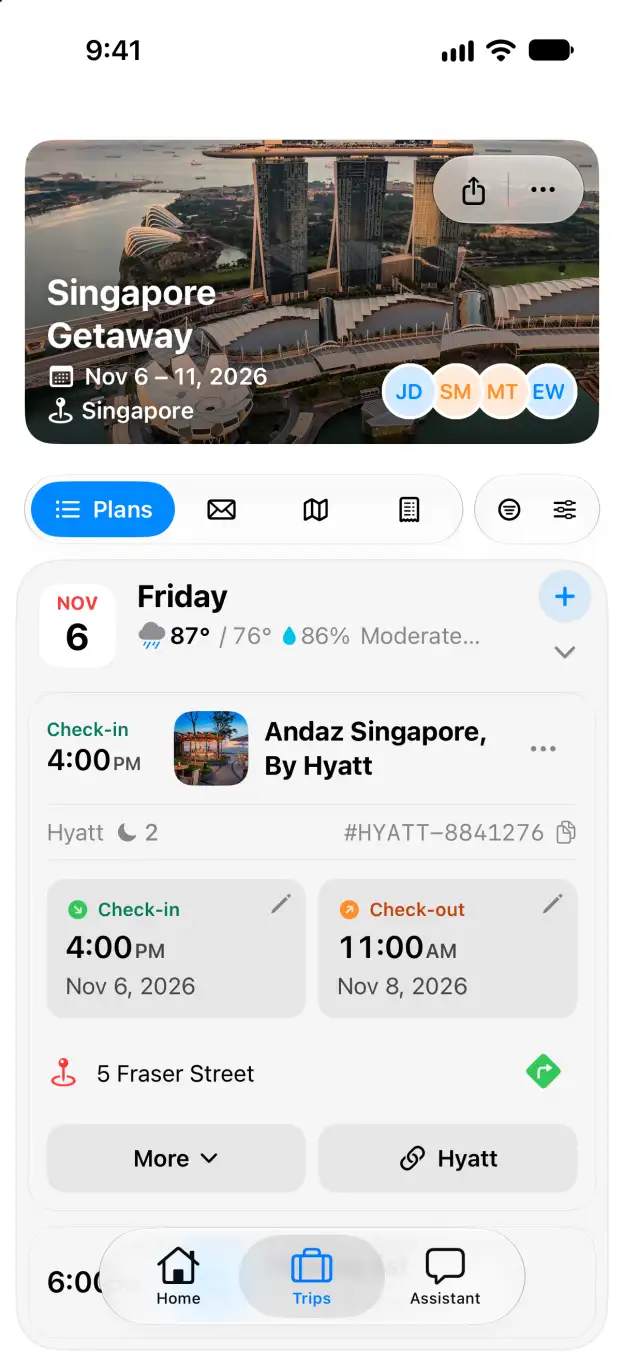
Tineo native iOS Singapore Getaway itinerary with expanded Andaz Singapore stay